Think before you build: 5 messages with Claude, then Claude Code builds an inspiration library that remembers sources
Give Claude the problem, no fix yet: split it into 3, weigh the tech, get a prompt, let Claude Code build a Chrome extension, pick a layout. Prompts inside.
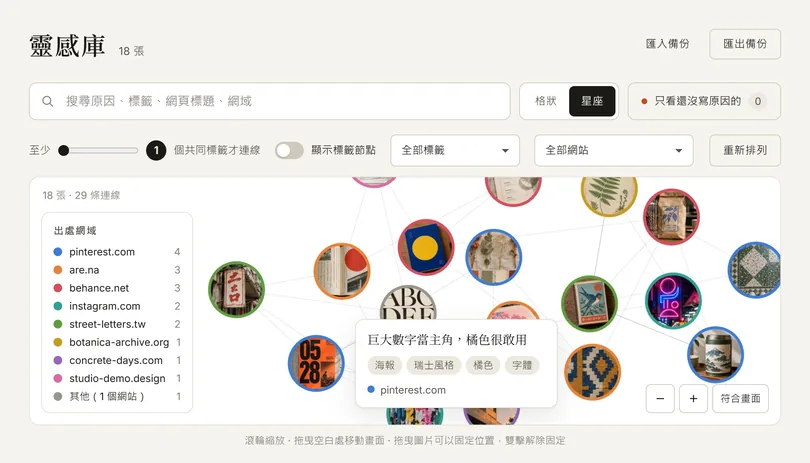
Everyone teaches you to build things with AI. Hardly anyone teaches you to figure out what to build first. This guide lays out a process we really went through. The problem is an everyday one: hundreds of saved inspiration images, and you can never remember where you saw them or why you saved them. We didn't start by asking AI for code. We first sent Claude 5 messages: break the problem down, ask about technical trade-offs, have it write a prompt for Claude Code to build the first version, then ask for three layout directions and pick one, the "constellation". Every screenshot below is the real Chrome extension "Inspiration Library" (靈感庫) that Claude Code built; the sample images inside it are AI-generated and the sample data is fictional.
01The result first: every inspiration image remembers its source and reason
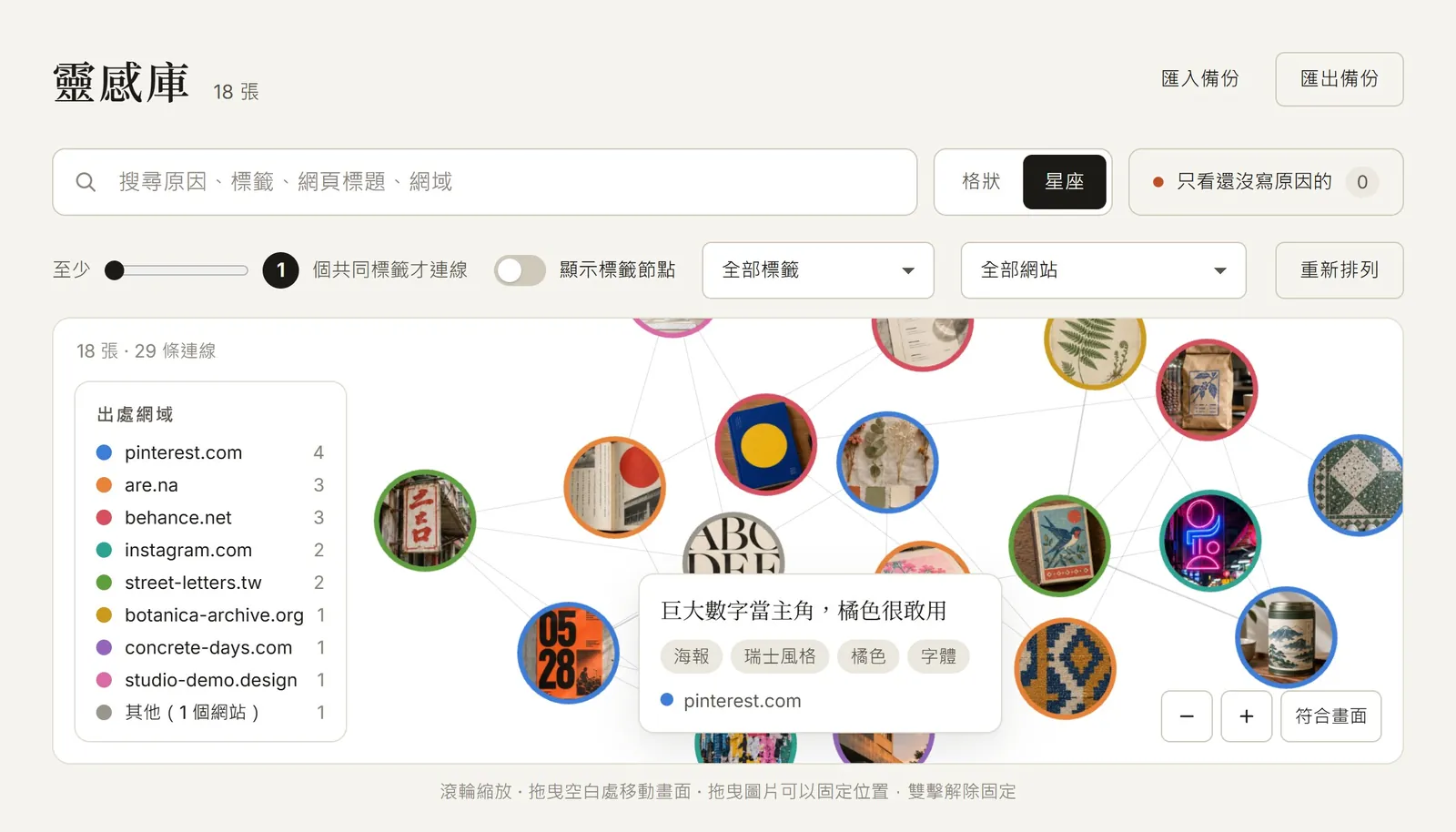
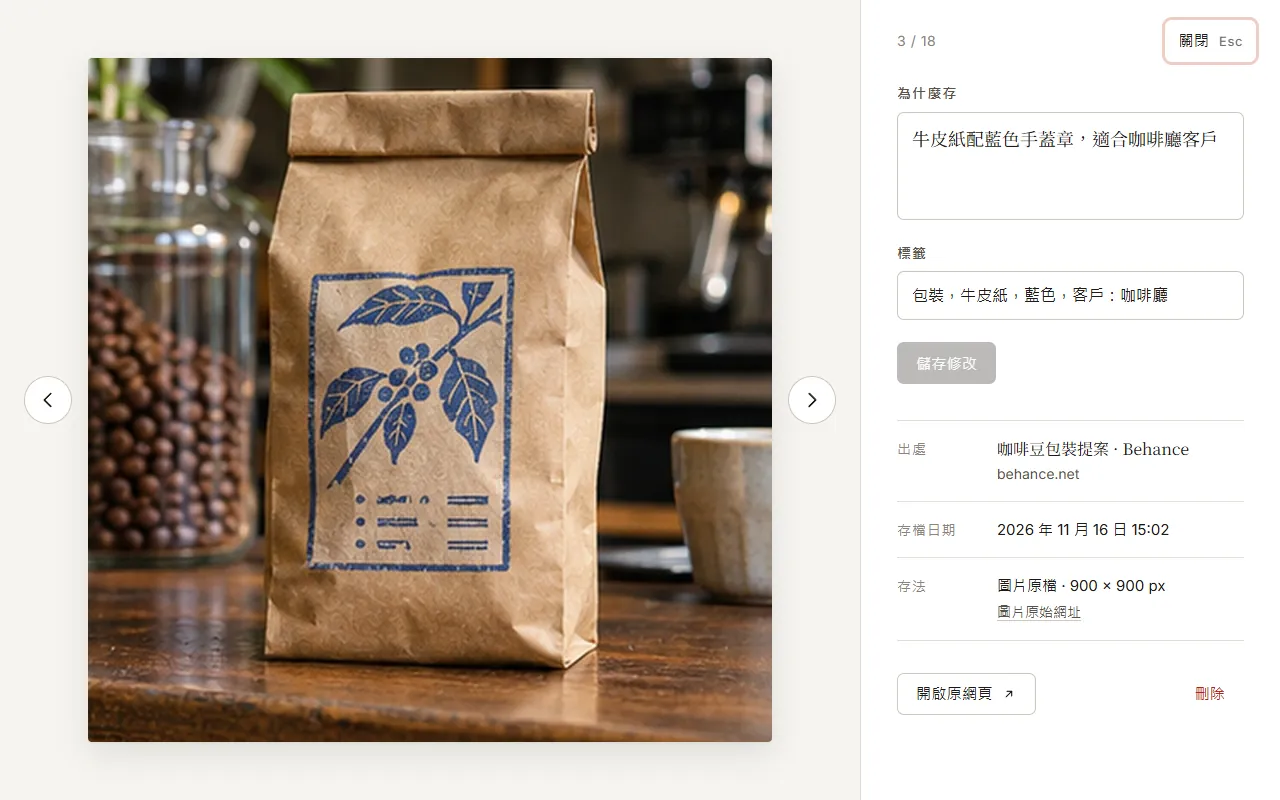
"Inspiration Library" is a Chrome extension for your own use. Right-click an image on a web page to save it; it records the URL, page title and date automatically, then pops up a small window asking "Why did you save this?". The gallery searches the reasons and tags you wrote, and you can switch to the constellation to see which images you saved for the same reason. (Its interface is in Traditional Chinese because we asked for that; ask for English in your own prompt.)
This guide walks you through 6 steps, each with a message you can copy:
- Break the problem down: give Claude your problem, no solutions yet, and ask for three parts.
- Understand the tech: ask about the trade-offs between a web app, a local page and a Chrome extension.
- Ask Claude to write a prompt for Claude Code (the full text we got is below).
- Paste it into Claude Code, build the first version and load it into Chrome.
- Not enough? Go back and ask Claude for three layout directions.
- Pick one and ask it for a second prompt for the same Claude Code project.
02Step 1: Give Claude the problem, but no solutions yet
Open Claude and start a new chat. Write your problem out as it is: who you are, how you do it now, where you get stuck. End with the key line: "Don't jump to a solution yet."
I want to brainstorm with you about how we could handle this problem:

I'm a [your job], [your problem: how you do it now, where you get stuck, how often it happens].

Don't jump to a solution yet. Help me break this problem into three core parts I can build around.
I want to brainstorm with you about how we could handle this problem:

I'm a graphic designer. I've saved hundreds of inspiration images (Pinterest, IG, website screenshots, posters I snapped on the street), all dumped in one folder. Every time I actually need one, I can never remember where I saw it or why I saved it. I often end up eight tabs deep and still can't find the original source.

Don't jump to a solution yet. Help me break this problem into three core parts I can build around.
Claude didn't suggest an app. It split the problem along "the life of an image", because the trouble happens at different moments:
- The moment you save it: the context is lost. When you save an image you know where it came from and why you like it, but only the image itself gets stored.
- After saving: hundreds of images with no structure. Everything sits in one folder with names like IMG_4821, with no relation between them.
- When you need it: the way you search doesn't match the way it was stored. You think "that orange one that looked like an 80s Japanese poster", but a folder only sorts by file name or date.
Each part came with "questions to think about", and it ended by asking us back: which part hurts most? Old images you already saved, or new ones from now on?
03Step 2: Ask about technical trade-offs and let it pick the approach
Once you know which part to solve first, ask what to build it with. List the options you are torn between, and say clearly that you want "the fastest usable first version".
[Which part hurts most, in one line]. I want to build a small tool for myself first.

I'm a bit stuck on the tech: should I build it as [option A], [option B], or [option C]? What are the trade-offs? I want the fastest usable first version.
We asked about a web app, a Chrome extension or a local page. Claude's answer:
- Chrome extension: you're on the page when you save, so URL, title and date can be captured automatically, which solves part 1. Downside: it only works in desktop Chrome, and some sites block right-click on images, so it needs a "capture the current screen" fallback.
- Local page: the simplest, good for sorting images you've already saved; but it doesn't know which page you were just on, so you still paste the source yourself.
- Web app: works on phone and computer, but you need hosting and login, and most of the first version goes into things unrelated to the problem.
It recommended a Chrome extension for v1 that does only three things: right-click save that records URL, title and date; ask "why did you save it?" when saving; and a searchable gallery page. "Search by feel" waits, but the data has to be stored right now, so colour filters or AI descriptions can be added later.
04Step 3: Ask Claude to write a prompt for Claude Code
With the direction set, don't write the requirements yourself. Ask Claude, in the same chat, to turn everything you discussed into one prompt. It knows best what you decided.
About 70% of them I see on my computer (Pinterest, Behance, all kinds of sites); I can deal with the phone ones later. So let's do what you said: the first version is a Chrome extension.

Write me a prompt I can paste straight into Claude Code to build this first version. The interface should be in Traditional Chinese.
What it wrote is the whole block below: technical constraints, four features, the data structure, the interface style and what to report when done. We didn't change a word before pasting it into Claude Code (it was in Chinese; this is a translation):
I want to build a Chrome extension for my own use, called "Inspiration Library" (靈感庫). Its job: when I save design inspiration images, it automatically records where each one came from and why I saved it. Please build a first version I can install directly with "Load unpacked".

## Technical constraints
- Manifest V3, plain HTML / CSS / JavaScript, no frameworks, no build step, no external libraries
- All data stored locally in IndexedDB, no connection to any external server, no login
- All interface text in Traditional Chinese (Taiwan wording)

## Feature 1: Saving an image
- Right-click an image on a web page and the menu shows "Save to Inspiration Library"
- Right-click a blank area of the page and the menu shows "Capture the current screen to Inspiration Library" (for sites like Pinterest and IG that put a transparent layer over images so right-click can't grab them; use chrome.tabs.captureVisibleTab)
- On save, automatically record: the image itself (stored as a Blob, not just the image URL, because URLs stop working later), the original image URL, the page URL, the page title, the site domain, and the save time
- The background service worker fetches the image; if the fetch fails, automatically fall back to capturing the current screen and tell me
- If the image has a srcset, pick the largest size
- Also generate a thumbnail about 400px wide and store it too, so the gallery loads faster

## Feature 2: Write "why I saved it" right after saving
- After saving, open a small window (chrome.windows.create, type: popup) containing:
  - an image preview
  - a text field "Why did you save this?" (e.g. likes the headline letter spacing, retro orange palette, good for a client's menu)
  - a tags field, comma separated
  - "Save" and "Skip" buttons; Enter = Save, Esc = Skip
- Skipping still keeps the image and its source, just with an empty reason

## Feature 3: Gallery page
- Clicking the extension icon in the toolbar opens the gallery in a new tab
- Thumbnails in a masonry or grid layout, newest first
- A search box at the top that searches "why I saved it", tags, page title and domain as you type
- Clicking a thumbnail opens a large view showing: the original image, why I saved it, tags, the source page title, the save date, and an "Open original page" button
- Reason and tags can be edited in the large view
- Items can be deleted, with a confirmation first
- Images with an empty reason get a small marker, plus an "Only show ones without a reason" filter so I can fill them in later

## Feature 4: Backup
- The gallery page has "Export backup", which exports all data (including images) to one file
- "Import backup" restores it
- Reason: the data lives only in the browser, and removing the extension deletes it

## Data structure
Each record contains at least: id, image (Blob), thumbnail (Blob), imageUrl, pageUrl, pageTitle, domain, reason, tags (array), createdAt, captureMethod ("image" or "screenshot").
Leave room to extend it: later I'll add "main colours" and "AI description" fields for searching by feel. Don't build those two in this version.

## Interface style
Clean, lots of white space, images as the star, supports the system dark mode. I'm a graphic designer, so pay attention to type sizes, spacing and alignment.

## When you're done
1. Tell me how to load it in Chrome (chrome://extensions → Developer mode → Load unpacked)
2. List the steps you can't test automatically and I need to check by hand, including at least: right-click save on an ordinary site, screen capture on Pinterest, writing a reason after saving, search, opening the original page, export then import
3. List known limits (e.g. which sites may not let it grab images)
Claude also explained a few things you might miss if you wrote it yourself:
- Store the image itself (a Blob), not just its URL: Pinterest and IG image URLs often stop working after a few months, leaving you with broken images.
- Include export and import backup: the data lives only in Chrome, and reinstalling or removing the extension wipes it.
- An "only show ones without a reason" filter: you often want to skip when saving, and this lets you fill them in later in one go.
- Colours and AI descriptions wait for later, but the fields are reserved so v2 can plug them in.
05Step 4: Paste it into Claude Code and build the first version
- Make an empty folder on your computer and open Claude Code there.
- Paste the whole prompt from step 3 and send it. It writes the manifest.json, the background script, the save window and the gallery page itself.
- When it is done, open chrome://extensions in Chrome → turn on "Developer mode" (top right) → click "Load unpacked" → choose that folder.
- Go through its "check by hand" list one by one: right-click save, screen capture, writing a reason, search, opening the original page, export then import.
- After any code change, go back to chrome://extensions and click the reload icon next to the extension.

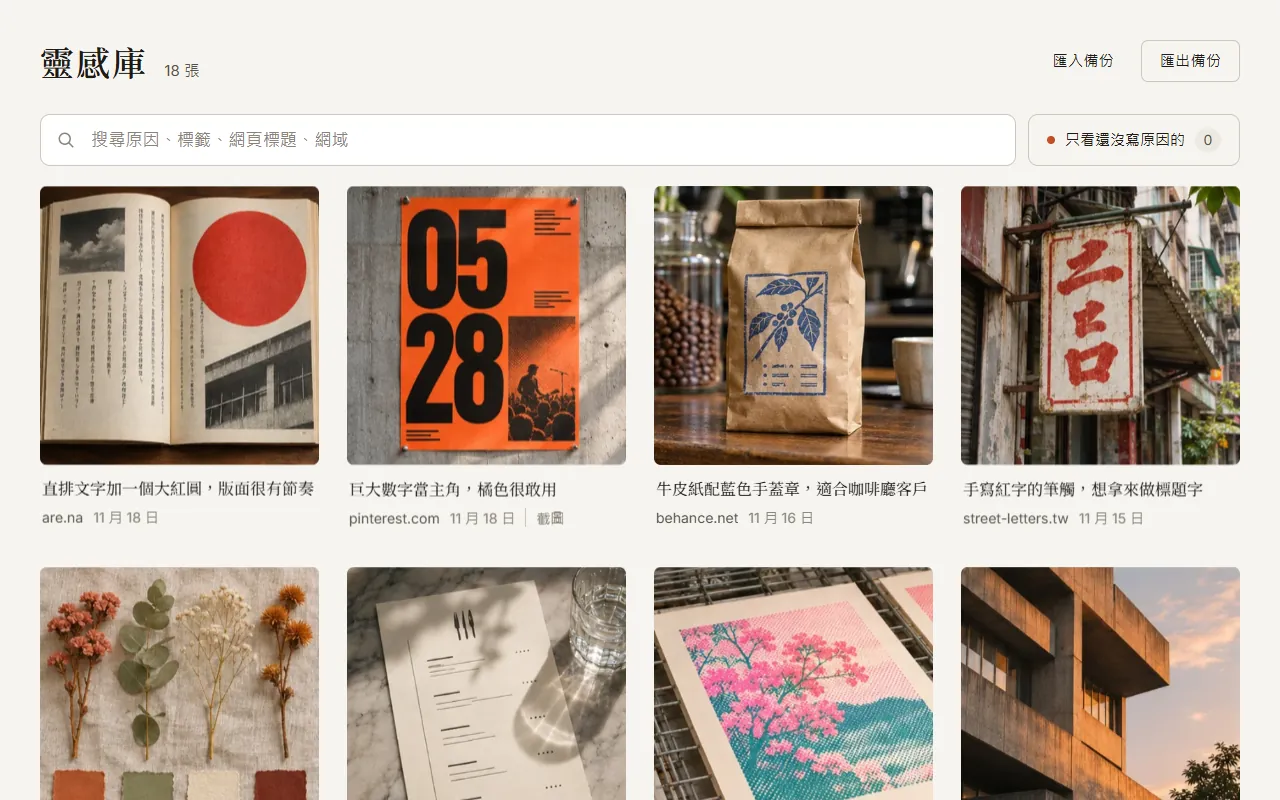
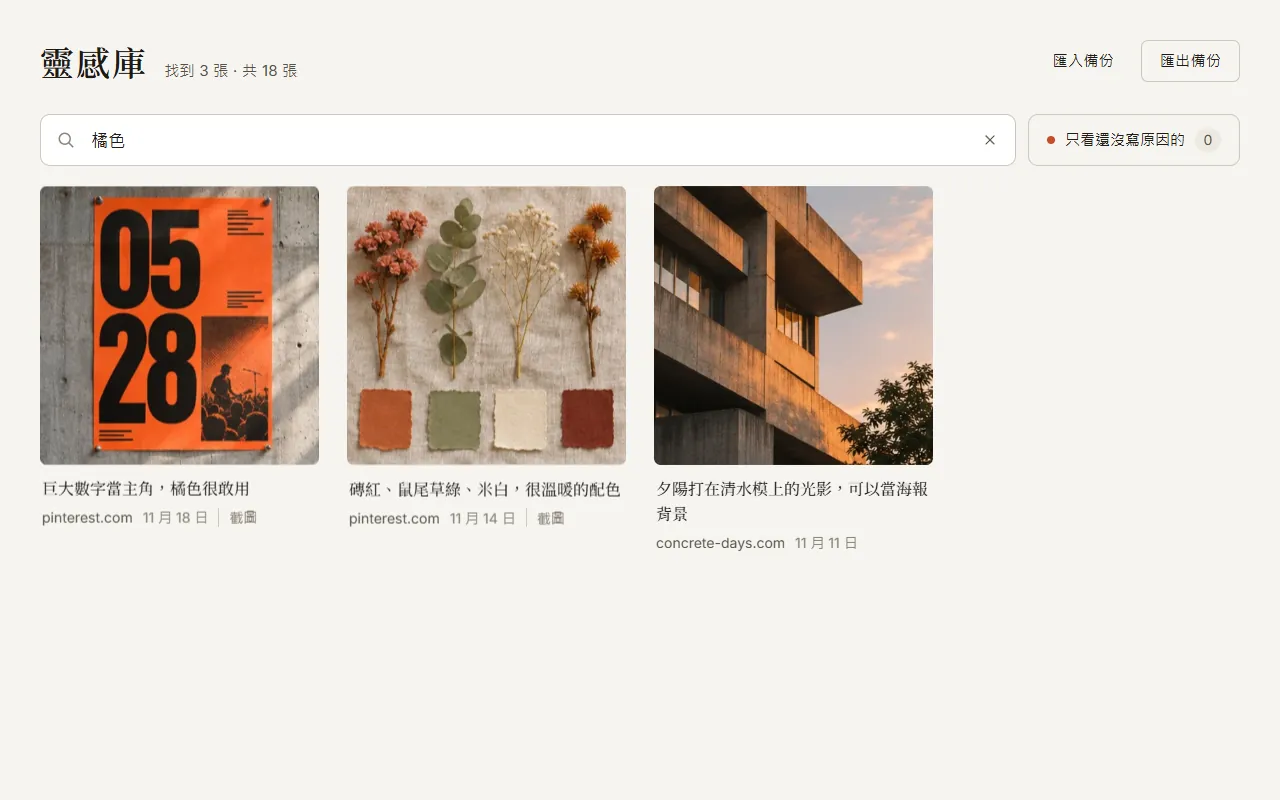
This time Claude Code also ran 34 automatic checks of its own when it finished. Your version will differ in the details; go by the files and steps it reports.
06Step 5: Not enough? Go back and ask for three layout directions
The first version worked, but the gallery was one big grid, not much better than a folder. Don't ask Claude Code to change it straight away. Go back to the same Claude chat, describe the feeling you want and ask for three different directions.
Claude Code finished the first version; [which features already work].

But [what isn't good enough yet]. I want [what you want to see at a glance]. Give me three different layout directions, each with a short description of what it looks like and when it fits.
The three directions it gave, from easiest to read to best at showing surprising links:
- A, grouped shelves: one row per group, switchable "by source / by reason". Easiest to read and the smallest change, but shows one kind of relation at a time.
- B, source × reason matrix: sites down the side, tags across the top, each cell stacking the images for that pair. Best for spotting patterns; more of a map for periodic review.
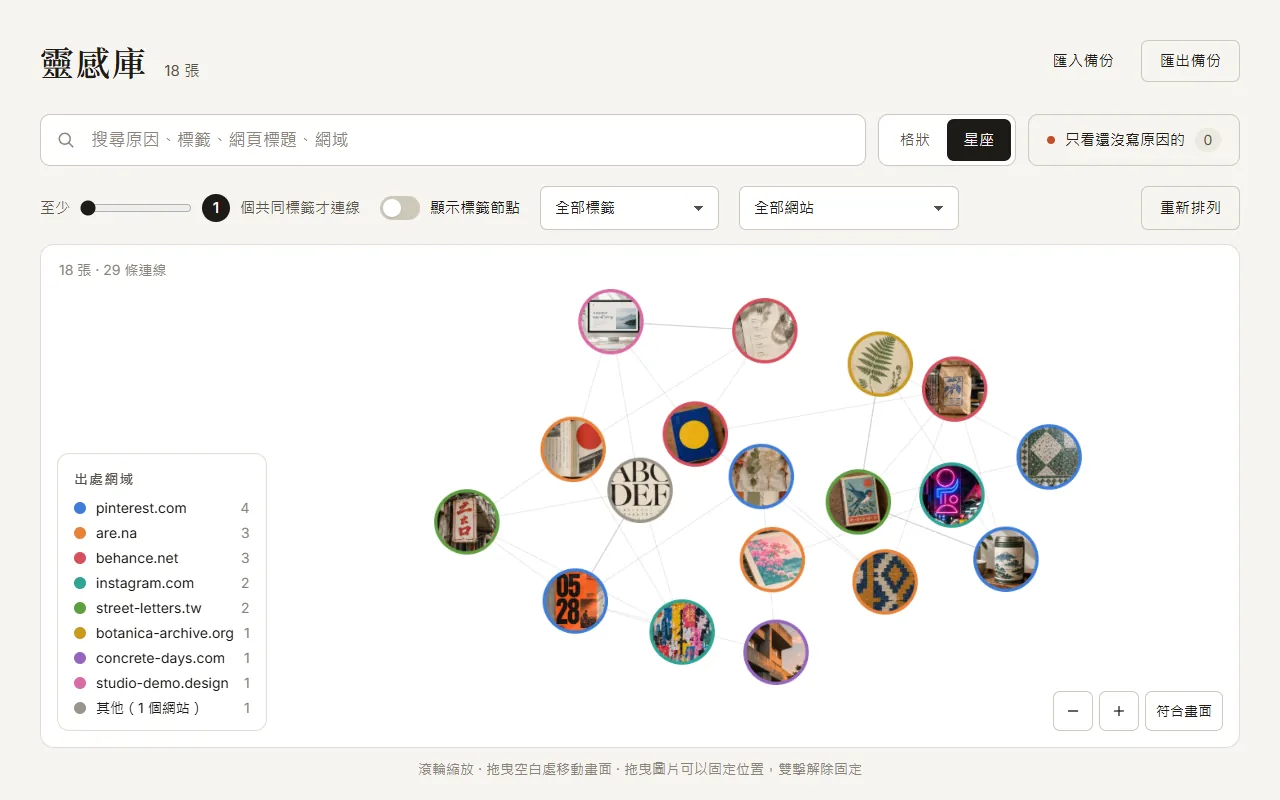
- C, constellation / network: each image a round thumbnail, linked when they share tags and pulled into clusters, outline colour for the source. The biggest "wow" and the hardest to build; with many images it needs filters.
07Step 6: Pick one and ask it for the second prompt
Claude actually suggested building A first. We wanted the strongest visual, so we picked C and told it where our data stood (about twenty images, 3 to 4 tags each), so it could write for the real situation.
I'm picking C, the constellation. I've saved almost twenty images while testing it. Every one has a reason, and each has 3 to 4 tags with fairly consistent wording (the save window already has common tags I can click).

Write me a second prompt for Claude Code: add this constellation view to the gallery page of the current "Inspiration Library" extension.
In the gallery page of the existing "Inspiration Library" (靈感庫) Chrome extension, add a new view: "Constellation". Read the existing code before you start, and reuse the existing IndexedDB data structure, large view and interface style. Don't change the saving flow or the data format.

## Technical constraints (same as v1)
- Plain HTML / CSS / JavaScript, no build step
- Don't load any code from the network (Manifest V3 doesn't allow it). Write a simple force-directed layout yourself; if you really need a library, download the file into the extension folder and tell me what you used and its licence
- All interface text in Traditional Chinese (Taiwan wording)

## Switching views
- Add a switch at the top of the gallery page: "Grid" / "Constellation"
- Remember the last chosen view (in localStorage; default to Grid if it can't be read)
- The search box must work in both views: in the constellation, images that don't match the search fade out instead of disappearing

## What the constellation looks like
- A large canvas you can drag and zoom (wheel to zoom, drag empty space to pan), drawn with Canvas
- Each image is a round thumbnail node (using the existing thumbnail Blob)
- The node outline colour shows the source domain; put a legend in a corner listing domains and their colours. With more than 8 domains, list only the top 8 and group the rest as "Other" in grey
- Draw a line between two images that share a tag. The more tags they share, the thicker the line and the closer they pull together
- Lines must be thin and faint, never louder than the images

## Avoiding a ball of yarn
Each of my images has 3 to 4 tags, and my tag wording is very consistent, so "connect if they share 1 tag" would link almost everything. Please add:
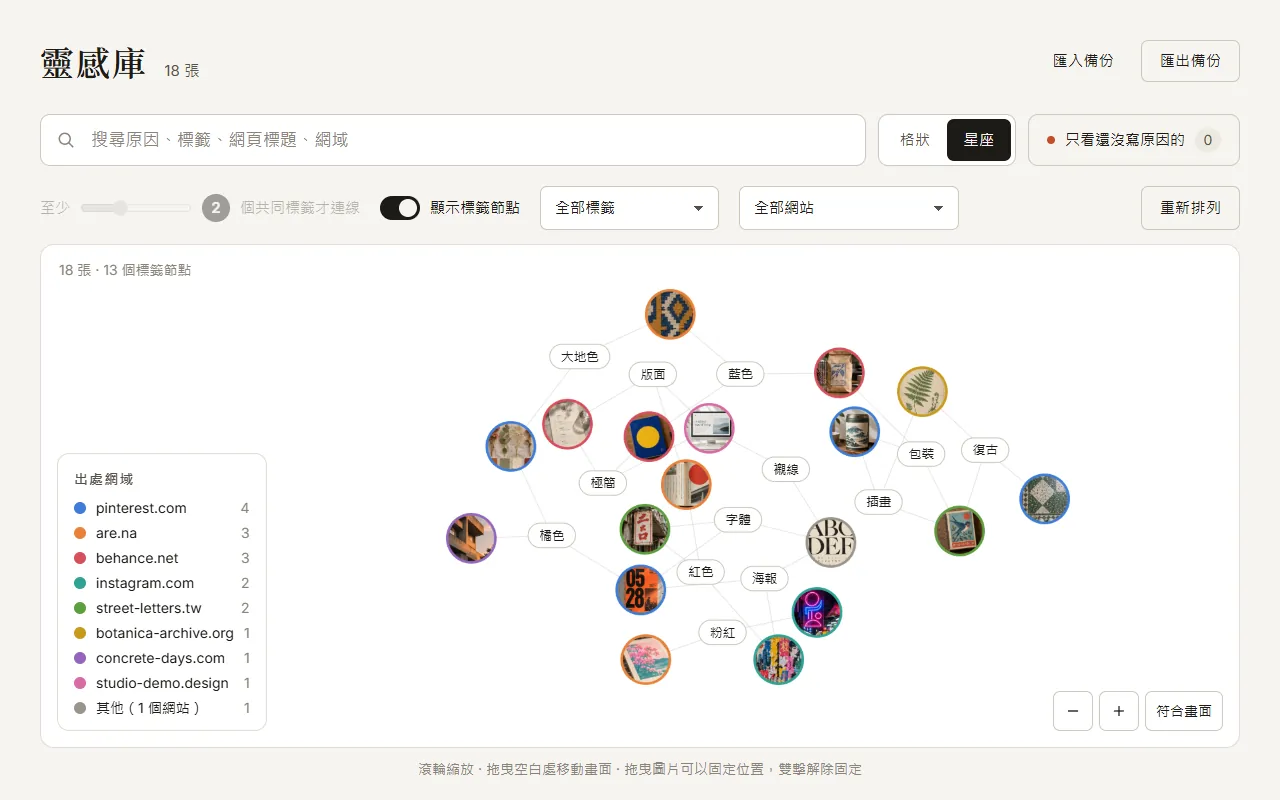
- A slider "Connect only with at least N shared tags", default 2, range 1 to 4
- A switch "Show tag nodes": when on, each tag becomes a small text node and images connect to their own tags instead of to each other. That way you can see at a glance why each cluster belongs together
- A tag filter and a domain filter, to see only one tag or one site

## Interaction
- Hovering an image: it and its connected images stay sharp, everything else fades; a small card appears next to it with that image's "why I saved it", tags and domain
- Click: open the existing large view (don't build a new one)
- Dragging a node moves it and pins it where you drop it; double-click a pinned node to unpin it
- A "Re-arrange" button
- The layout must be stable: the same data should open in roughly the same positions every time, not jump around (e.g. use a fixed random seed, or save the settled positions)
- The animation settles within 2 to 3 seconds. When the system has "reduce motion" on, show the settled result straight away

## Visuals
- Support dark mode and keep v1's clean, image-first style
- All nodes the same size; line weights stay moderate when zooming
- I'm a graphic designer: pay attention to colour, contrast and white space; the domain colours must be easy to tell apart and clear in both dark and light mode

## Performance and testing
- I only have about 20 images now, but it will grow to several hundred. Add a development-only "test data" option (e.g. add ?demo=300 to the URL) that generates 300 fake nodes to test smoothness. This fake data must never be written to IndexedDB
- With 300 nodes, dragging and zooming must stay smooth
- If thumbnails are loaded with URL.createObjectURL, revoke them when switching views or leaving the page

## When you're done
1. Tell me which files you changed and how to reload the extension
2. List the steps I need to check by hand, including at least: switching views, adjusting connections with the slider, toggling tag nodes, hovering to see relations, opening the large view, dragging to pin, positions not jumping after a refresh, fading while searching, dark mode, smoothness with ?demo=300
3. List known limits
After reading the v1 code, Claude Code added a "Grid / Constellation" switch above the gallery. It wrote the force-directed layout itself, with no external library.
08Good to know
- The 18 inspiration images in the screenshots are sample images generated with ChatGPT; the page titles, reasons, tags and dates are fictional sample data, and the URLs are placeholders, not real Pinterest, Behance or IG pages.
- The 5 messages with Claude and the 2 prompts are real; the texts above are the originals, translated from Chinese. The chat cards and Claude Code screens in the video were re-typeset for readability; the screenshots here are the extension pages opened with sample data.
- Claude and Claude Code answer a little differently every time; go by what you get.
- An extension added with "Load unpacked" only lives in Chrome on that computer, and its data only lives in the browser. Always "Export backup" before removing it.
- Saved inspiration is for your own reference. Other people's work is copyrighted: redesign it yourself, or check you may use it, before it goes into a pitch or anything commercial.
- Claude Code needs a paid plan (Pro, Max and others), Team / Enterprise, or a Claude Console account; check the official page for current plans.