Drop a menu photo into Google Flow and the dishes float off the page: a 3D menu video in 4 steps with Omni 1.1 Flash
Upload a menu photo to Google Flow, pick Omni 1.1 Flash, 9:16, 720p, 8 s, paste a prompt that says the food lifts off the paper, and the dishes rise in 3D.
Watch the reel on InstagramComment #立體 to get this guide
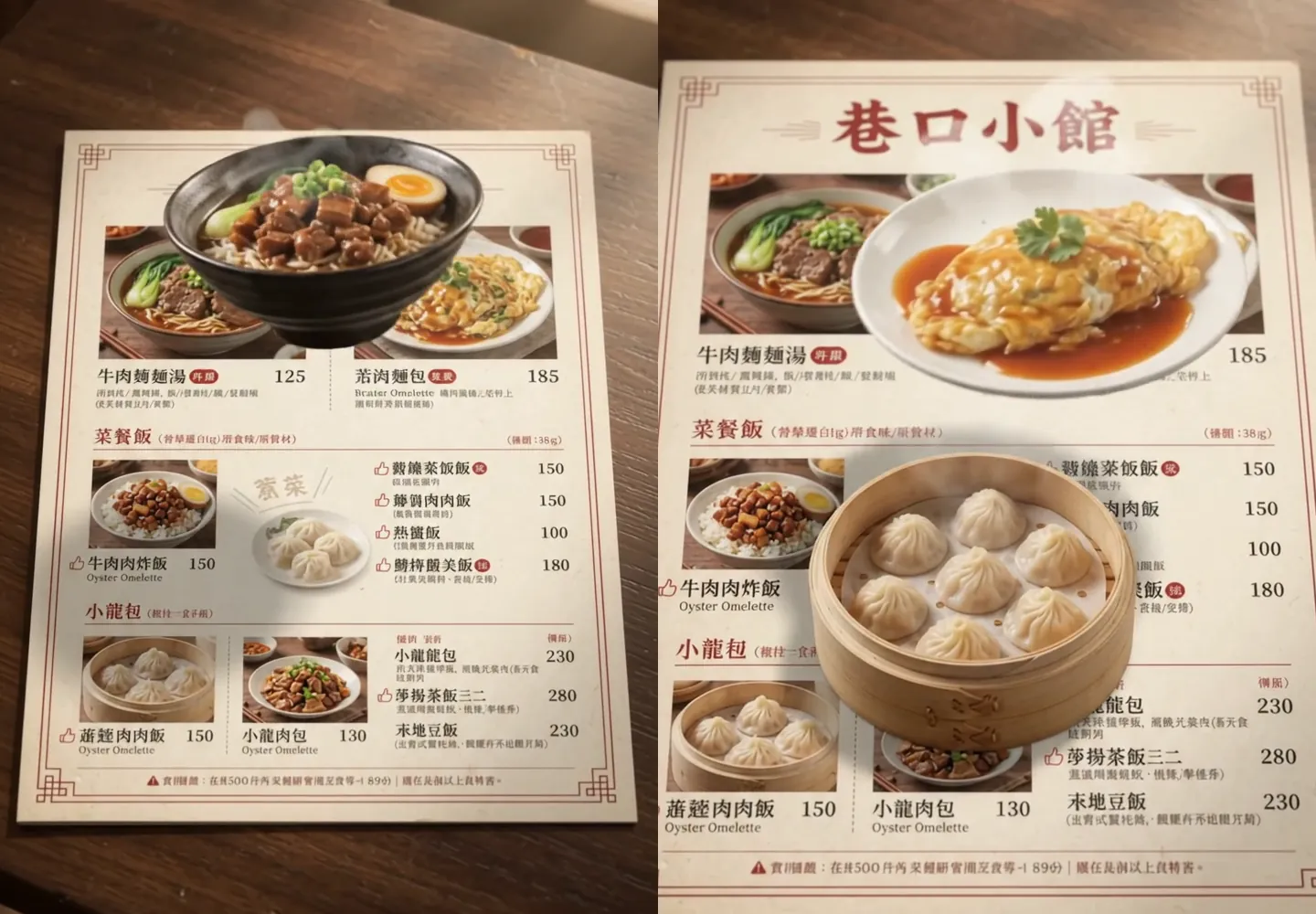
Have you seen those videos where an ordinary menu lies on a table and the beef noodles and xiaolongbao suddenly turn into real food that floats up off the paper? This one is not made with Claude. It is made with the Omni 1.1 Flash video model inside Google Flow (flow.google.com). We tried it twice on a menu for a fictional restaurant, 巷口小館: the first try failed, the second worked. Every image below is our own output from Flow, including the failed one.
01First: this is Google Flow, not Claude
Google Flow is Google's AI video workspace at flow.google.com; you sign in with a Google account. It can generate images, and it can hand an image you upload to the video model as an "ingredient". The video in this guide was made by Flow's Omni 1.1 Flash model. Claude has only one small job here: translating your dish names into English and filling the blanks in the prompt.
- Open flow.google.com and sign in with your Google account.
- Click "+" at the top right to start a new project. Ours is called "Oct 21 - 15:33", the name Flow gave it from the time.
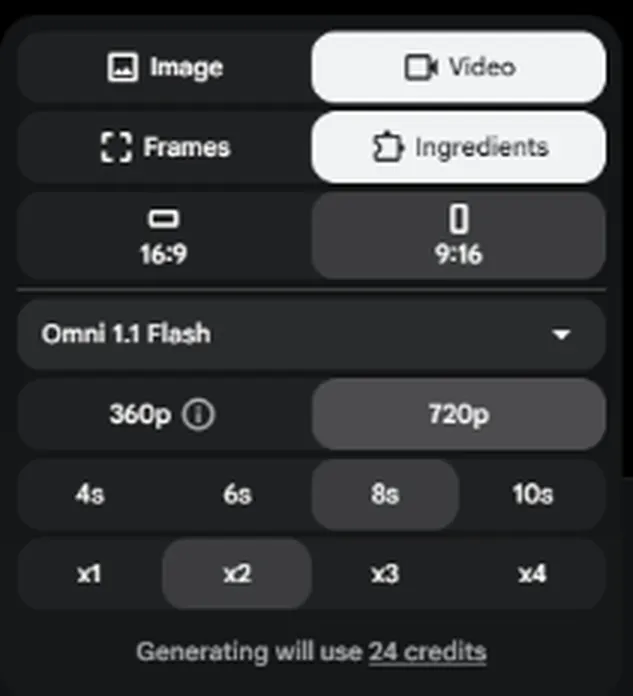
- Make sure you have credits. Each generation run in our test (two 8-second 720p videos) used 24 credits.
- Google Flow — Google account sign-in; credits depend on your plan
02Step 1: get a menu photo with legible text
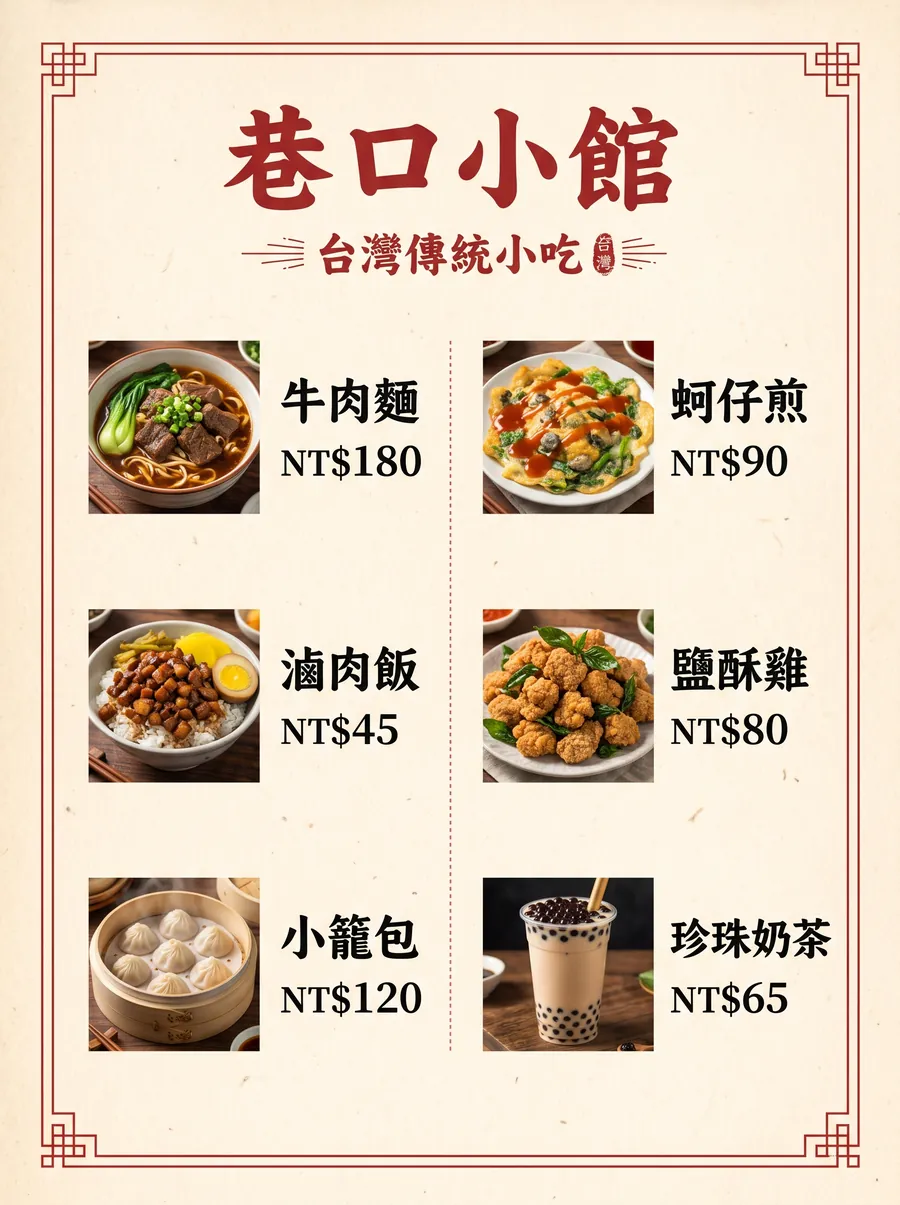
We did not use a real restaurant's menu. In Flow's image mode we generated a menu for a fictional restaurant, 巷口小館, with Nano Banana 2.1: cream paper, red border, two columns of three dishes, each with a photo, a Traditional Chinese name and an NT$ price. The menu, dishes and prices are all AI-generated.
03Step 2: upload the menu and switch to Video → Ingredients
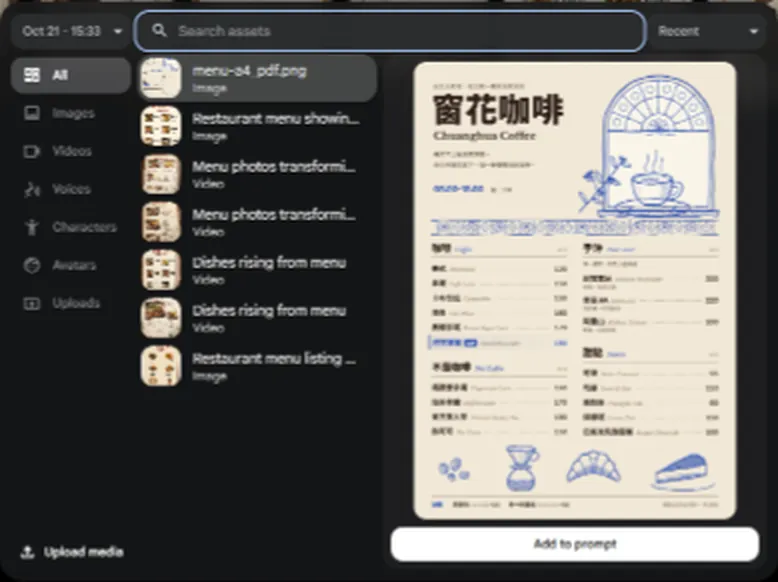
- Click "+" to the left of the prompt box to open the Add media window.
- Click "Upload media" at the bottom left and upload the menu photo. It appears in the asset list on the left.
- Select the menu and click "Add to prompt". The menu now sits above the prompt box.
- Above the prompt box, switch the mode to "Video", then to "Ingredients". Frames uses the image as the first frame; Ingredients treats it as an object inside the video.
04Step 3: pick Omni 1.1 Flash, 9:16, 720p, 8 s
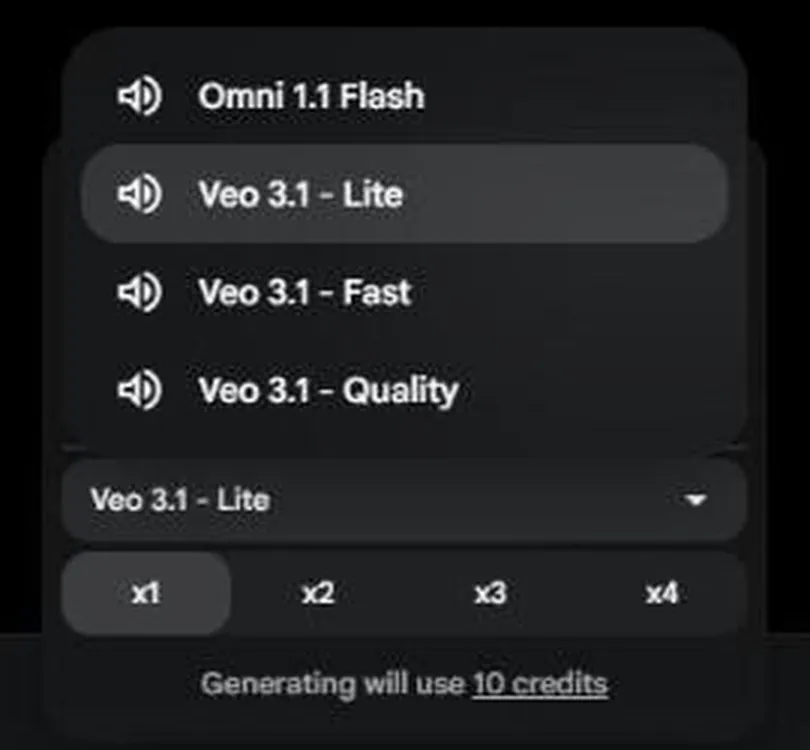
Click the settings at the bottom right of the prompt box (it reads Video · 720p · 8s) to open the panel. The model dropdown lists Omni 1.1 Flash and Veo 3.1 Lite, Fast and Quality. We used Omni 1.1 Flash.
- Mode: Video → Ingredients.
- Model: Omni 1.1 Flash.
- Aspect ratio: 9:16 (vertical, ready for Reels).
- Quality: 720p.
- Length: 8 seconds.
- Count: x2. Generate two and keep the better one.
05Step 4: paste the detailed prompt and replace the [] parts
This is our second, successful prompt word for word. Replace the [] parts with the dishes on your menu; the order you write is the order they float up.
The attached menu lies flat on a dark wooden table, filmed from above like a premium food commercial. Keep the menu exactly as attached: same layout, same [Traditional Chinese] text, same prices, sharp and readable the whole time. The whole menu stays in frame. One by one, each small food photo on the menu turns into a real three-dimensional dish that physically lifts up off the paper toward the camera, about a hand's height above the menu, casting a soft shadow on the page below it, with real steam and glossy texture: first the [dish 1, e.g. beef noodle soup], then the [dish 2], then the [dish 3], then the [dish 4]. Each dish floats for a moment, turns slightly, then gently settles back down into its photo. Slow, smooth camera push-in, no cuts, warm window light, shallow depth of field, photoreal, believable physics, no cartoon or magic sparkles, no people.
We filled in beef noodle soup, braised pork rice, xiaolongbao in a bamboo steamer and oyster omelette. The three phrases that matter most are: lifts up off the paper, about a hand's height above the menu, and casting a soft shadow on the page below it.
06Step 5: generate and keep the better clip
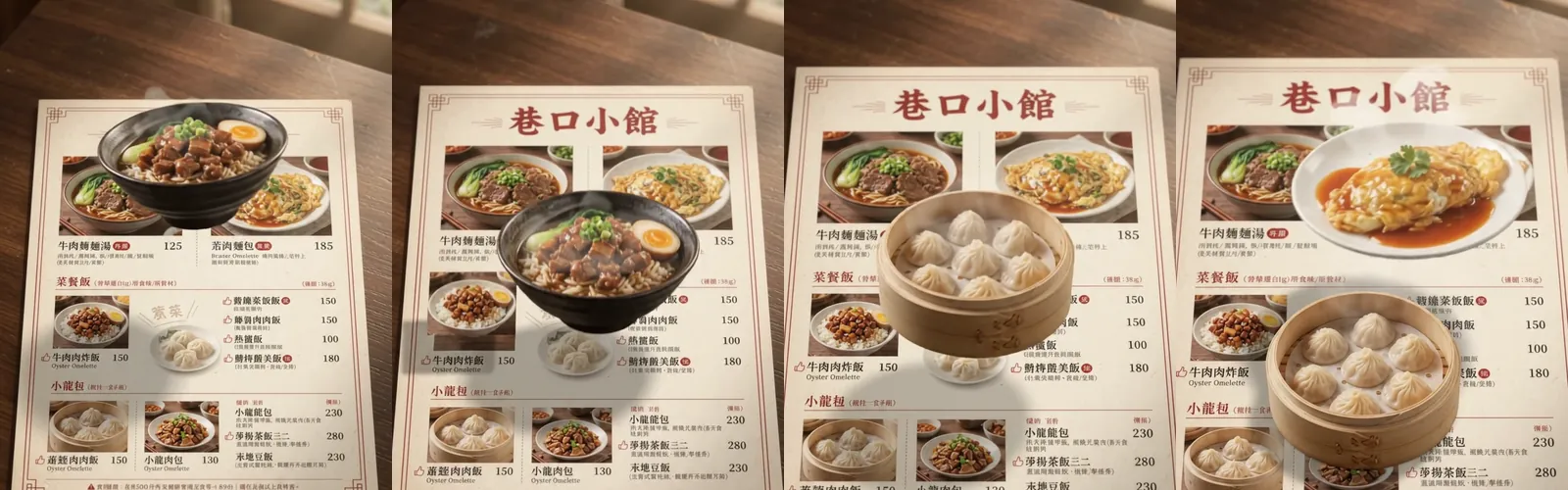
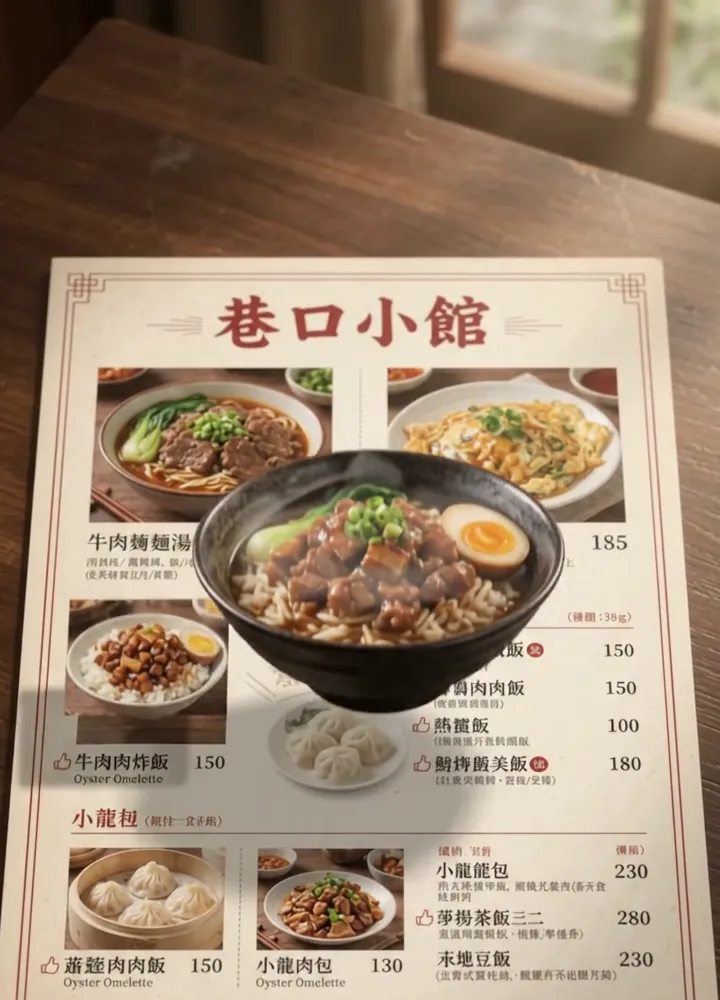
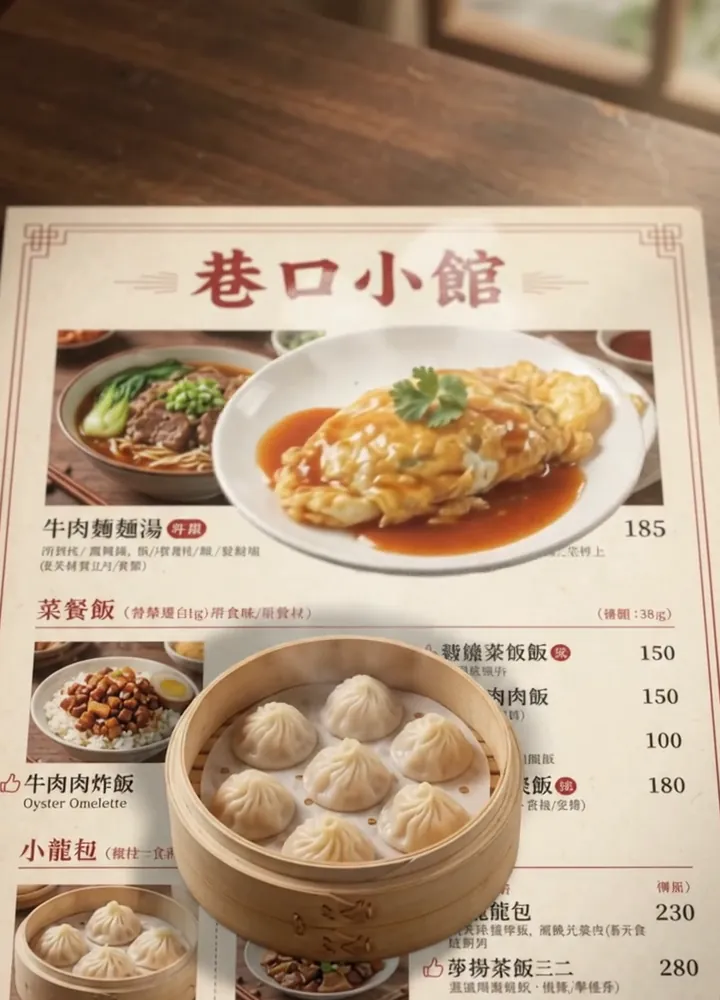
Click the arrow on the right and wait for the two 8-second clips. In our second run, one clip only lifted the dishes slightly; in the other, the braised pork rice, the xiaolongbao steamer and the oyster omelette really float above the menu with shadows underneath. That is the clip in the reel.
07Why the first try failed: the food steamed but never left the page
Our first prompt said the camera glides over each dish photo and the dish "rises out of the menu" as real, steaming food, then settles back. In both clips the dishes did become real and did steam, but they stayed glued to the paper like a moving photograph. No depth at all.
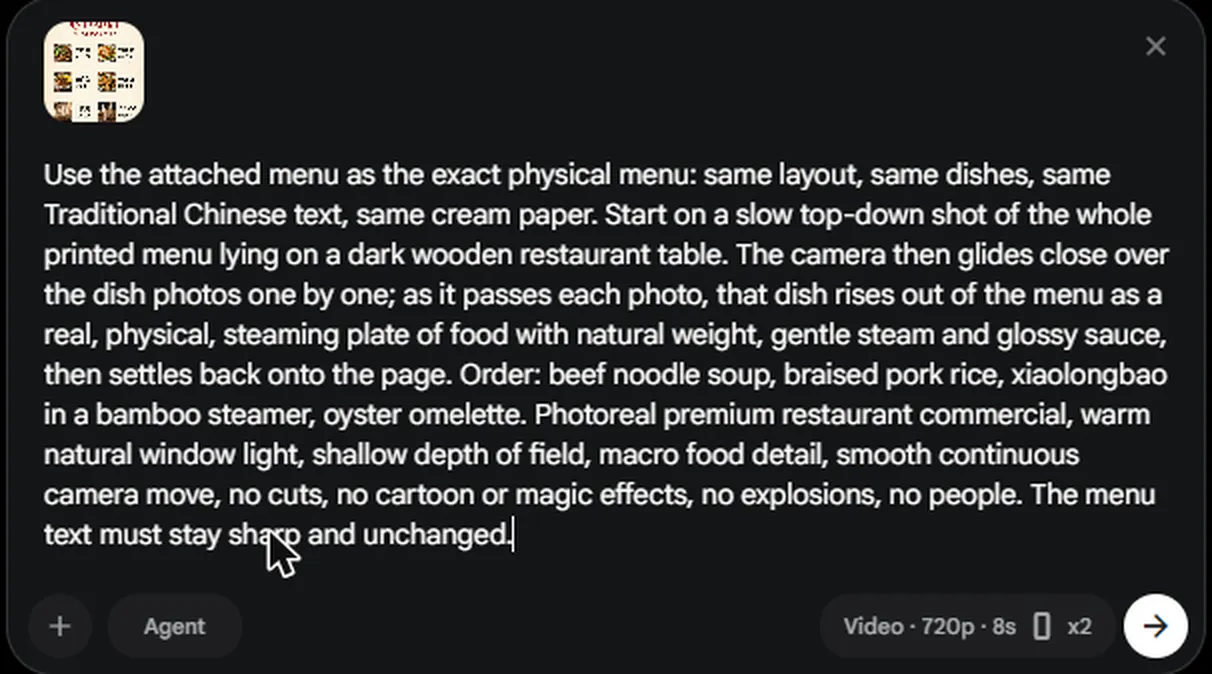
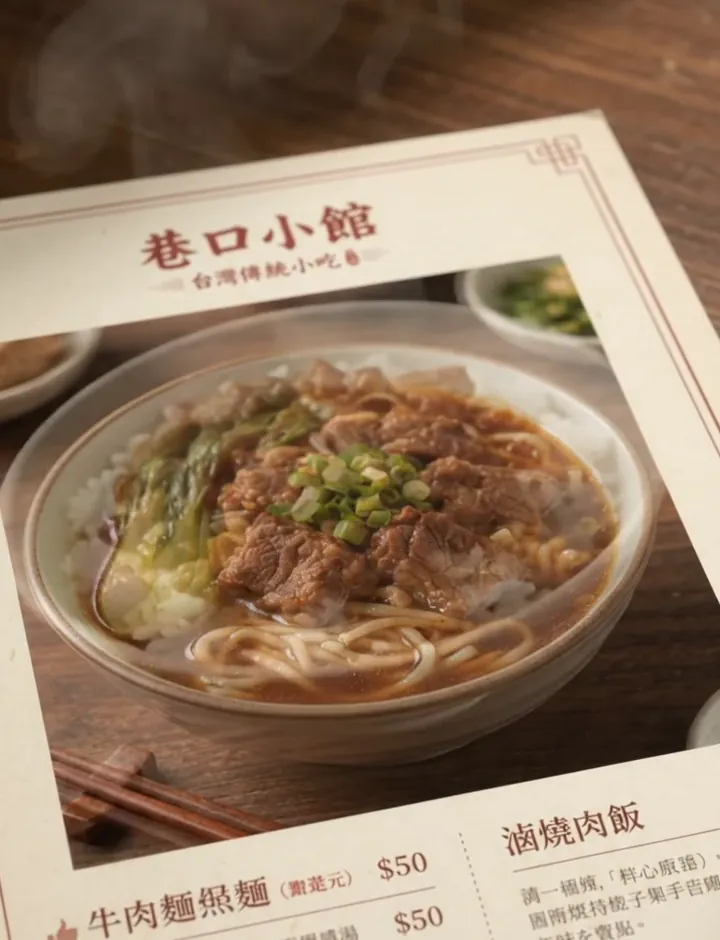
The difference is those three phrases. The second time we wrote "physically lifts up off the paper toward the camera", "about a hand's height above the menu" and "casting a soft shadow on the page below it", plus "believable physics", and only then did the food float. A video model needs measurable descriptions: how high, in which direction, where the shadow lands. Not just "rises".
08The AI redraws the menu's small text: check before you publish
This is the honest part. Even with "keep the menu exactly as attached" in the prompt, Omni 1.1 Flash redraws the menu's layout and small text. On the first try, 牛肉麵 NT$180 became $50; on the successful clip the names turned into half-right strings like 「牛肉麵麵湯 125」 and extra dishes appeared that were never on the menu. The restaurant name and the big photos survived.
- After generating, pause on the frame where the menu is clearest and check every name and price line by line.
- When editing, blur the small text with depth of field or cover it with a caption card, so only the floating dish is sharp. That is what we did in the reel.
- If you need real names and prices on screen, add them in your editing software. Never trust the text inside the video.
09Good to know
- 巷口小館 is a fictional restaurant; the menu, dishes and prices were generated with Nano Banana 2.1 in Flow, and the video with Google Flow's Omni 1.1 Flash, as a demo.
- This was made in Flow on 21 October 2026. Model names, the settings panel and how credits are counted follow Flow's interface at the time and may change.
- The AI redraws the menu's small text and layout; the video is not a faithful copy of the menu. Always check names and prices before publishing.
- Using a real restaurant's menu? Get the owner's permission first; the dishes and branding in the photo are theirs.
- Every run costs credits (24 per run for us). Finish the prompt before you press generate, instead of paying for trial and error.