A 12,000-particle AI status light with Claude Code: listening, thinking, searching, done (2 prompts + live demo)
Still using a spinner? Claude Code built a 12,000-particle status light: amber sphere, violet ribbon, cyan globe, teal check, all morphing. Prompts + live demo.
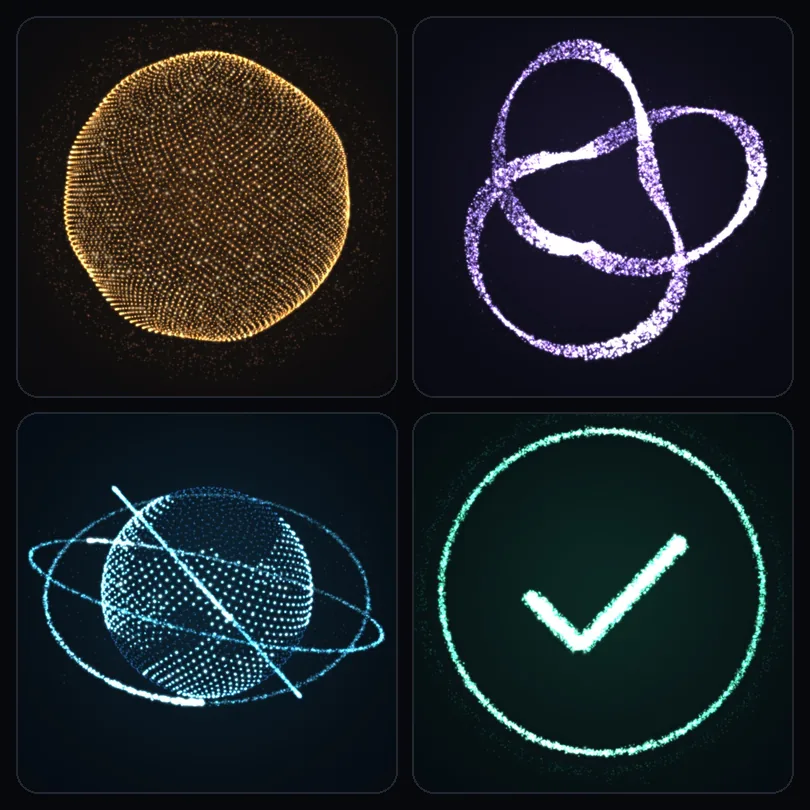
Does your AI app still show a spinner? A spinner only says "wait", and users can't tell whether the AI is listening, thinking or searching the web. This guide builds an "AI status light": 12,000 glowing particles that form a breathing amber sphere while listening, a twisting violet knotted ribbon while thinking, a cyan globe with orbit rings while searching, and a teal check mark when done. On every switch, the same particles fly into the new shape.
The whole thing was written by a fresh Claude Code agent in a two-turn conversation, and we didn't change its code. You get: two pages you can play with right now, both prompts in full (swap the [] parts for yours), how each of the four shapes is described, the one sentence that makes it morph instead of jump, and how to wire it into your own app. Every picture below is a real screen from those two pages.
01The result: a light that tells you what the AI is doing
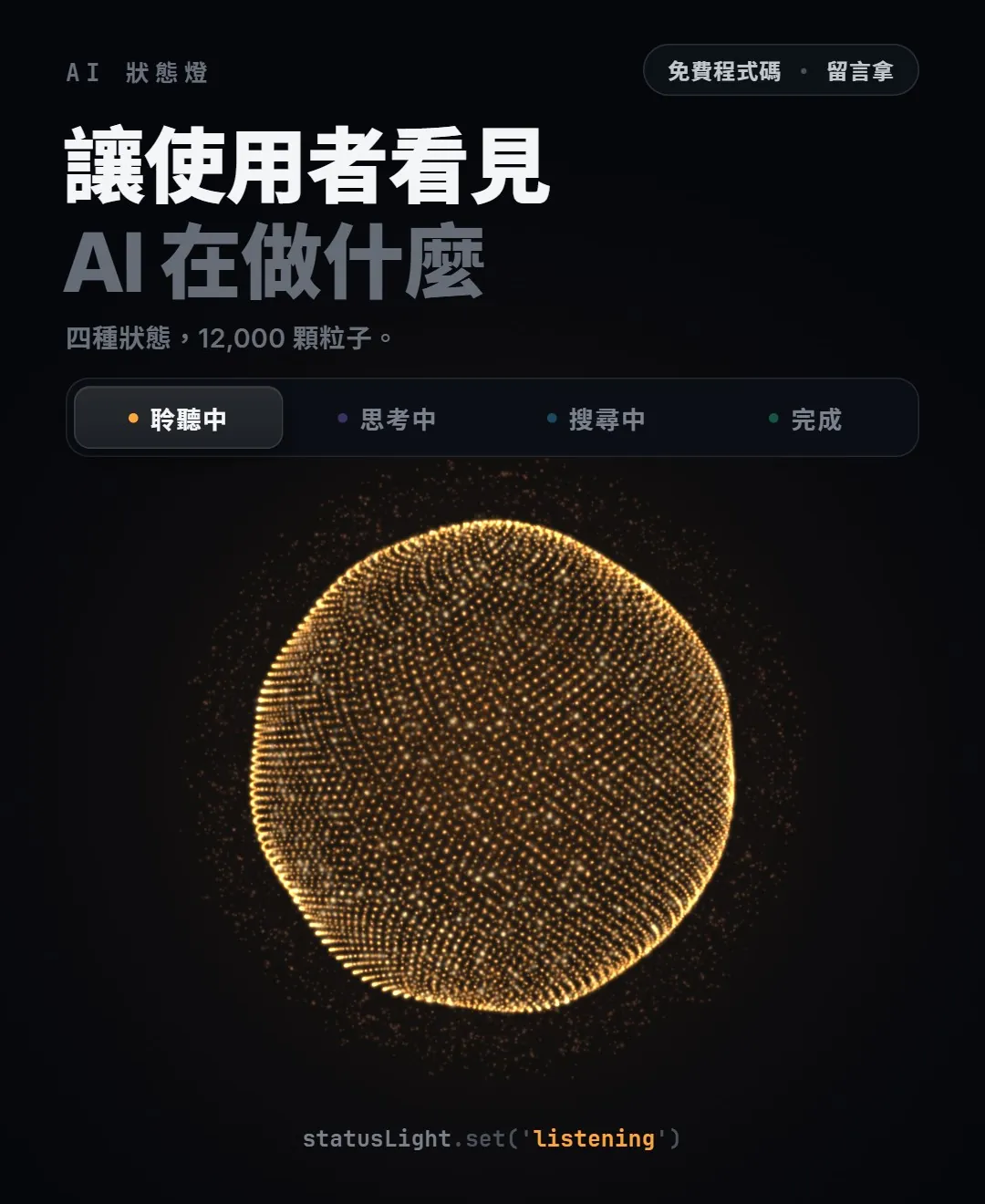
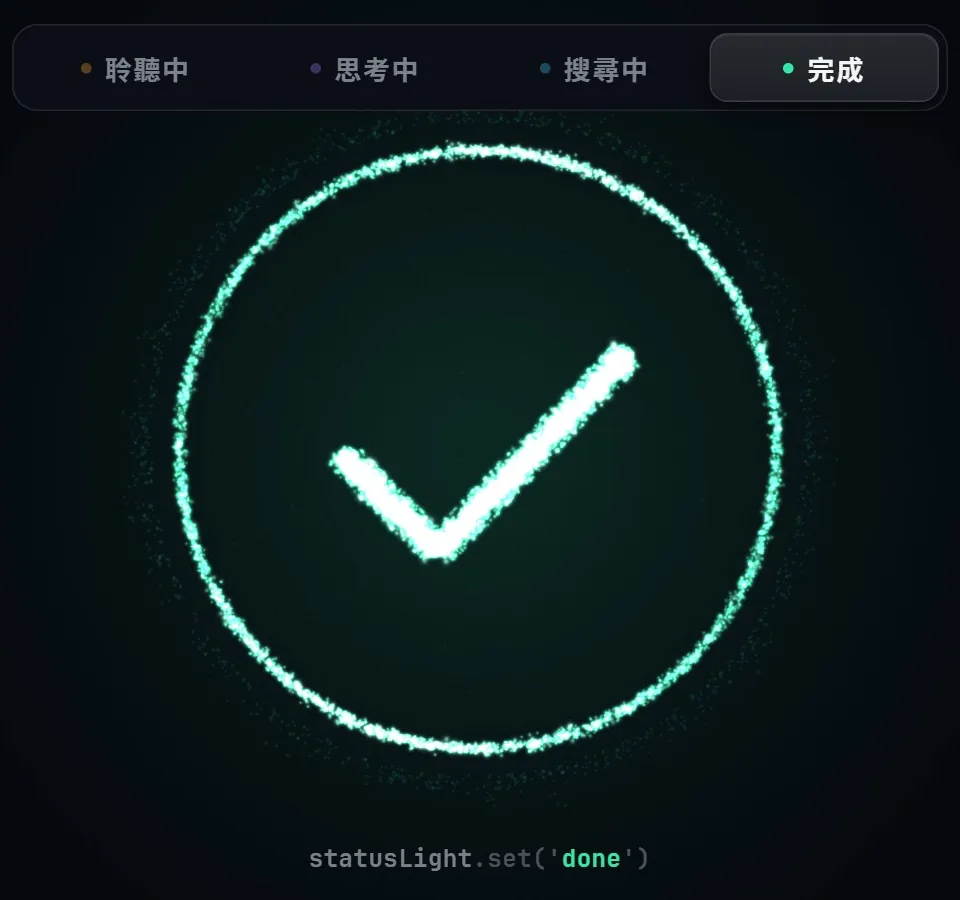
It is one index.html file in a vertical phone layout. At the top are a small kicker, 「AI 狀態燈」 (AI status light), and a pill label, then the two-line headline, one line saying "four states, 12,000 particles", and a four-option switch: 聆聽中 / 思考中 / 搜尋中 / 完成 (Listening / Thinking / Searching / Done). Click one and the particles below turn into that state's shape and colour while the bright highlight slides across.
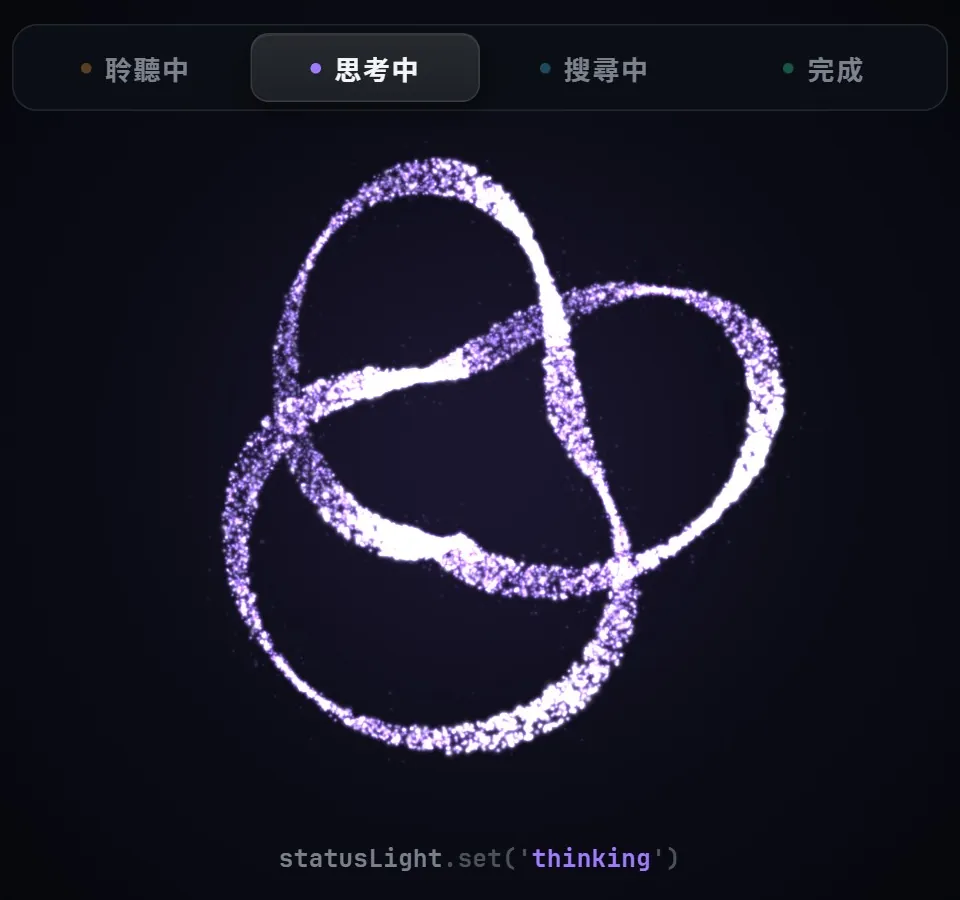
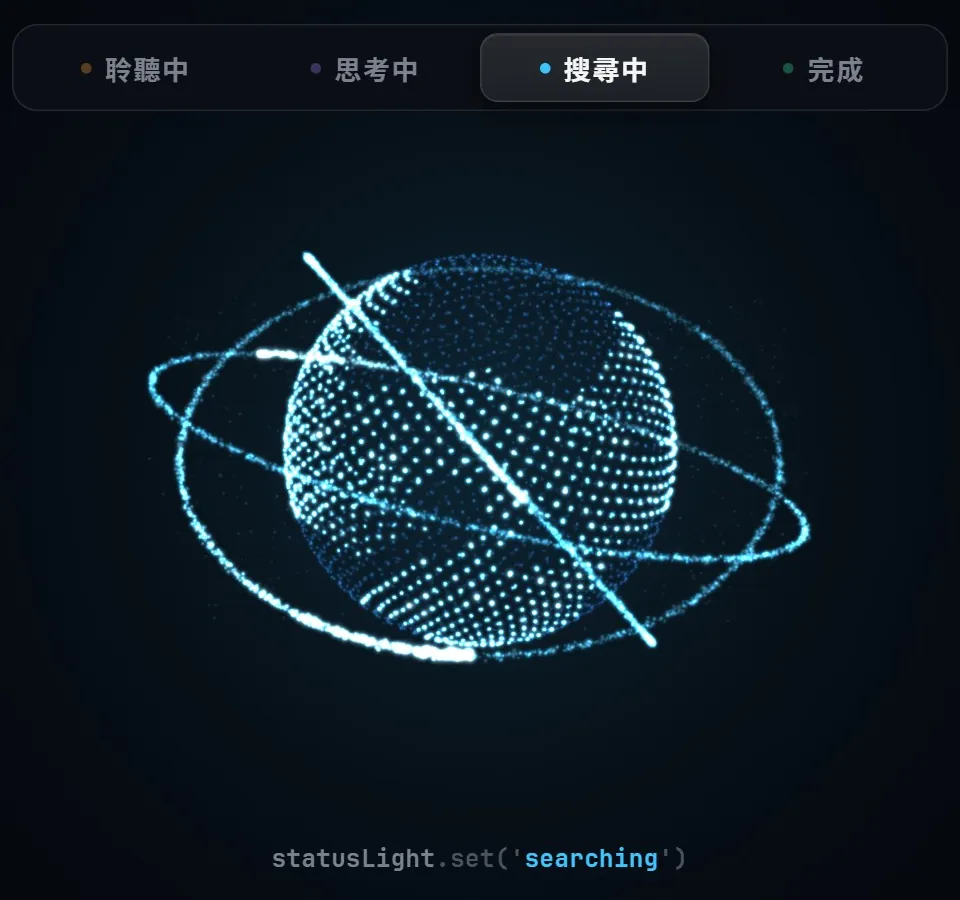
The small line under the object shows the current call, for example statusLight.set('thinking'), and each tab has a little dot in its state colour. Neither was in the prompt; Claude Code added both on its own and we liked them, so they stayed. You can play with both pages:
- Try it: the AI status light (click the tabs) — Works on phone and desktop; needs a connection (Three.js loads from a CDN)
- Try it: the voice-assistant demo (runs by itself) — No clicking needed; one 12-second round, looping
- Open the first page and click 思考中 (Thinking), 搜尋中 (Searching) and 完成 (Done) in turn to watch the particles fly into each new shape.
- Click another tab halfway through a morph: the particles head for the new shape straight from where they are on screen.
- Open the second page and don't touch anything: the question types itself out, the light goes through listening, thinking, searching and done, and a result card appears.
02Four states, one sentence per shape
All four shapes are made from the same 12,000 particles (one Three.js Points object with glowing dots and additive blending, so overlapping areas get brighter). The prompt describes each shape in one sentence: what shape + how it moves + what colour.
- Listening (amber): a dotted sphere that gently swells and shrinks like breathing, with fine noise ripples. Claude Code placed the dots with a Fibonacci sphere so they spread evenly, breathing about once every 3.2 seconds.
- Thinking (violet): the particles twist into a knotted ribbon, a torus knot (trefoil). Each particle sits on the curve with a small sideways offset, which makes a twisting ribbon; particles keep flowing along it and bright pulses travel down it.
- Searching (cyan): a sparse dotted globe with three tilted orbit rings, each with a comet head spinning at its own speed. Some dots are brighter than others, so the globe reads as land and ocean.
- Done (teal): the particles gather into a check mark inside a ring that glows steadily, with only a slow sway.
03Prompt 1: the status-light demo page
- Make an empty folder with a fonts/ folder inside holding three fonts: a bold sans-serif (we used Noto Sans TC for Chinese), Inter and a monospace font (we used JetBrains Mono). You can skip this; Claude Code will fall back to system or web fonts.
- Open Claude Code in that folder.
- Paste the whole prompt below (swap the [] parts for yours) and press Enter.
- When index.html is written, run npx serve (or any local server) in the folder, open the address it gives you, and click through the four tabs.
Build me a single-file web page (HTML, CSS and JS in one file, Three.js loaded from a CDN): a "status light" demo page for an AI app, in a vertical phone layout, with the interface in [English].

Layout:
- A near-black background (a deep black with a hint of blue), with a very faint, very large glow behind the particles. Overall it should feel like a polished developer showcase page: quiet, clean, premium.
- Top row: on the left a tiny monospace kicker "[AI STATUS LIGHT]" (grey, wide letter spacing); on the right a small dark pill label "[Free code · Comment to get it]" (thin border).
- Below that a big headline, two lines, left-aligned: line 1 "[Show users]" in white, line 2 "[what the AI is doing]" in grey. Under the headline one small grey line: "Four states. [12,000] particles."
- Below that a segmented control: dark rounded base, thin border, four equal options: [Listening / Thinking / Searching / Done]. The selected option has a brighter rounded background, and when the selection changes that background slides smoothly across.
- Under the segmented control is the hero: a 3D object made of [12,000] glowing particles (Three.js Points, additive blending, a soft glow) that slowly rotates. Each of the four states has its own shape and colour:
  1. [Listening]: a [warm amber] dotted sphere that gently swells and shrinks as if breathing, with fine noise ripples on its surface.
  2. [Thinking]: [violet]; the particles twist into a knotted ribbon (like a torus knot) that keeps turning, with particles flowing along the ribbon.
  3. [Searching]: [cyan]; a sparse dotted globe circled by two or three tilted orbit rings that keep spinning.
  4. [Done]: the particles gather into a [teal] check mark inside a ring, glowing steadily.
- When the state changes, the same particles fly from the old shape to the new one (each particle with a slightly different delay, ease-in-out, about 1 second), and the colour blends along with them. Do not just jump to the new shape.
- Clicking the segmented control changes the state. Also give real apps a JavaScript API: window.statusLight.set('listening' | 'thinking' | 'searching' | 'done'), plus four shortcuts onListen(), onThink(), onSearch(), onDone(), to call when the app receives speech, starts reasoning, starts searching and finishes its reply.
- Fonts: a bold sans-serif for the headline, Inter for Latin text and numbers, a monospace font for the kicker. Colours are only black, white and grey, plus the four state colours ([amber, violet, cyan, teal]).
Claude Code wrote a single index.html: Three.js r160 from jsDelivr, no other libraries and no images; the glow and the glowing dots are drawn in code. At the end it reported how each shape is computed and what the API is, and it also added get() to read the current state.
- Claude Code
- three.js — The only library it used
04The key sentence: the same particles fly into the new shape
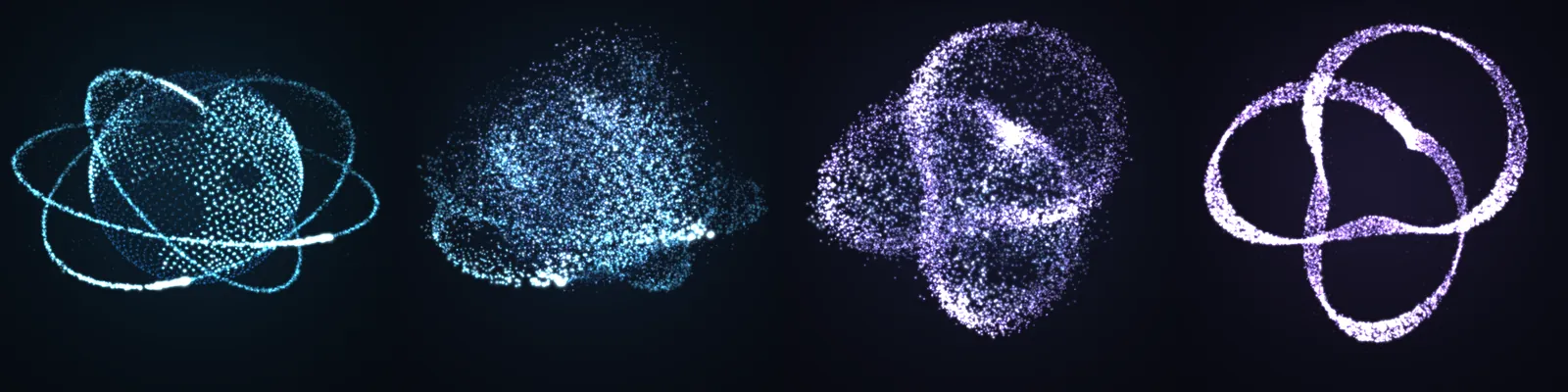
The best part of this light isn't the four shapes; it's the second when it switches. If the prompt only says "change the shape on click", you will likely get four separate objects that swap out in one go, like changing slides.
This sentence in the prompt turns "swap" into "morph": "When the state changes, the same particles fly from the old shape to the new one (each particle with a slightly different delay, ease-in-out, about 1 second), and the colour blends along with them. Do not just jump to the new shape." There are really four things in it:
- The same particles: all four shapes share one set of 12,000 particles, and each particle just gets a new target position. That is what lets them fly across.
- A different delay for each: Claude Code made it a top-to-bottom sweep plus a little randomness, so a shape dissolves and grows back layer by layer instead of moving as one lump.
- Ease-in-out, about 1 second: it used a cubic ease-in-out of about 1.1 seconds, with a slight drift mid-flight.
- The colour blends too: colour, brightness and particle size all change during the flight, and the big glow behind turns to the new state's colour.
05Prompt 2: inside a voice assistant
The first page looks great, but it is only a showcase. Prompt 2 goes in the same conversation and asks for a second page, app.html, showing the light inside a real app:
Looks great. Round two: make one more page, app.html, that shows what this status light looks like inside a real app: a [voice assistant] screen.

- Same black background, same 12,000 particles and four shapes (share the same code), with the particle object in the upper middle of the screen, still the hero, about 380 to 420 px wide.
- A small app title "[Little Helper]" in the top row, with a small grey "Demo" on the right.
- Under the particles, the conversation: what the user says appears one character at a time (for example "[Find me a brunch place in Tainan that still has seats today]"), and when the assistant answers, a small dark rounded card appears below listing three fictional [places with name, rating and distance].
- A round microphone button at the very bottom, with an amber ring that breathes around it while listening.
- Run one round automatically with the statusLight API: onListen() while the user speaks, onThink() when they finish (a small line below says "Thinking…"), then onSearch() (small text "[Searching 3 sites…]"), then onDone() when results are found and the answer card appears. After a short pause, start another round automatically (with a different question), looping forever. Rough timing per step: listening [3] s, thinking [2.5] s, searching [3] s, done [3.5] s.
- At every call, add a one-line comment saying which event a real app should call it on (the microphone picks up speech, the question is sent, the search tool call starts, the reply is complete).
- Don't break index.html; it must keep working as it is, including the small statusLight.set(...) line under the object and the little dots in the tabs.
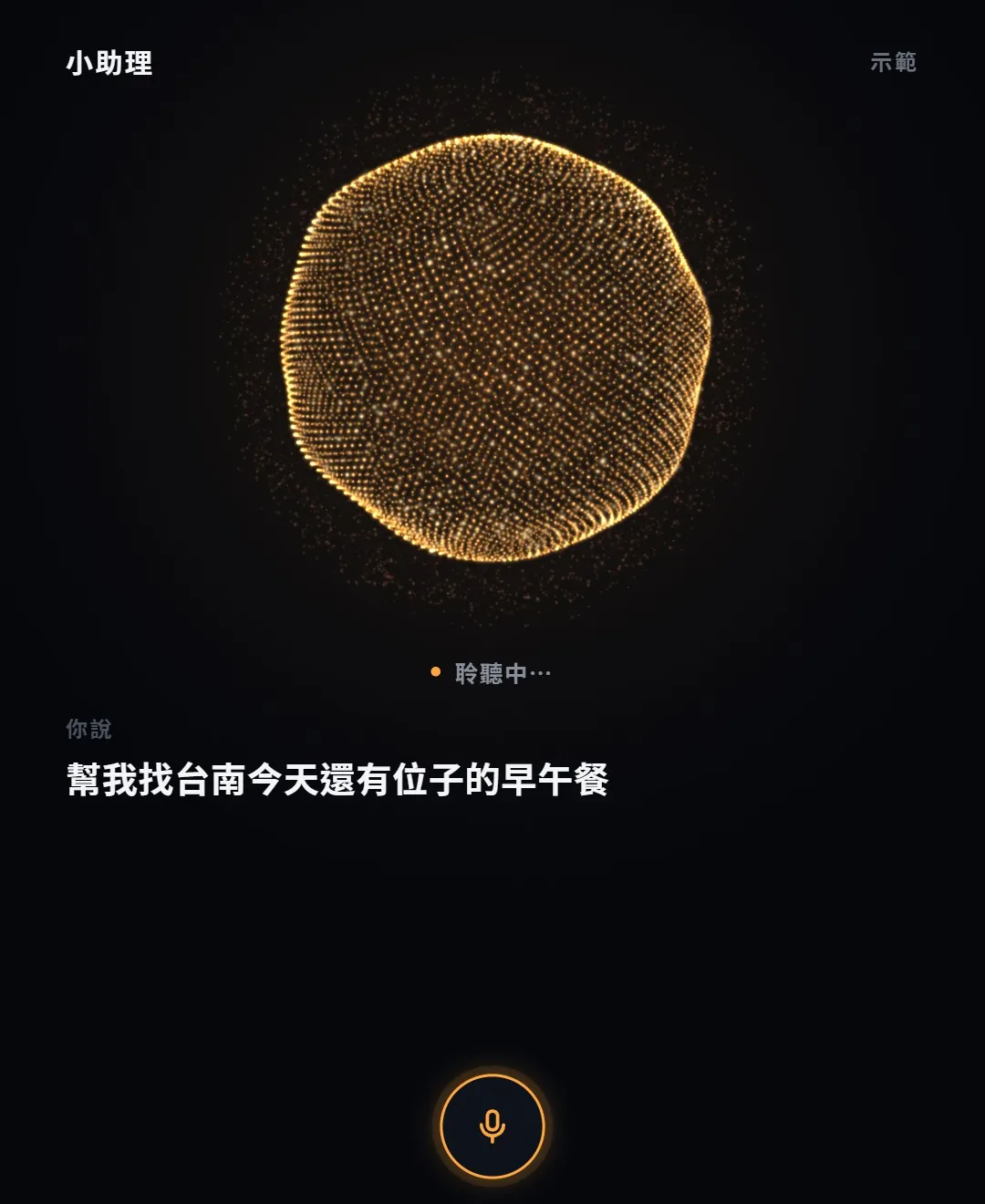
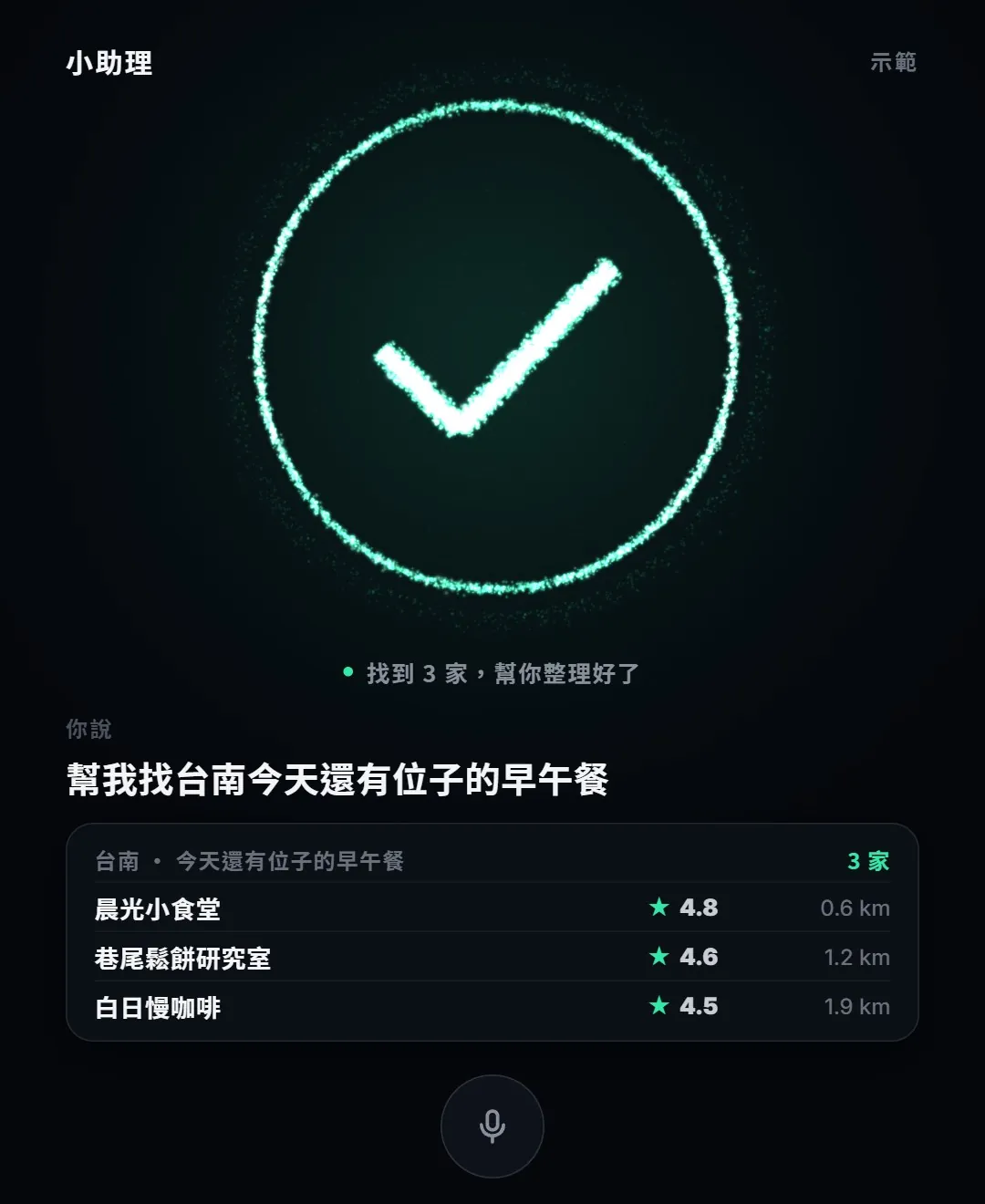
The app.html it made shares the same particle code and runs a 12-second round: listening 3 s, thinking 2.5 s, searching 3 s (with 正在搜尋 3 個網站…, "searching 3 sites…"), done 3.5 s. Three questions take turns: brunch in Tainan, a ramen place nearby, and a family-friendly restaurant for the weekend. index.html did not change at all.
06Wire it into your own app: 4 events, 4 lines
Once the particle code from index.html is in your page, your app only needs one call at each of four moments. This is the mapping from the comments in app.html:
- The microphone starts picking up the user's voice → window.statusLight.onListen()
- Speech recognition ends and the question is sent to the model → window.statusLight.onThink()
- The model starts calling the search tool (for example a tool_use or function-call event arrives) → window.statusLight.onSearch()
- The reply has finished streaming and the result is shown → window.statusLight.onDone()
The four shortcuts are all window.statusLight.set('listening' | 'thinking' | 'searching' | 'done'), and window.statusLight.get() reads the current state. If your app has no search step, go straight from thinking to done; the particles still fly across.
07Make it your own colours and shapes
- Colours: change the four state colours in the last line of prompt 1 and in the four shape lines. Keep them far apart (a warm colour, violet, blue, green) so the state reads at a glance.
- State names: it doesn't have to be a voice assistant. A file upload could be "Uploading / Analysing / Generating / Done"; change the tab labels and the English names in set() together.
- Shapes: write one sentence per shape, "what shape + how it moves". Pick very different outlines: one solid, one made of lines, one with rings, one symbol. Similar outlines make the morph hard to see.
- Particle count: 12,000 took about 20 ms per frame in our headless test. If an older phone stutters, try 6,000.
- Already built and only want a small change: in the same conversation say "leave everything else alone, just change Done into [a star]".
08Good to know
- Both pages were written by Claude Code and we didn't change the code, only shrank the fonts. You can ask it to polish details.
- Every run is different. With the same prompt your shapes, glow and buttons may look a little different, and extras like the dots in the tabs may not appear.
- It needs a connection: Three.js loads from the jsDelivr CDN. Double-clicking index.html can give a black screen or wrong fonts; open it through a local server instead.
- The demo's Chinese fonts only contain the characters on screen. If you download the demo files and change the text, switch back to the full fonts or new characters will fall back to a system font.
- The voice-assistant page is a self-running demo: 小助理, the three questions and every place name, rating and distance (晨光小食堂 and the rest) are fictional.
- The prompt screen in the video is re-typeset from the real prompt, not a screenshot; the full prompts are the two above.
- Another guide: a playable 3D mini world from one prompt — Also Three.js: a self-running airport in one file