A 3D arena seat picker from one Claude Code prompt: 16,904 seats, a view from your seat, live distances (prompt + demo)
See your seat before you buy. Claude Code built a 3D concert seat picker from one prompt: dive into a sector, sit at eye height, distances from real 3D coords.
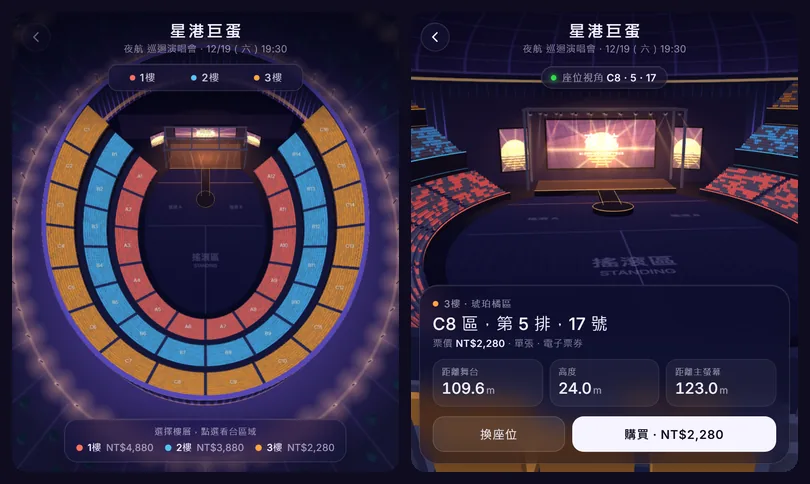
When you buy concert tickets you only get a flat seat map, and you find out how far the stage is after you have paid. This guide builds a 3D arena seat picker: an arena in a city at night, 42 sectors and 16,904 chairs. Tap a sector and the camera dives into the stands; tap a seat and the camera sits down in it at eye height, while a ticket card at the bottom shows the distance to the stage, your height and the distance to the main screen, all three computed from the seat's 3D position.
The whole app was built by a fresh Claude Code agent that got one prompt (plus some technical notes), in one round, and we didn't change its code. You get: a live demo to play with, the five-part prompt structure (venue, sectors, seats, view, checkout), the full prompt (swap the [] parts for yours), the one sentence that keeps tens of thousands of chairs running smoothly, and a bonus step that turns the seat view into a concert photo. The venue, the show and the prices are fictional; apart from one photo marked as AI-generated, every picture below is a real screen from the app.
01The result: a 3D arena seat picker from one prompt
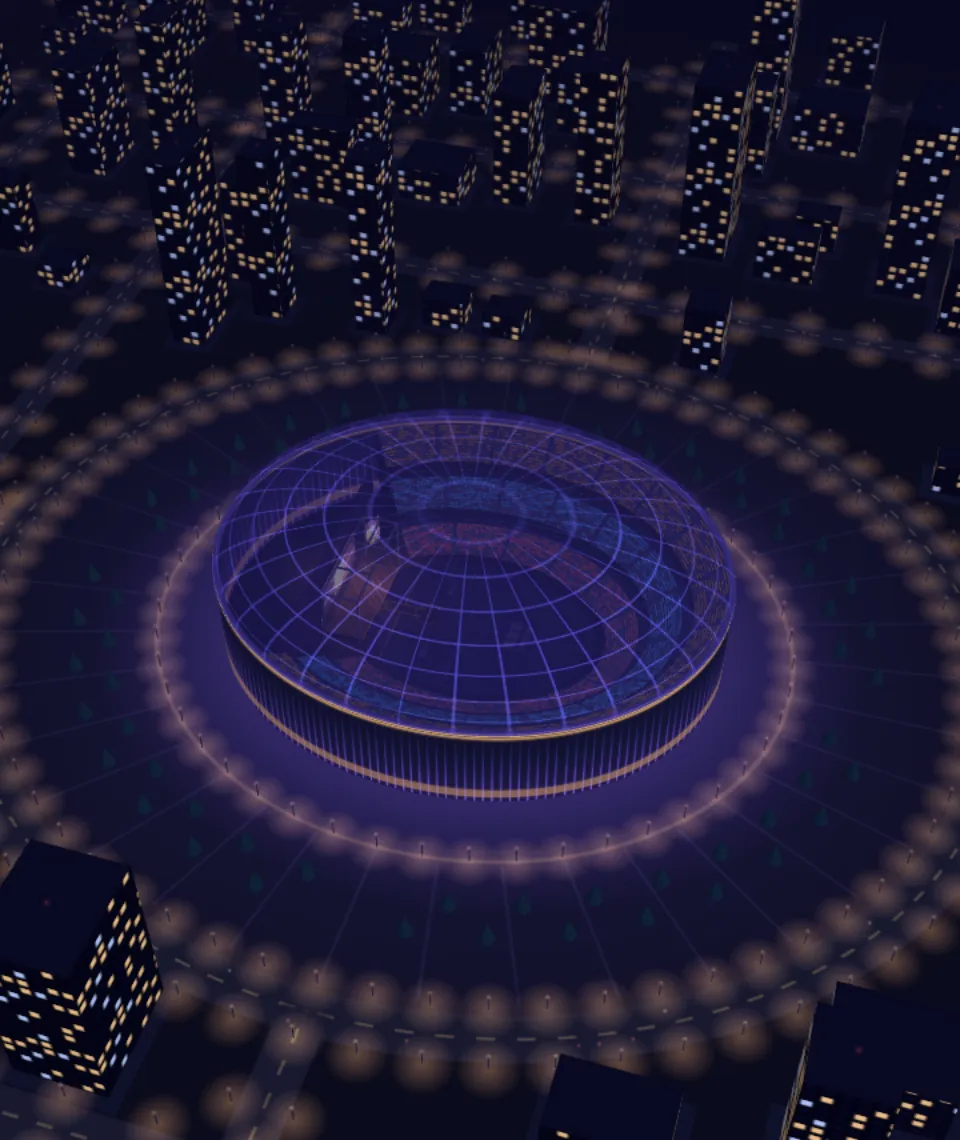
It is one index.html file plus three.js and two font files. When it opens, the camera orbits the arena in its city block and descends while the dome turns see-through, then stops straight above it. The venue name 「星港巨蛋」, the show line 「夜航 巡迴演唱會 · 12/19(六)19:30」 (Night Voyage Tour, Sat 12/19, 7:30 PM) and the 1樓 / 2樓 / 3樓 (Level 1 / 2 / 3) tabs fade in on top. The whole opening takes about 6.8 seconds.
After that it is all taps: pick a level, tap a sector, tap a seat, and the camera flies you in until you are sitting in that chair looking at the stage. The demo below is the exact file Claude Code wrote, so you can play with it right now:
- Try it: Starport Dome 3D seat picker — Works on phone and desktop; tap or click, no dragging
- Wait for the aerial opening (about 7 seconds) until 1樓 / 2樓 / 3樓 appear at the top.
- Tap 3樓 (Level 3), then tap an orange sector, for example C8 at the bottom middle: the camera dives into it.
- Tap an orange chair (grey ones are sold): it turns green, and a second later the camera flies to that seat at eye height.
- Read the three distances on the ticket card, then tap 換座位 (Change seat) to try another or 購買 (Buy).
- The back button in the top-left steps all the way back to the top view, so you can switch to 1樓 (Level 1) and compare.
02Five parts: venue, sectors, seats, view, checkout
The prompt has five parts, and each answers one question. To make it your own venue, change what is inside each part and keep the five headings and their order:
- ① Venue: what does it look like? The bowl-shaped arena, the stage, the main screen, the lights, the city block outside, and how the opening aerial shot moves.
- ② Sectors: how are the stands split? How many sectors per level, how they are named, which colour stands for which level, and what a tap does.
- ③ Seats: how are the chairs drawn? Each one a real little chair, colours for sold and available, green when picked, and "draw them with InstancedMesh".
- ④ View: what do you see once you pick? The camera flies to the seat, eye height 1.2 m, facing the stage.
- ⑤ Checkout: how do you buy? The ticket card, three distances computed from coordinates, change seat, Buy → Booked, and the back button.
03The full prompt: Starport Dome
This is our original prompt, translated so you can paste it in English. The [] parts are what you swap; copy the rest as is:
Build me a "3D concert seat picker and ticketing" mobile web app (one HTML file, using three.js). The venue is a fictional indoor arena called "[Starport Dome]".

[Venue]
- Model everything in code (no external models): an oval bowl-shaped arena with the stage at one end, a flat standing floor in the middle, and three tiers of stands ringing it, Level 1, Level 2 and Level 3, each one higher and set further back.
- The stage should feel like a real concert: a stage deck, a big main screen behind it, a lighting truss above with rows of spotlights. Stage light is warm ([amber, gold]); everything else has a [deep indigo / purple] night mood.
- Put a small night-time city block around the arena: box buildings, lit windows, roads and street lamps, so the aerial shot looks like an arena in the middle of a city.
- Opening: an aerial shot of the city at night, the camera slowly orbiting the arena and descending to an almost straight-down top view; then the UI fades in one piece at a time: first the venue name and show info, then the level tabs.

[Sectors]
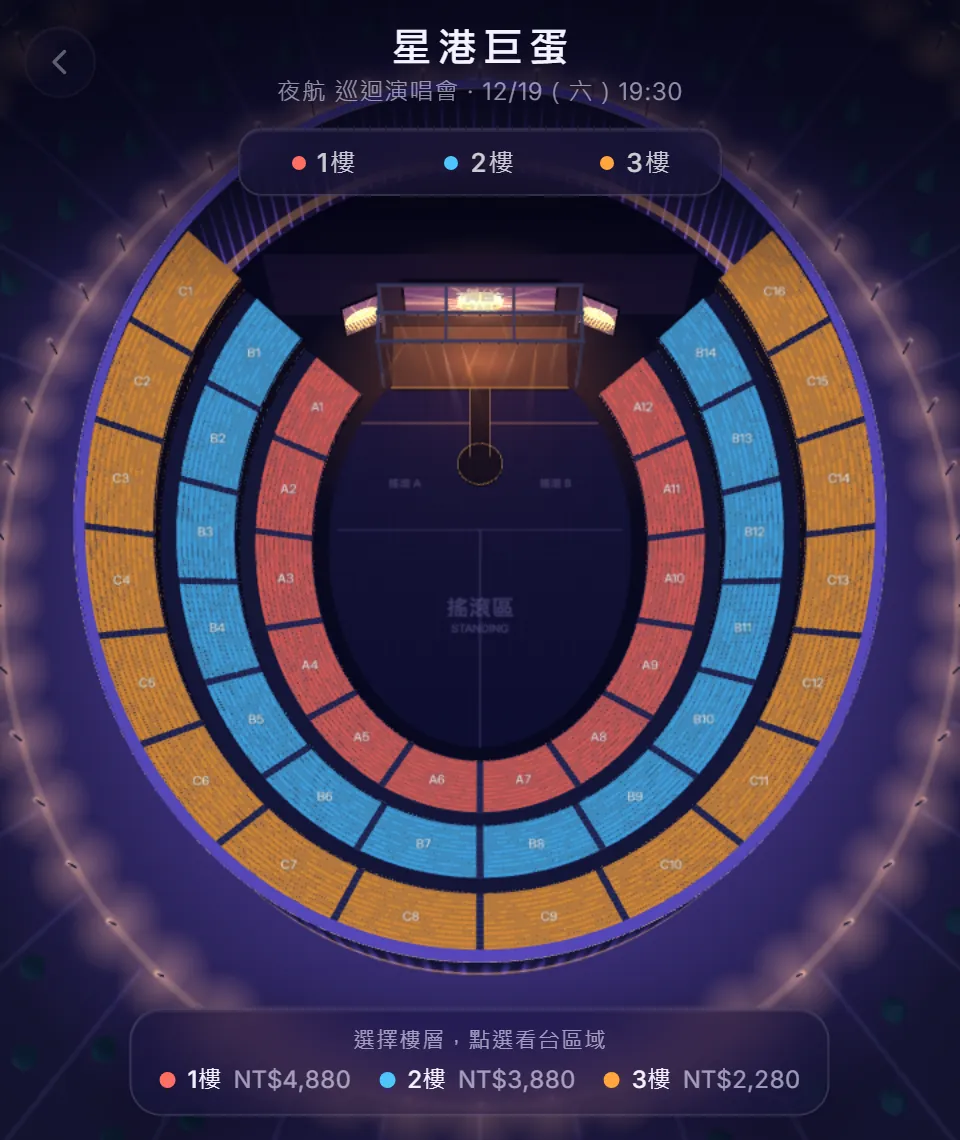
- Split each tier into many sectors (for example [Level 1 A1–A12, Level 2 B1–B14, Level 3 C1–C16]). Each sector is a wedge of the stands, coloured by level (one colour per level, for example [Level 1 coral red, Level 2 sky blue, Level 3 amber orange]).
- At the top: the venue name "[Starport Dome]", under it a small line "[Night Voyage Tour · Sat 12/19 7:30 PM]", and under that a segmented control: Level 1 / Level 2 / Level 3. Tapping a level lights up its sectors and dims the others.
- Tapping a sector: first a small label appears (for example "B7 · Level 2 · [$120]"), then the camera dives into the stands and flies to the front of that sector.

[Seats]
- Every seat is a real little chair (seat + backrest), laid out row by row along the curve of the stands, with aisles and stairs. There are a lot of seats, so draw them with InstancedMesh; it must run smoothly on a phone too.
- Sold seats are grey; available seats are the level's colour. Tapping an available seat turns it glowing green, and a small label above it shows "B7 · Row 4 · Seat 21".

[View]
- Once a seat is chosen, the camera flies to that seat at eye height (about 1.2 m when seated), facing the stage, so the user sees "the view from this seat": the seats in front, the stage, the big screen, the lights.
- The top label changes to "View from B7 · 4 · 21".

[Checkout]
- When the view appears, a dark, translucent, glassy ticket card slides up from the bottom: a small level name (for example "Level 2 · Sky blue"), big text "Sector B7, Row 4, Seat 21", one small line with the price, and three stats: Distance to stage __ m, Height __ m, Distance to main screen __ m (all computed from the seat's real 3D position, not hard-coded).
- Two buttons: "Change seat" (back to the top view to choose again) and "Buy · [$120]" (price by level: [Level 1 $150, Level 2 $120, Level 3 $70]). After Buy, the button turns into a green "Booked ✓".
- A back button in the top-left corner steps back one stage at a time.

Overall it should feel like a polished iOS app: dark, glassy, thin type, all text in [English]. The 3D scene is the hero; the UI only takes a small strip at the top and bottom.
- Make an empty folder and open Claude Code in it.
- Get three.js: download three.module.js into a lib/ folder (link below) and add one line at the end of the prompt: "three.js is at lib/three.module.js; load it with an import map". If you'd rather not download it, add "load three.js from a CDN" instead.
- Paste the prompt, send it, and wait for it to write index.html.
- Run npx serve (or any local server) in the folder and open the address it gives you in a browser: tap a level → a sector → a seat.
- three.module.js (r160, jsDelivr) — The version we used; save it into your lib/ folder
- Claude Code
04Pick a level, tap a sector: the camera dives into the stands
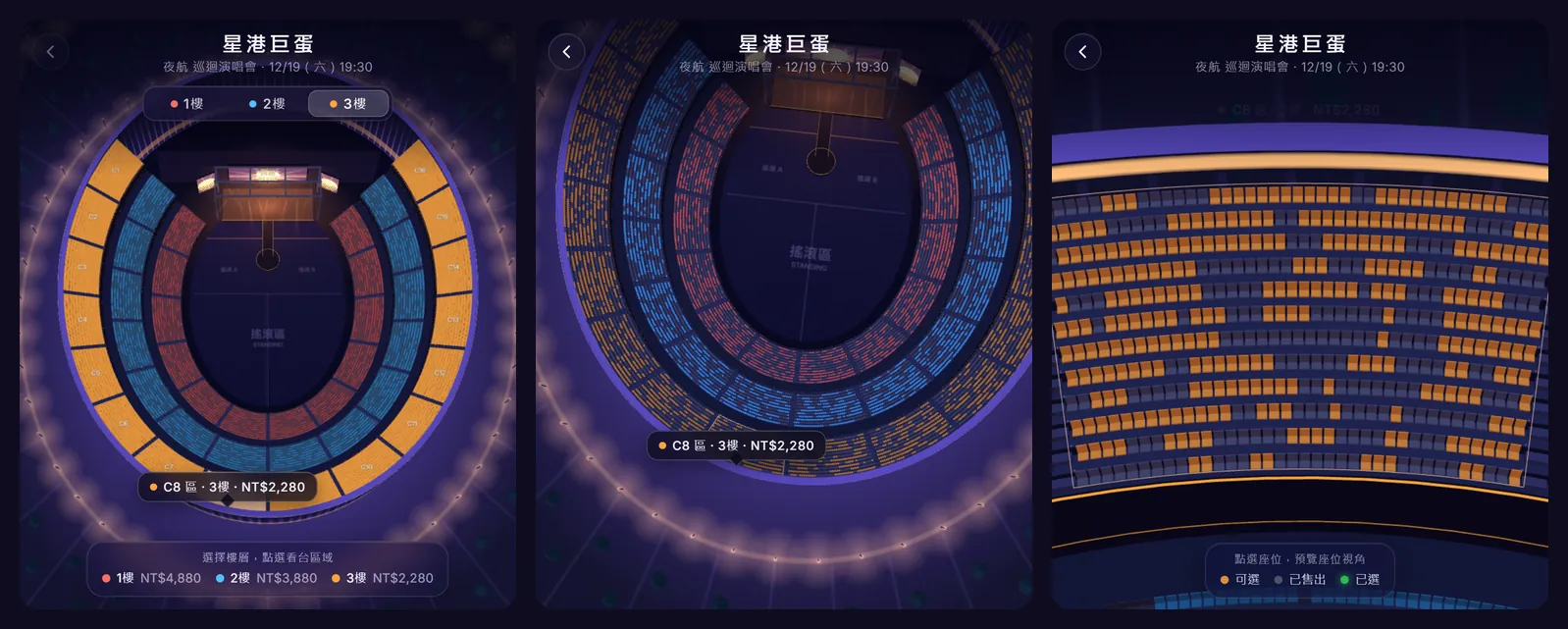
Tap 3樓 (Level 3) and the orange ring lights up while the other two dim. Tap a sector and a small label pops up first, 「C8 區 · 3樓 · NT$2,280」 (Sector C8 · Level 3 · NT$2,280), then the camera tilts forward and flies down, stopping in front of that sector after about 1.8 seconds with all its rows of chairs in front of you.
The prompt only said "sold seats are grey". Claude Code decided how they sell on its own: sold seats come in groups of 1 to 4 next to each other and the front rows are fuller, so it looks like people really rushed for tickets. The pattern is random on every load, so your C8 won't match ours.
05Sixteen thousand chairs that are really one: InstancedMesh
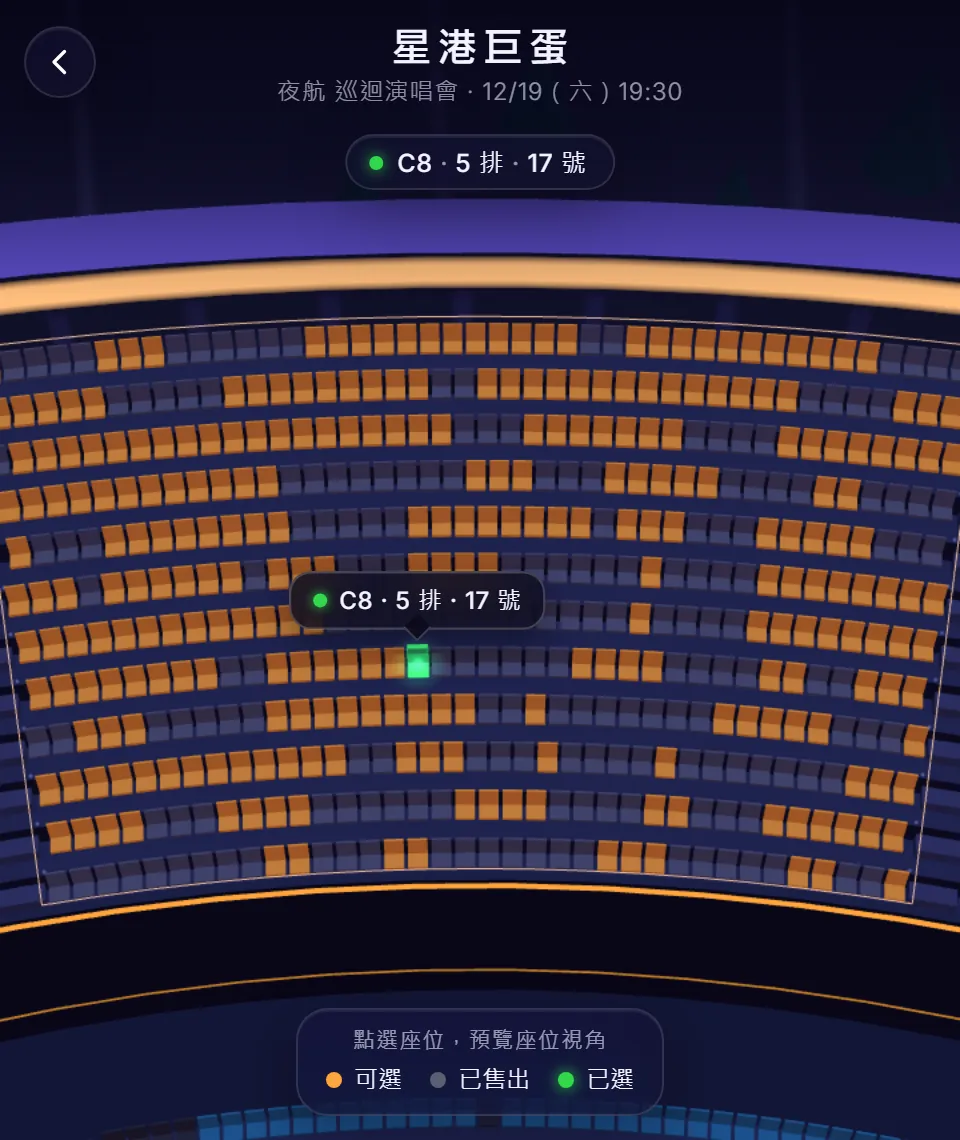
The arena has 16,904 chairs, each with a seat and a backrest. If every chair were its own 3D object, the browser would have to handle tens of thousands of objects every frame, and it would easily stutter.
The line "draw them with InstancedMesh" is the fix: Claude Code made the shape of one chair and has the computer copy it 16,904 times and draw them all at once. Each copy only stores its own position, direction and colour, so "sold turns grey" and "picked turns green" just change that one chair's colour.
- One chair = a seat block and a backrest block, merged into one shape.
- One InstancedMesh holds 16,904 copies, each with its own position and facing (towards the stage).
- Colours are set per chair: available = the level colour, sold = grey, picked = green with a glow.
- Once you buy, that chair turns into a sold grey one.
06Sit in your seat: eye height, distances from coordinates
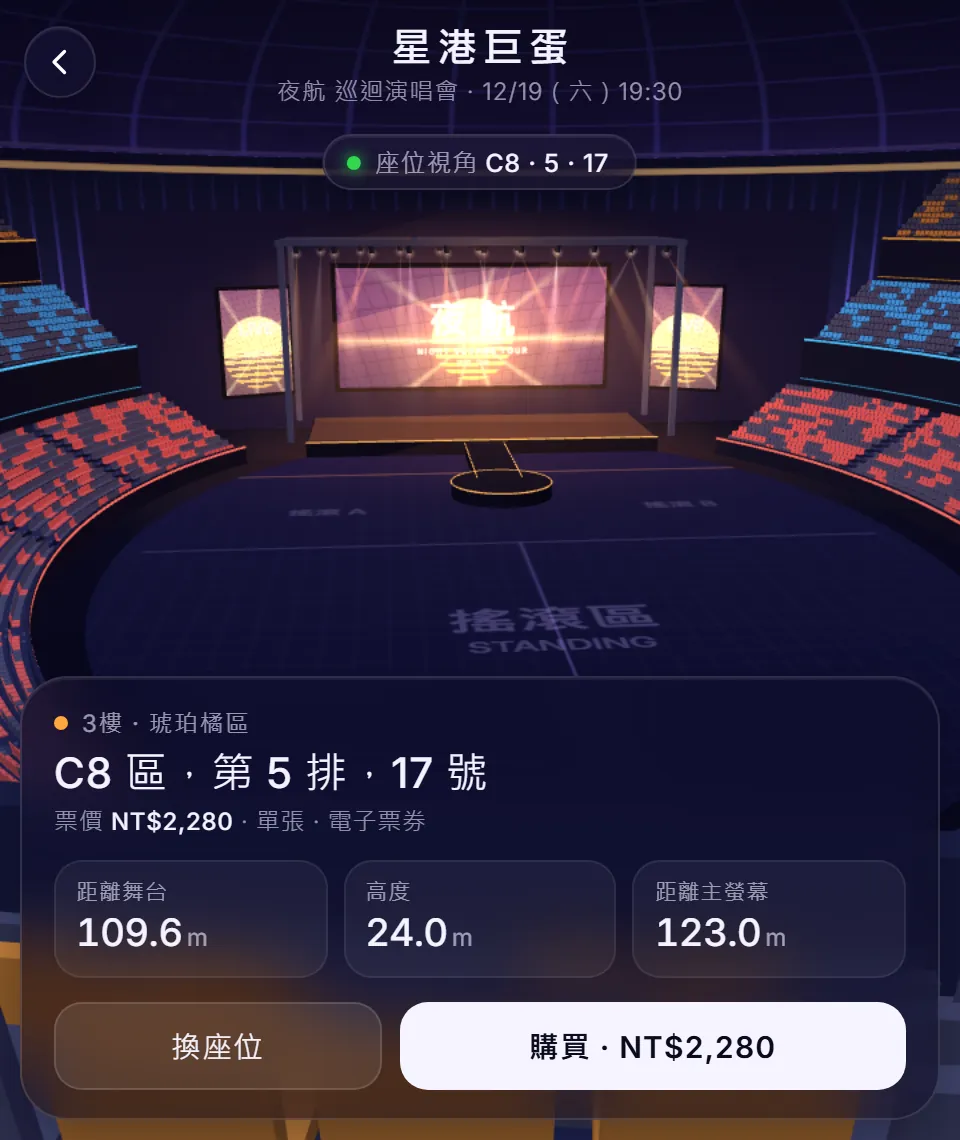
One second after you pick a seat, the camera spends 2.4 seconds flying from the front of the stands to that chair and stops at seated eye height (1.2 m above the seat), facing the stage. The top label changes to 「座位視角 C8 · 5 · 17」 (View from C8 · 5 · 17), and a glassy ticket card slides up from the bottom.
None of the three stats on the card is hard-coded; Claude Code computes them from that eye position:
- 距離舞台 (Distance to stage): from your eyes to the nearest point of the stage deck, 109.6 m for this C8 seat.
- 高度 (Height): how far your eyes are above the arena floor, 24.0 m, roughly seven or eight storeys.
- 距離主螢幕 (Distance to main screen): to the centre of the big screen behind the stage, 123.0 m.
07Bonus: turn the seat view into a concert photo (AI-generated)
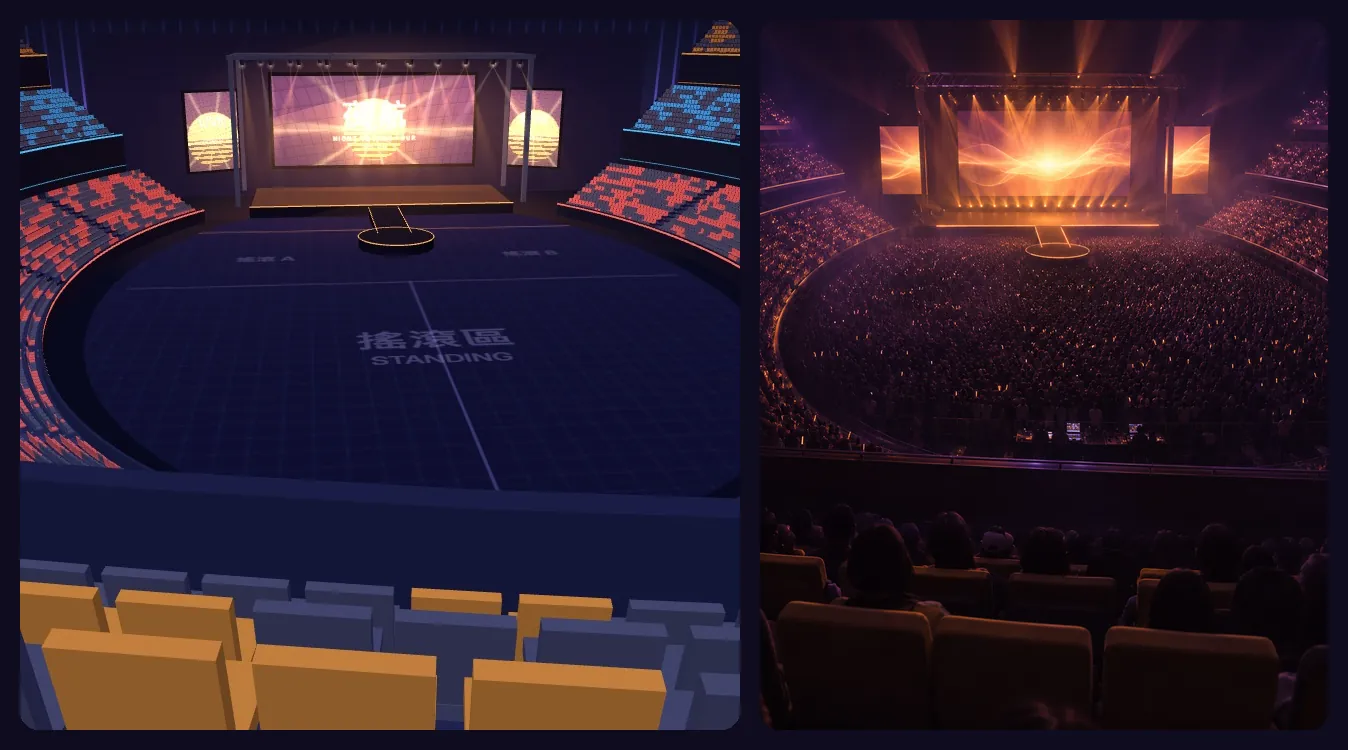
The 3D view tells you what you can see, but it still looks like a game. In the video we went one step further: we took a screenshot of the seat view, gave it to ChatGPT, and asked for a phone photo from the audience with exactly the same composition.
- Take a screenshot of the seat view and crop off the top label and the ticket card so only the 3D scene is left.
- Start a new ChatGPT chat, upload the screenshot, paste the prompt below and swap the [] part for your seat's position.
- Check it: are the stage, screens and stands where they were in the original, and did any visible faces or text sneak in?
Please generate an image. The attached picture is the 3D view from one seat ([Level 3, the very back, straight in front of the stage]) in a concert seat-picker app I built with three.js; the venue is a fictional indoor arena. Keep exactly the same viewpoint, height and composition: do not move the stage, the main screen and the two side screens, the lighting truss, the curved stands on both sides, the standing floor in the middle or the rows of seats in front, and keep their distances. Turn it into a real concert photo, as if an audience member took it on a phone from this seat: a full house (people on the floor and in the stands, only backs of heads or distant crowds, no visible faces), warm amber-gold stage lights and beams, a glowing main screen, the rest of the arena in a deep indigo and purple night mood, a little haze in the air. No text, captions, logos or band names anywhere; only abstract warm light on the main screen. Portrait, 4:5.
08Too far? Change seats and buy
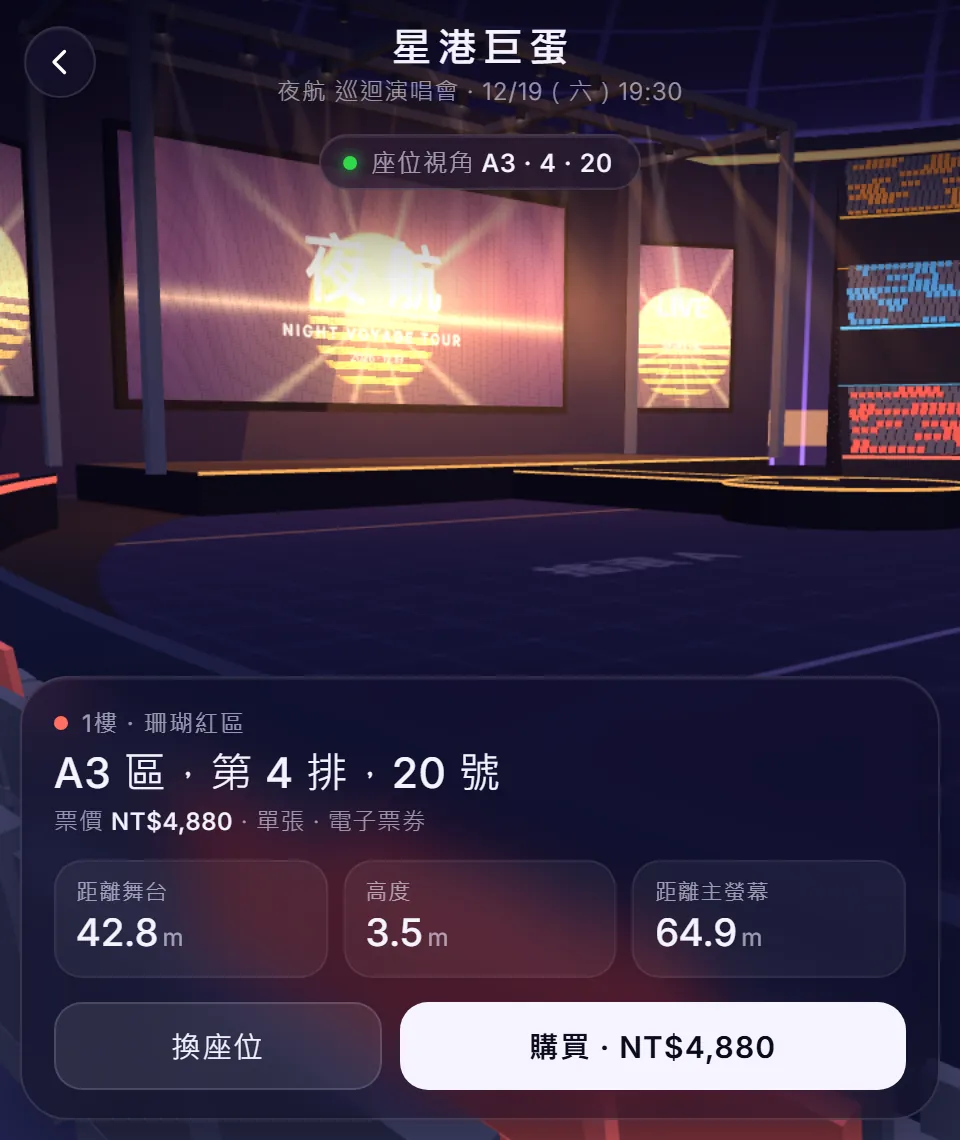
109 metres is a bit far. Tap 換座位 (Change seat) and the camera goes back to the front of C8, where you can pick again in the same sector; to change levels, tap the back button in the top-left once more to return to the top view. We switched to A3 on Level 1 and picked Row 4, Seat 20, and the card updated: distance to stage 42.8 m, height 3.5 m, distance to main screen 64.9 m, price NT$4,880.
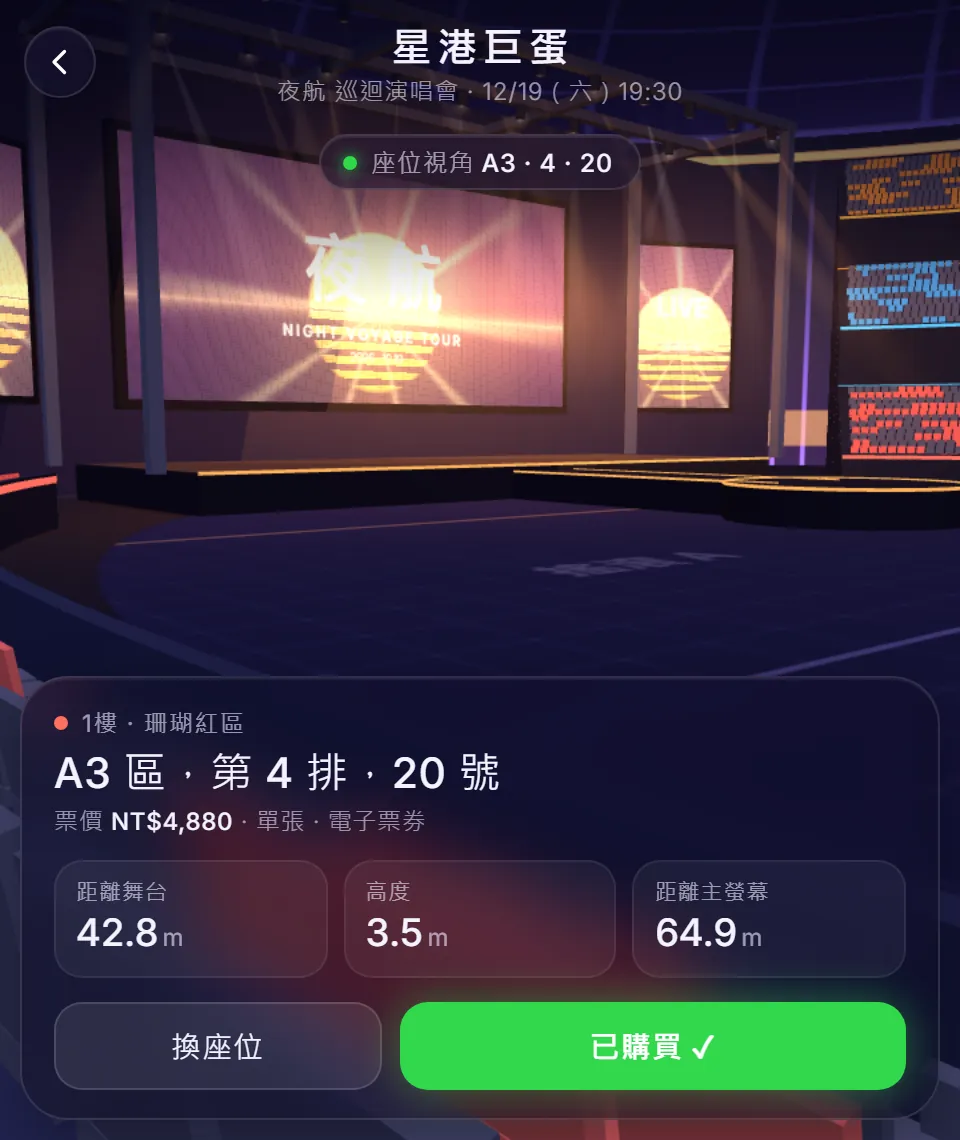
Tap 購買 (Buy) and the button turns into a green 「已購買 ✓」 (Booked), and that chair becomes sold. Tap the back button twice more and the camera pulls out to the top view of the whole arena.
09Make it your own venue
- Change the names: swap [Starport Dome] and [Night Voyage Tour · date and time] for yours. Mark it "fictional", or use a venue name you actually have the right to use.
- Change the sectors: how many per level, how they are named (A1–A12…), and each level's colour. A small venue can keep just two levels.
- Change the prices: the price for each level, matching the price on the "Buy · …" button.
- Change the mood: swap the stage light (amber gold) and the night colours (deep indigo / purple) for another set and it becomes a different show.
- Keep the five headings and their order, and always keep "draw them with InstancedMesh" and "computed from the seat's real 3D position, not hard-coded".
- Want more once it is built (buying two tickets at once, showing seats left)? Say it in the same conversation.
10Good to know
- 「星港巨蛋」 (Starport Dome) and 「夜航 巡迴演唱會」 (Night Voyage Tour) are fictional. The sector map is what Claude Code built from the prompt, not any real venue's seating plan, and the distances only mean something inside this fictional arena.
- The prices NT$4,880 / 3,880 / 2,280 are demo values. 「已購買 ✓」 (Booked) only changes the button; no payment happens, and a page refresh resets everything. The sold seats are re-randomised on every load too.
- A real ticketing site also needs: the real venue's seat map and dimensions, live seat inventory (locking a seat during payment so two people can't buy the same one), member login, and a payment and e-ticket backend. This app is only the seat-picking screen at the front.
- Claude Code built the app in one round and we didn't change the code. Every run is different: with the same prompt, your arena shape, button positions and animation timing may differ.
- The Chinese text uses your device's system font (Microsoft JhengHei on Windows, PingFang on iPhone and Mac), so it looks a little different from device to device.
- The seat-view photo is an illustration ChatGPT generated from the 3D view. It is not a real photo and doesn't show what you would really see from that seat.
- We tested desktop and phone sizes in headless Chrome with software rendering and the whole flow works; if an older phone stutters, ask it to simplify the city block and the lights.
- Another guide: a playable 3D mini world from one prompt — Also three.js: a self-running airport in one file