Turn a page Claude Code built into editable Figma layers with one prompt (Code to canvas guide)
Capture a page Claude Code built into Figma as editable layers, rearrange it on the canvas, then send it back to Claude. Install command and prompts included.

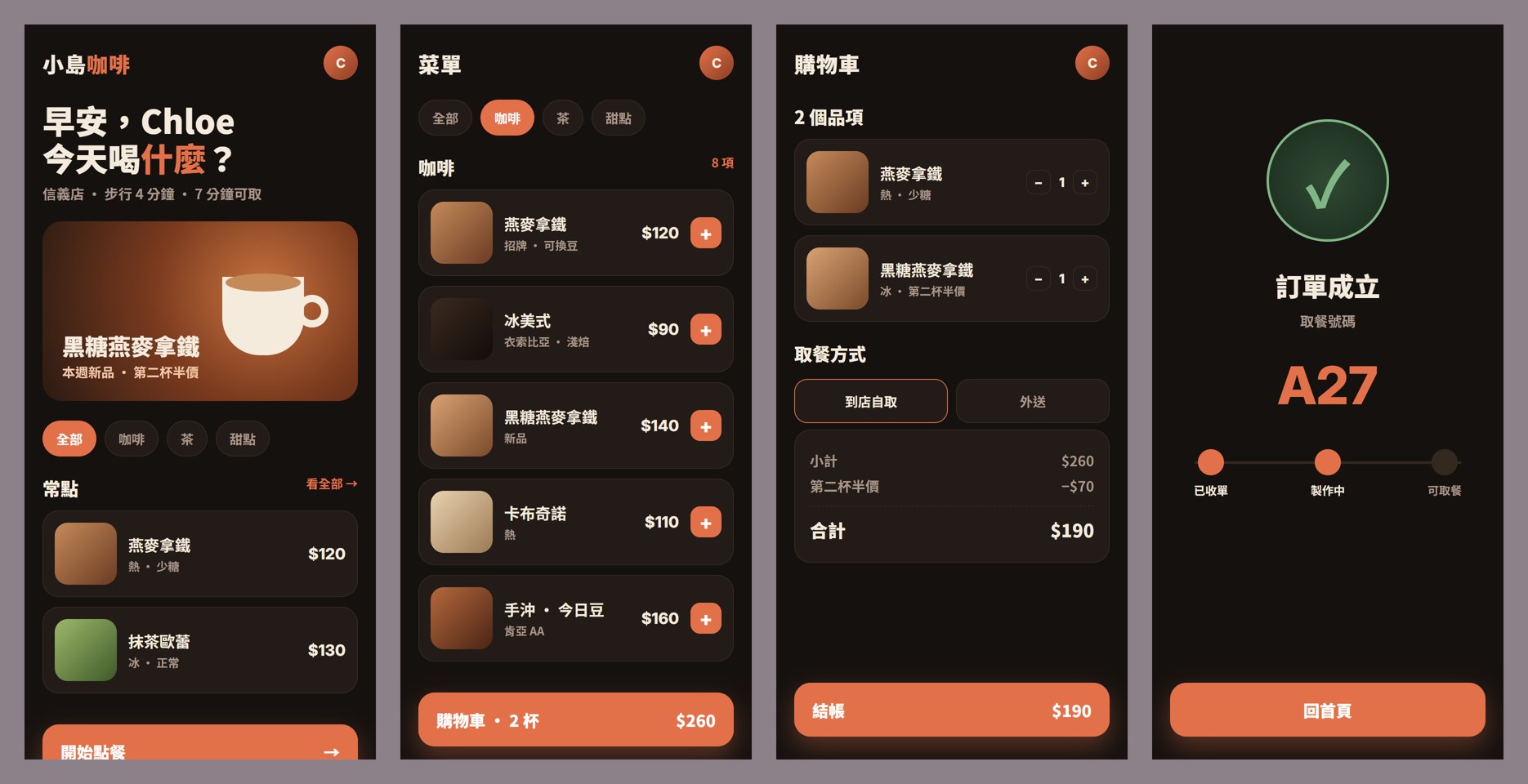
A page you built with Claude Code used to reach designers as screenshots. With Figma's Code to canvas, the live UI in your browser comes into Figma screen by screen as editable layers. This guide walks through it with an order app we asked Claude to write (the café "Island Coffee" is fictional). Steps and prompts follow Figma's official docs (checked November 2026).
01Start with a page that runs
Any UI that runs in a browser works: production, staging, or localhost. We first had Claude Code write a four-screen order app (home, menu, cart, order done) with working buttons.
02Step 1: install the Figma plugin in Claude Code
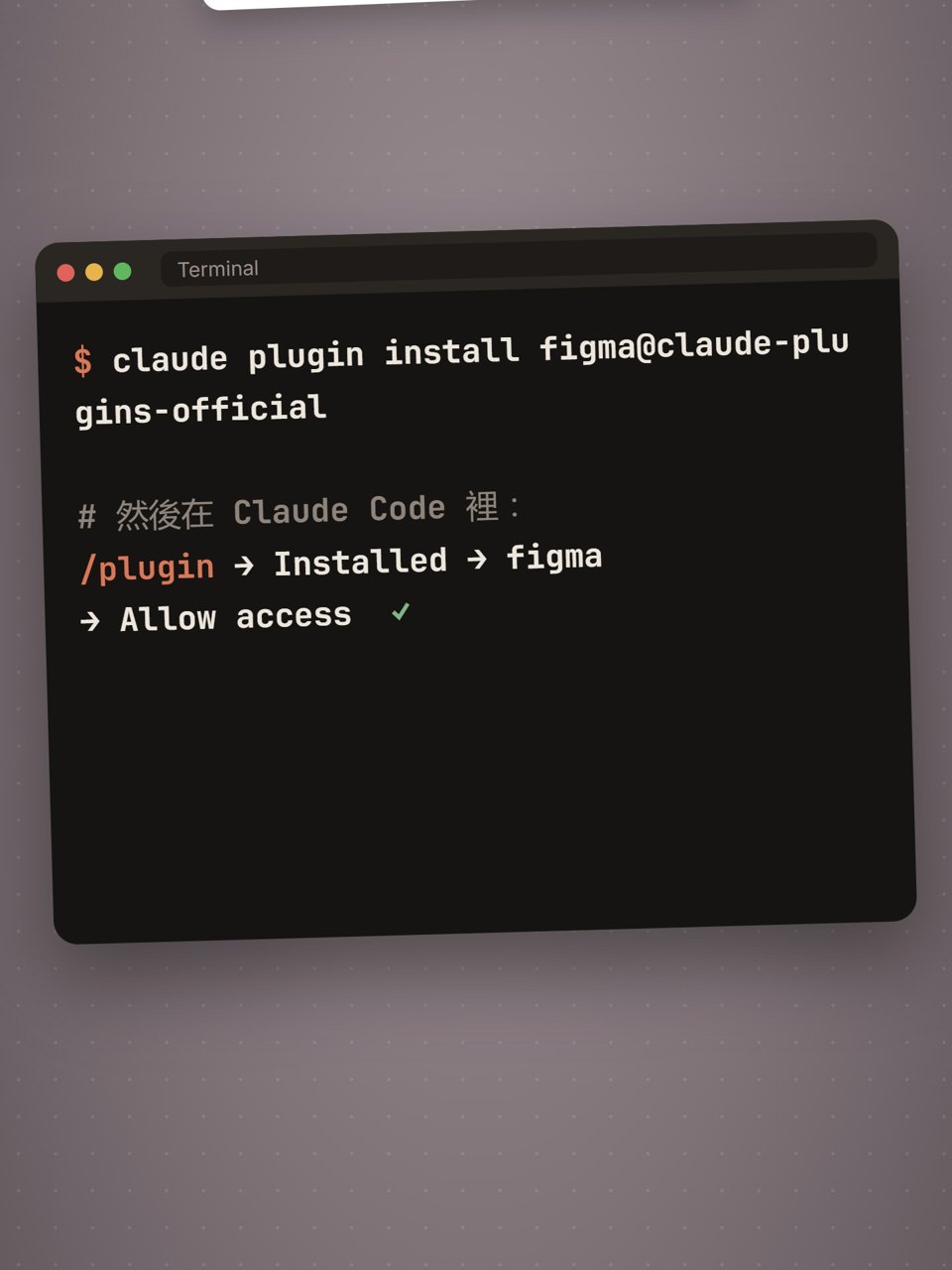
Figma recommends the Figma plugin, which includes the MCP server settings and Figma's skills. In your terminal, run:
claude plugin install figma@claude-plugins-official
- If Claude Code is running, restart it.
- In Claude Code, type /plugin and press Enter to open the plugin manager.
- Press the right arrow to Installed, select figma, press Enter.
- Press Enter again to sign in; in the browser click Allow access.
- Back in Claude Code, type /plugin again: figma shows as connected.
03Step 2: one sentence brings the app into Figma
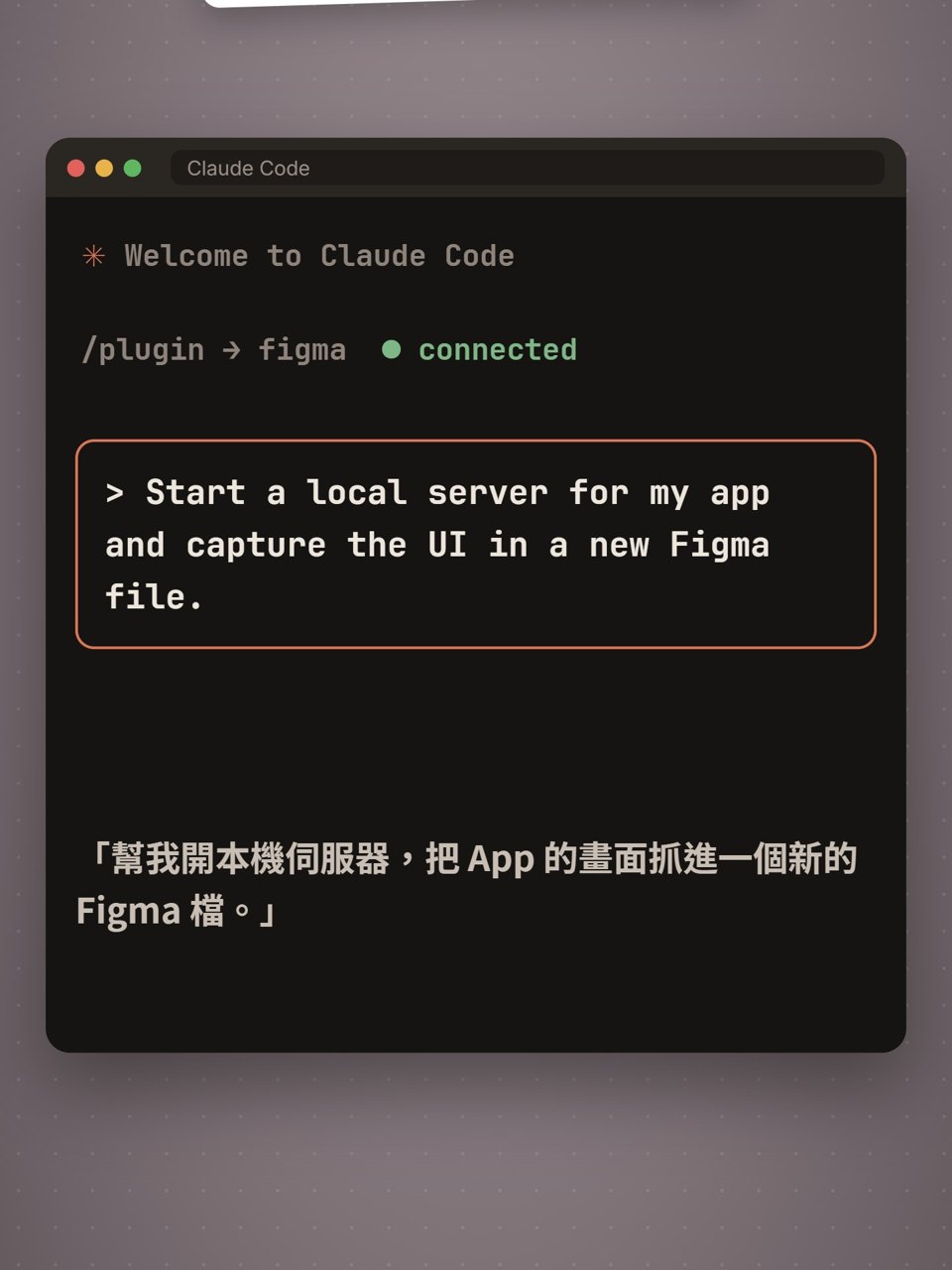
Open Claude Code in your project folder and paste Figma's example prompt:
Start a local server for my app and capture the UI in a new Figma file.
To use a file you already have, end with in [your Figma file URL]; to copy to your clipboard instead, end with to my clipboard.
- Claude starts a local server, adds the script Code to canvas needs and opens a browser window; the first capture happens automatically.
- Use the toolbar in that window: Entire screen captures the full view, Select element captures one element.
- Click through pages and states (a full cart, a finished order) and capture each.
- When done, click Open file; with the clipboard option, paste into any Figma file.
04You get layers, not screenshots
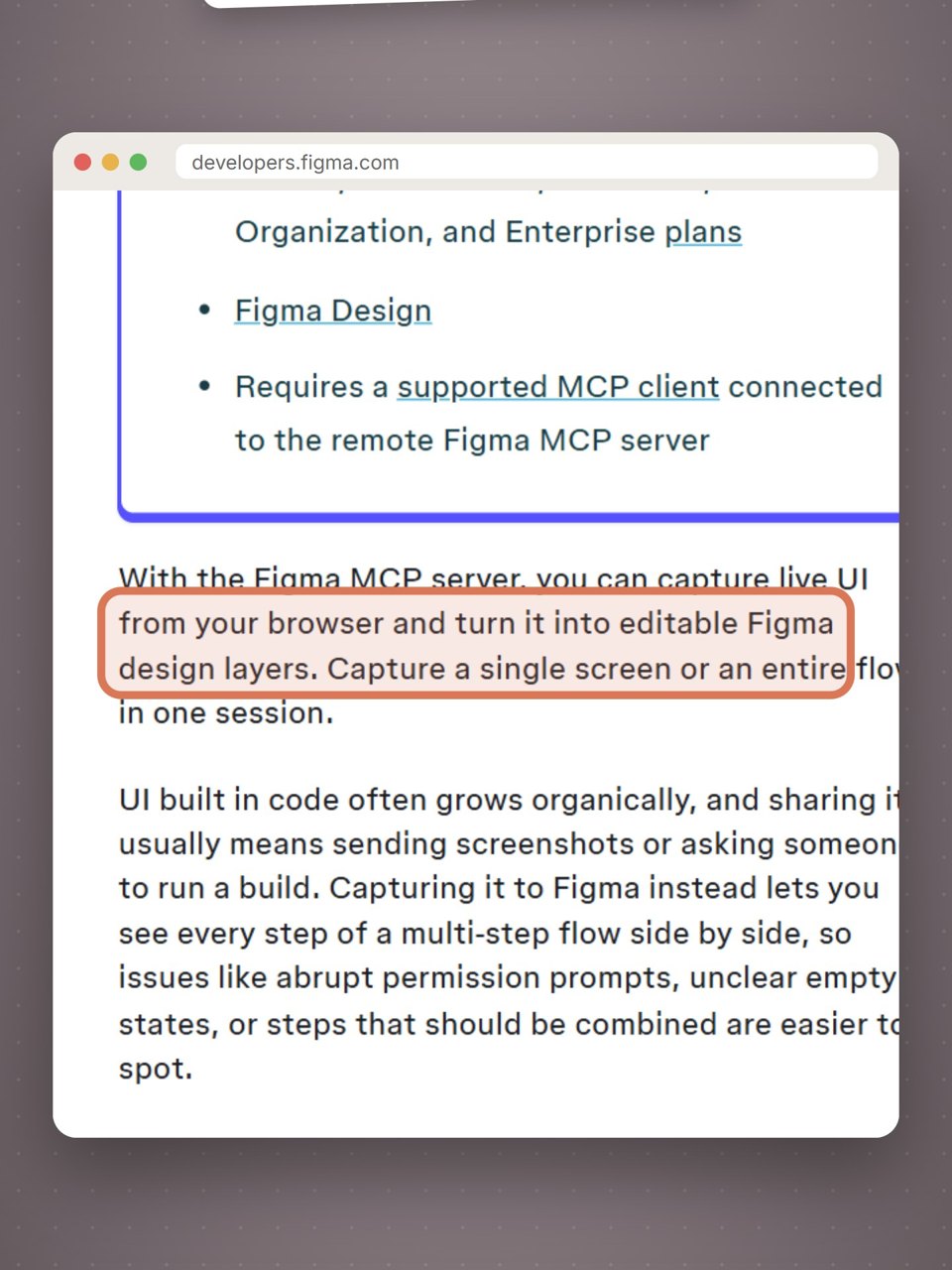
Figma's docs are clear: captured frames are standard Figma layers. Edit the copy, change colours, pull components apart. If the file has a library with variables, matching colour, number and string variables are bound automatically.
05On the canvas: duplicate, rearrange, compare
With the whole flow laid out, issues are easier to spot than by clicking through the site: an abrupt step, two steps that should be one, an unclear empty state. To try an idea, duplicate a frame and change it; no code rewrite needed.
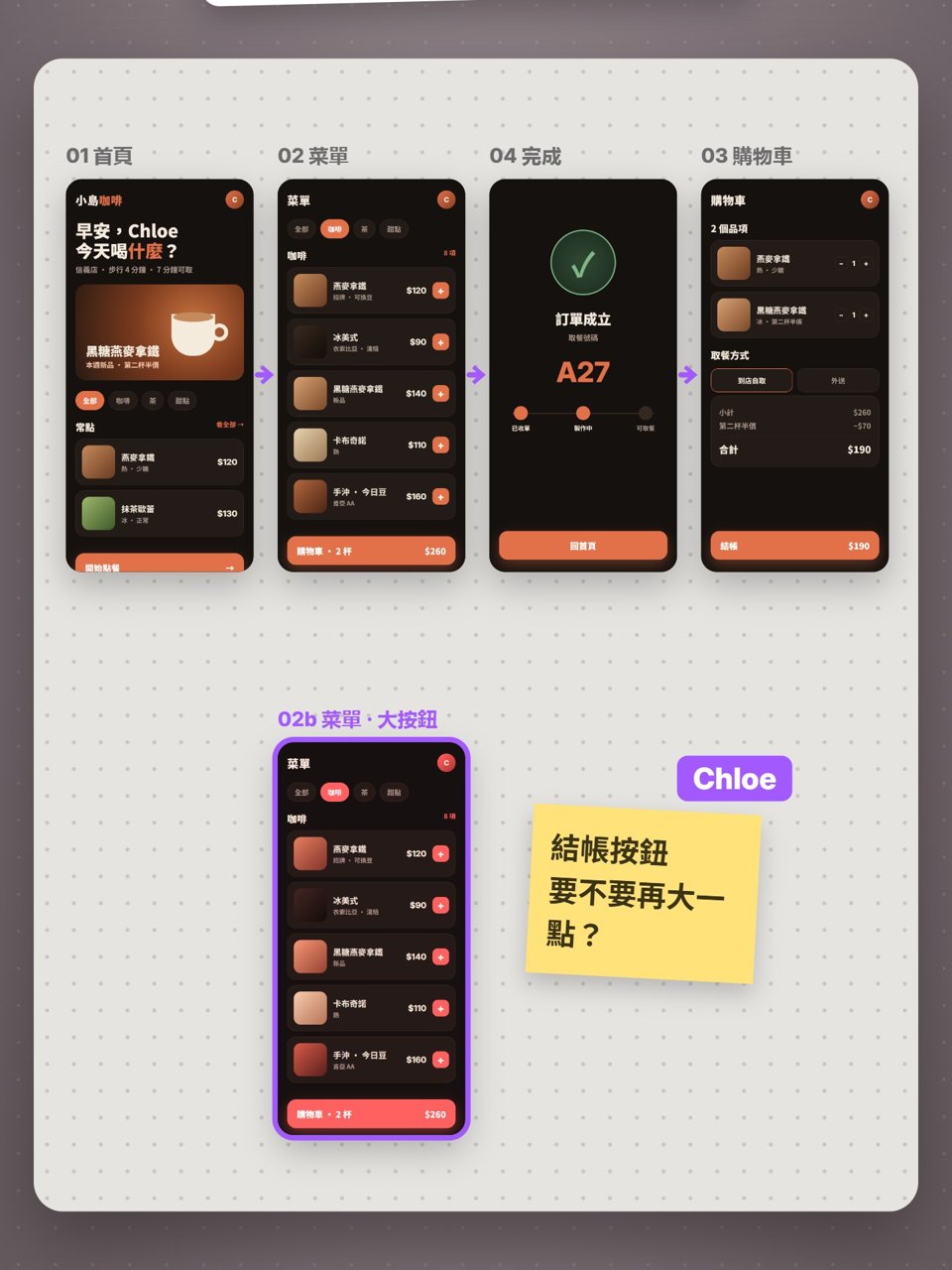
06Send the changes back to Claude
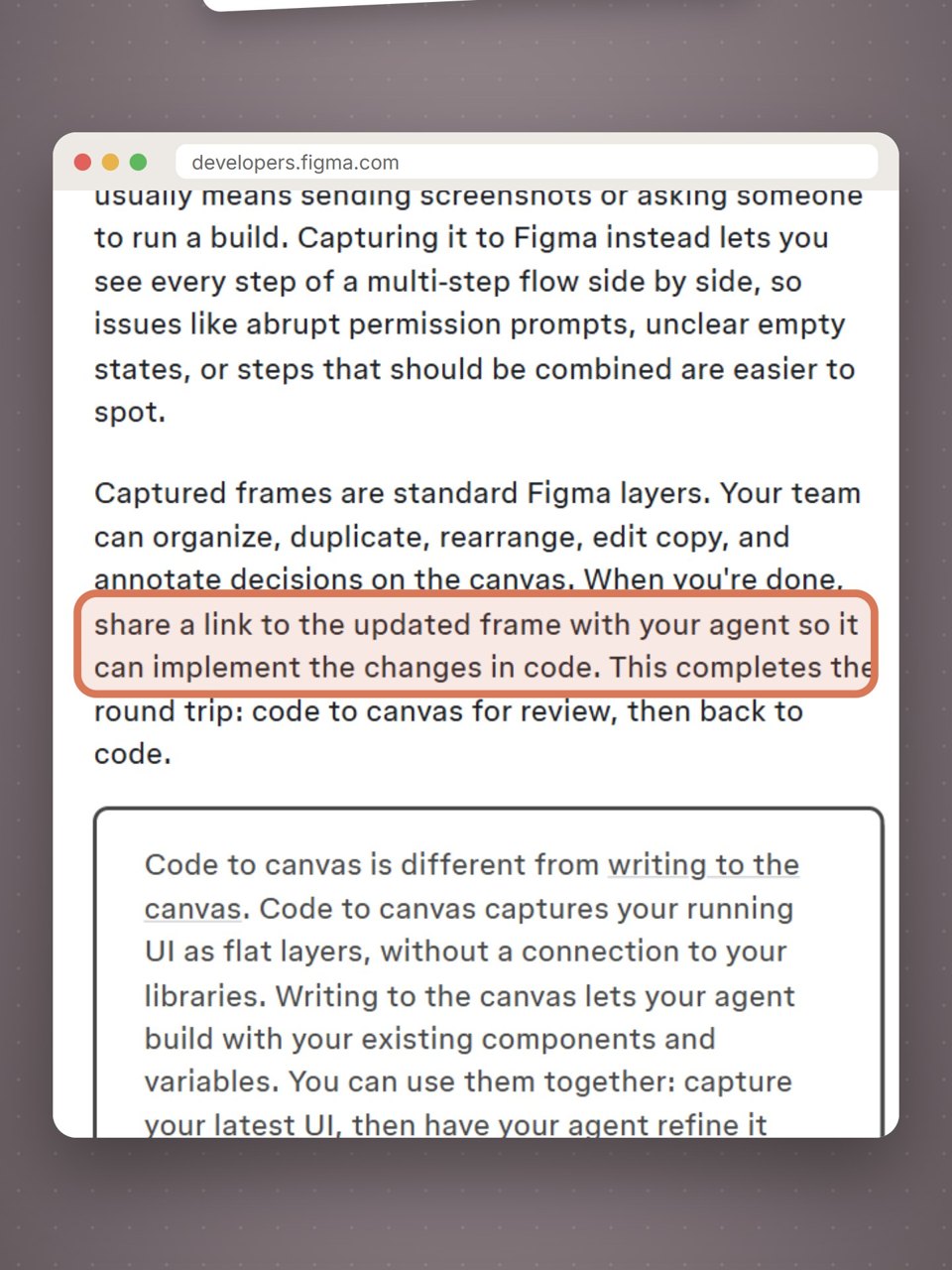
When the design is updated in Figma, share the frame link with Claude Code and ask it to implement the changes. Figma calls this the round trip: code → canvas → code.
Update my code to match the changes in this Figma frame: [Figma frame link]
07Good to know
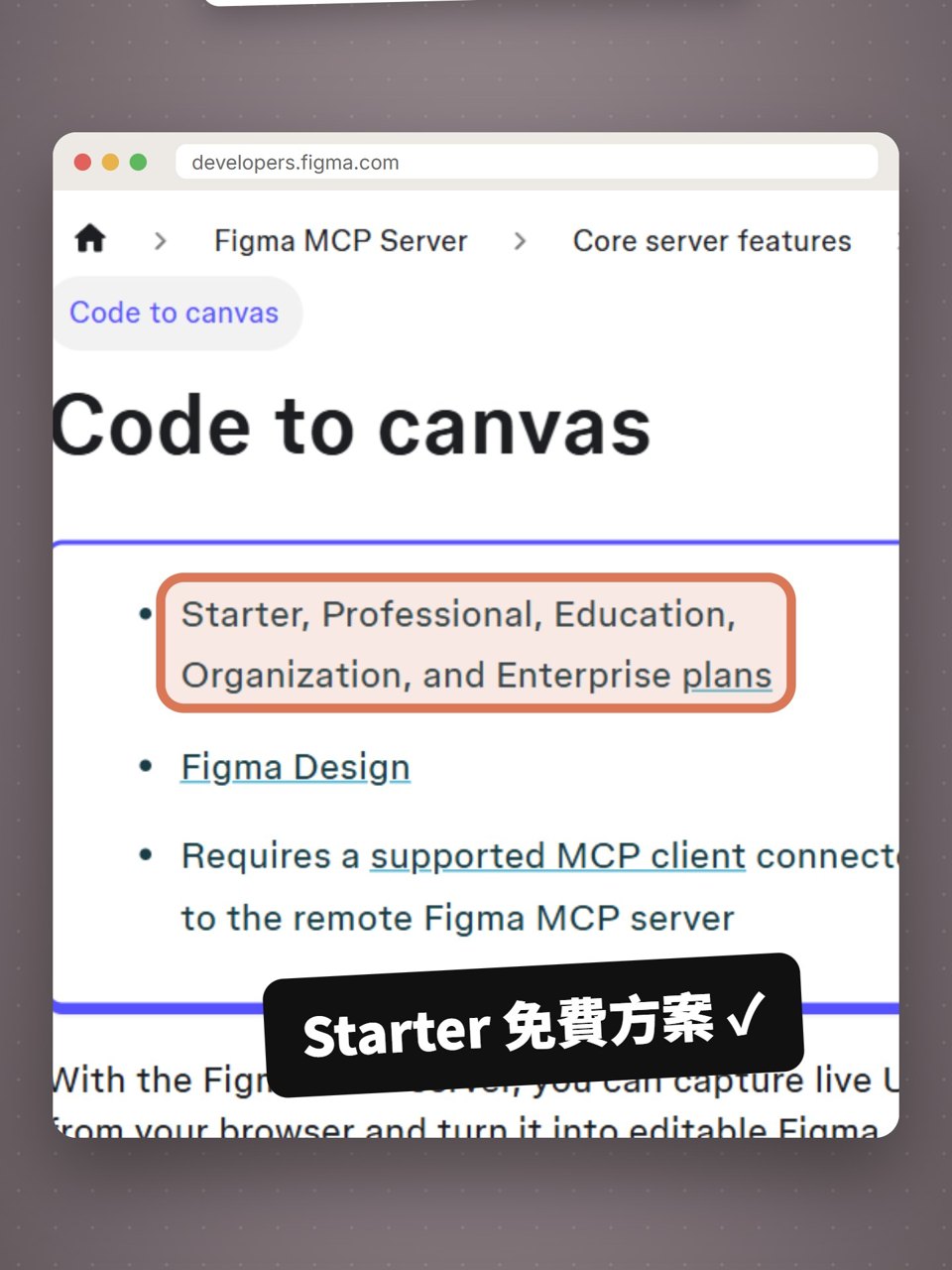
- Plans: the docs list Starter, Professional, Education, Organization and Enterprise, so the free Starter plan is included (checked November 2026; this may change).
- You need an MCP client that connects to the remote Figma MCP server; Claude Code is on the supported list.
- It captures what actually runs in your browser; sign in first if you need pages behind a login.
- The "Island Coffee" app in the reel and this guide is a fictional demo Claude wrote for us.