Make an animated sticker set with Claude: Anthropic's official Slack GIF Creator skill, 8 moving GIFs in 4 steps
No After Effects needed. Anthropic's Slack GIF Creator skill has Claude draw your character frame by frame with squash and stretch, then export and check GIFs.
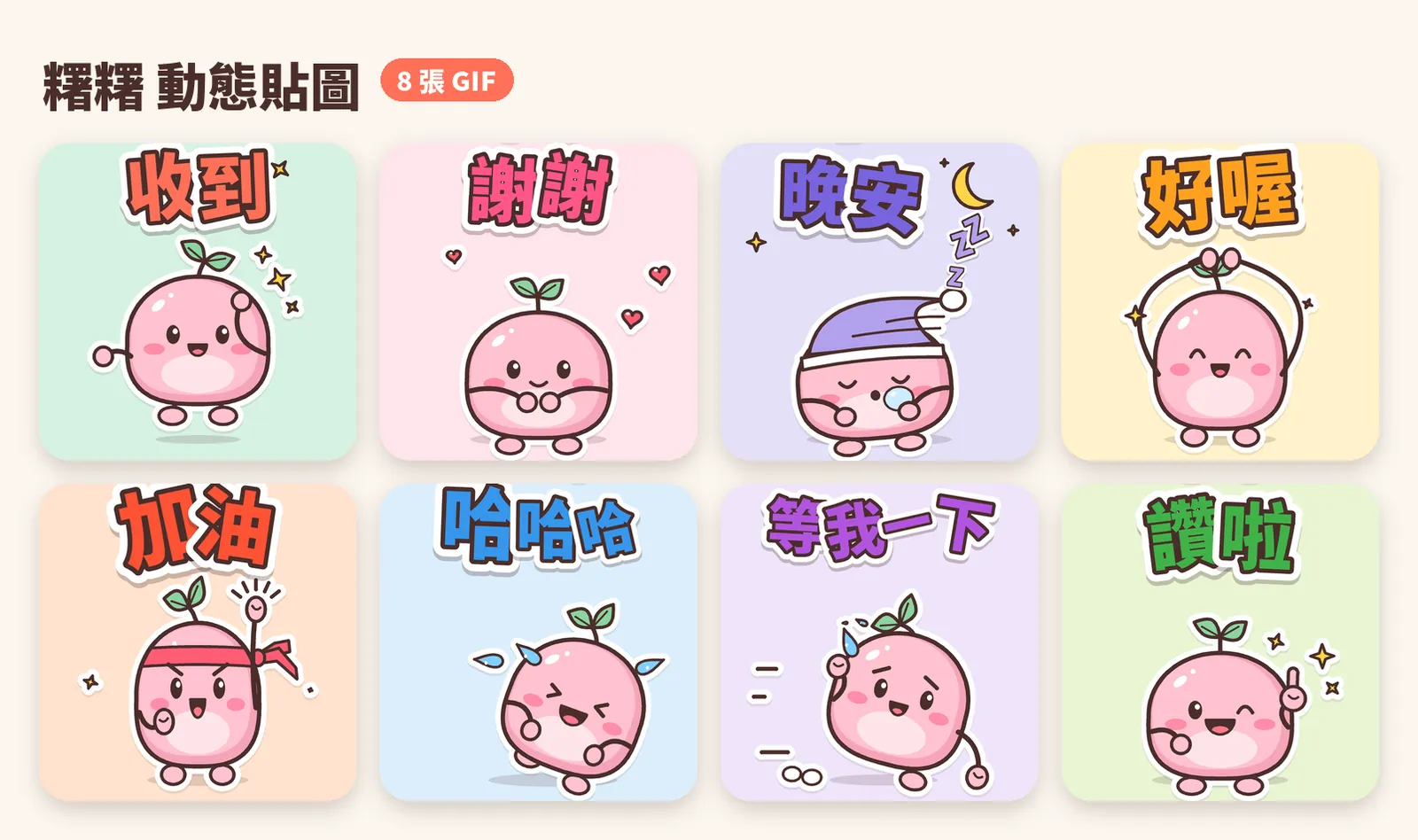
Ask AI for a sticker and you often get one still picture. Most people think animated stickers need After Effects. But if you describe the character and the motion clearly, Claude can draw it frame by frame with Anthropic's official Slack GIF Creator skill. In this guide we made 8 animated stickers with everyday Taiwanese phrases, starring an original mochi monster called 糬糬 (Shu Shu). Every image and animation below was made by Claude in Claude Code with this skill.
01The result first: 8 stickers, 8 motions
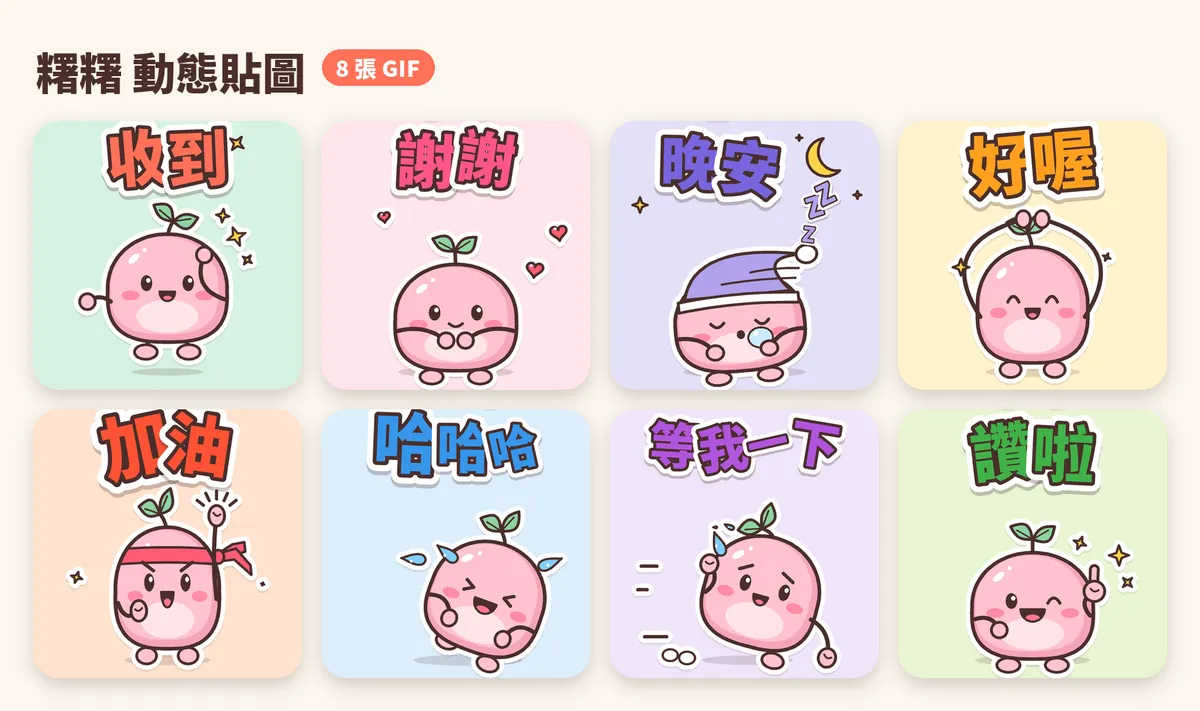
One character and 8 phrases people in Taiwan type every day: 收到 (got it), 謝謝 (thanks), 晚安 (good night), 好喔 (OK), 加油 (you can do it), 哈哈哈 (hahaha), 等我一下 (one sec) and 讚啦 (awesome). Each is a seamless GIF loop of 1.2 to 2 seconds.
02Install the Slack GIF Creator skill (2 minutes)
- Open Claude Code.
- Type: /plugin marketplace add anthropics/skills
- Then type: /plugin install example-skills@anthropic-agent-skills
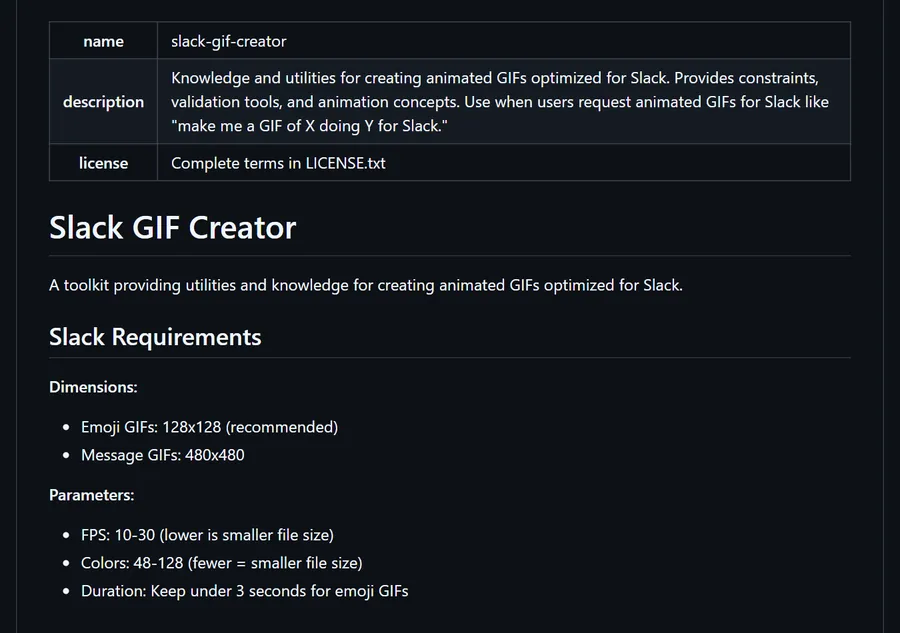
- slack-gif-creator is part of the example-skills set, so it installs with it. Say "Use the slack-gif-creator skill to make…" to call it.
On claude.ai, first check that "Code execution and file creation" is on under Settings → Capabilities, then switch on the example skills under Customize → Skills. The help centre says Free, Pro and Max can enable example skills there; the GitHub README says they are already available on paid plans. On Team and Enterprise it depends on your admin's settings.
- Slack GIF Creator SKILL.md (GitHub) — Official Anthropic skill, Apache 2.0
- Claude Help Center: Using Skills in Claude — How to turn it on in claude.ai
03Step 1: define the character in one clear description
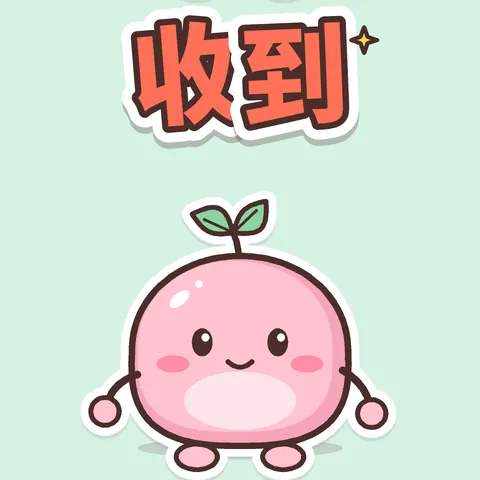
Step one is the character, not the animation. The more specific the description, the more the 8 stickers look like the same creature. We covered 5 things:
- Body: round, bun-shaped, with short little arms and feet.
- Face: black bean eyes with a small white highlight, pink blush.
- Colour: flat pastels, no gradients.
- Outline: a thick, rounded dark-cocoa outline, plus a white sticker border around everything.
- Signature detail: a small sprout on top that follows the body half a beat late.
Here is the full prompt. It covers the character, the 8 phrases with their motions, the animation rules and the output format in one go; the next 3 steps explain why each part is written this way.
Use the slack-gif-creator skill to make a set of [8] animated stickers.
Character: an original [pastel mochi monster], [round body, bean eyes, pink blush, short little arms and feet], thick dark outline, flat pastel colours, not resembling any existing character.
Text and motion for each: [got it (jumps and salutes), thanks (bows, hearts pop out), good night (dozes off, Zzz)…], big hand-lettered text with each character slightly tilted and a white outline around it.
Animation: each a seamless 1–2 second loop with squash and stretch and bouncy easing, no linear movement; the shadow under the feet scales with the jump height.
Export 480×480 GIFs, check them with the skill's validator, and also save a PNG frame sequence for each.
04Step 2: write the motion, with squash and stretch built in
Whether a sticker feels bouncy depends on how you write the motion. Say "make it jump" and it just slides upward. Spell out the animation basics:
- Squash and stretch: crouch and squash before the jump, stretch on the way up, squash again on landing.
- Easing: no constant speed. Slow down going up, speed up coming down, with a little rebound on landing.
- Follow-through: the sprout catches up with the body half a beat late.
- Shadow: the shadow under the feet scales with the jump height; the higher the jump, the smaller the shadow.

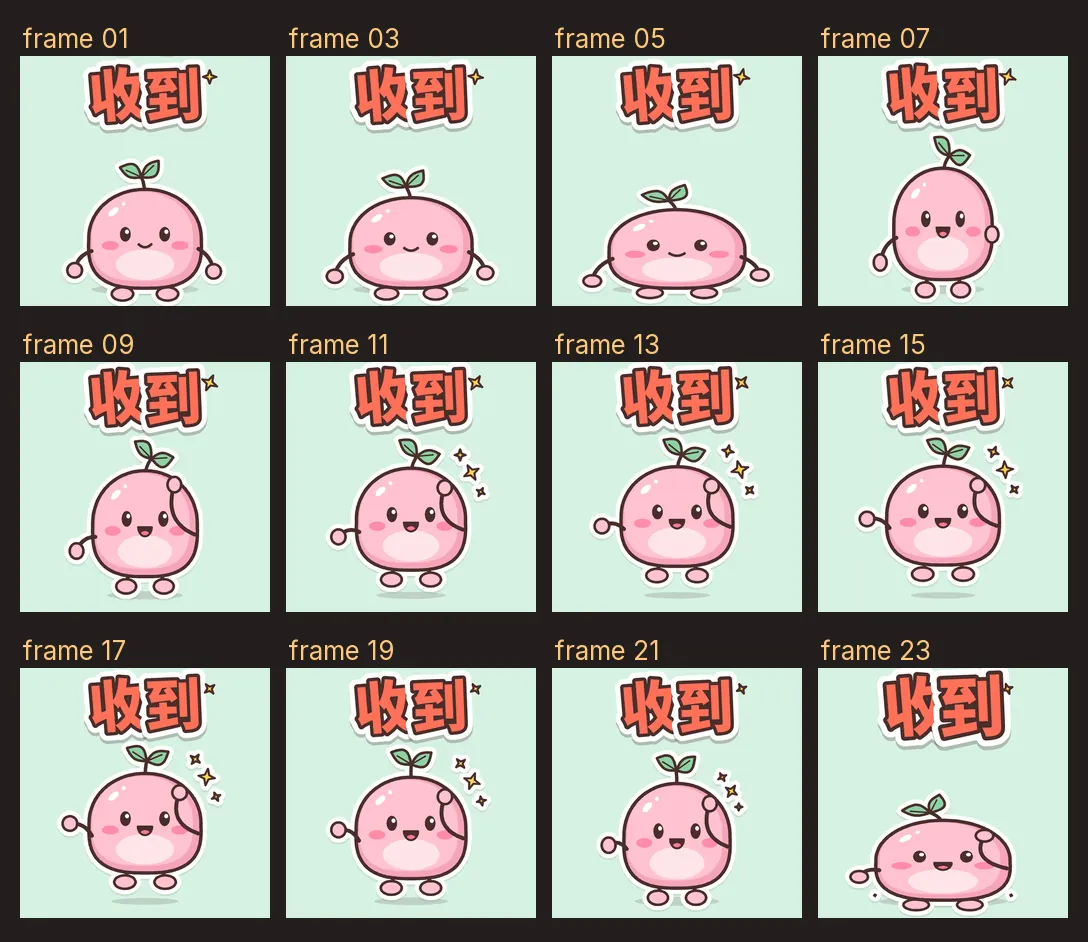
This is how we wrote the 8 motions. Each one has to show a feeling:
- 收到 (got it): jumps and salutes.
- 謝謝 (thanks): bows while hearts pop out.
- 晚安 (good night): dozes off in a nightcap, Zzz.
- 好喔 (OK): makes a circle with both arms above the head.
- 加油 (you can do it): headband on, fist pumps upward.
- 哈哈哈 (hahaha): rocks side to side laughing, tears flying.
- 等我一下 (one sec): runs on the spot, sweating.

- 讚啦 (awesome): squashes, pops up, winks and gives a thumbs-up.
05Step 3: frame-by-frame generation (the magic step)
Next Claude writes a Python script and draws Shu Shu frame by frame with PIL. The timing of every move comes from the skill's built-in easing functions (ease_in, ease_out, back_out, elastic_out), and the squash and stretch from the skill's apply_squash_stretch.
Each sticker has 24 to 40 frames at 20 frames per second, so the loops run 1.2 to 2 seconds. It draws at 4× size (1920×1920) and scales down to 480×480 so the line edges stay clean.

The first round won't be perfect. We ran a design check 3 times (7/10 → 8.5/10 → 9/10 to pass), and the problems it caught were concrete:
- "Awesome" was meant to spin, but side-on the face vanished and it looked like a rendering bug → no spin: squash, pop up, wink and thumbs-up, with the face visible in every frame.
- On "You can do it" the raised arm cut through the lettering → the top ~28% is reserved for text and the character is smaller and lower.
- 5 of the 8 stickers had the same smile → each got its own expression and bigger motion.
- On "OK" the hands slid under the lettering when they met above the head → the arm arc was capped.
Change only the [awesome] sticker: [no spin; instead squash, pop up, wink one eye and give a thumbs-up, with the face visible in every frame]. Don't touch the other [7] stickers or the character design. Re-export the GIF and run the validator again.
06Step 4: export the GIFs and check them with the skill's tool
Finally it assembles the frames into GIFs with the skill's GIFBuilder. From the same frames we exported two versions:
- Message GIFs: 480×480, 128 colours, 20 frames per second. Each of the 8 is about 0.7 to 1.3 MB.
- Emoji GIFs: 128×128, 48 colours, using the skill's emoji mode, which automatically cuts the frames to about half. Each is about 50 to 70 KB.
Every file then goes through the skill's validate_gif. The real result for "Good night": 480x480, 40 frames, 20 fps, 2.0 seconds. All 16 files passed.
Know what it checks: the tool decides PASS mainly on dimensions and aspect ratio, and also lists the frame count, duration and file size. It won't stop a file for being too big, so look at that yourself.

07Good to know
- Shu Shu is our original demo character; all 8 stickers were made by Claude with the Slack GIF Creator skill.
- Slack GIF Creator is an example skill under Apache 2.0. Keep characters original and don't ask it to draw existing cartoon or brand characters.
- If you want to sell on LINE Creators Market: LINE animated stickers use APNG (with a .png extension), not GIF. Ask Claude to export an APNG from the same frames, and follow LINE's official guidelines for the other specs.
- Use fonts licensed for commercial use: our sticker lettering is Noto Sans TC (SIL OFL); check the licence of any other font first.
- How example skills are enabled, and on which plans, may change; the Claude help centre is the reference.