Make Claude's app designs look shipped, not wireframed: a mascot, product photos and one colour system
Make a mascot and cut-out product photos in ChatGPT, then give Claude Design one colour system and one focal point per screen. 5 screens, real taps.
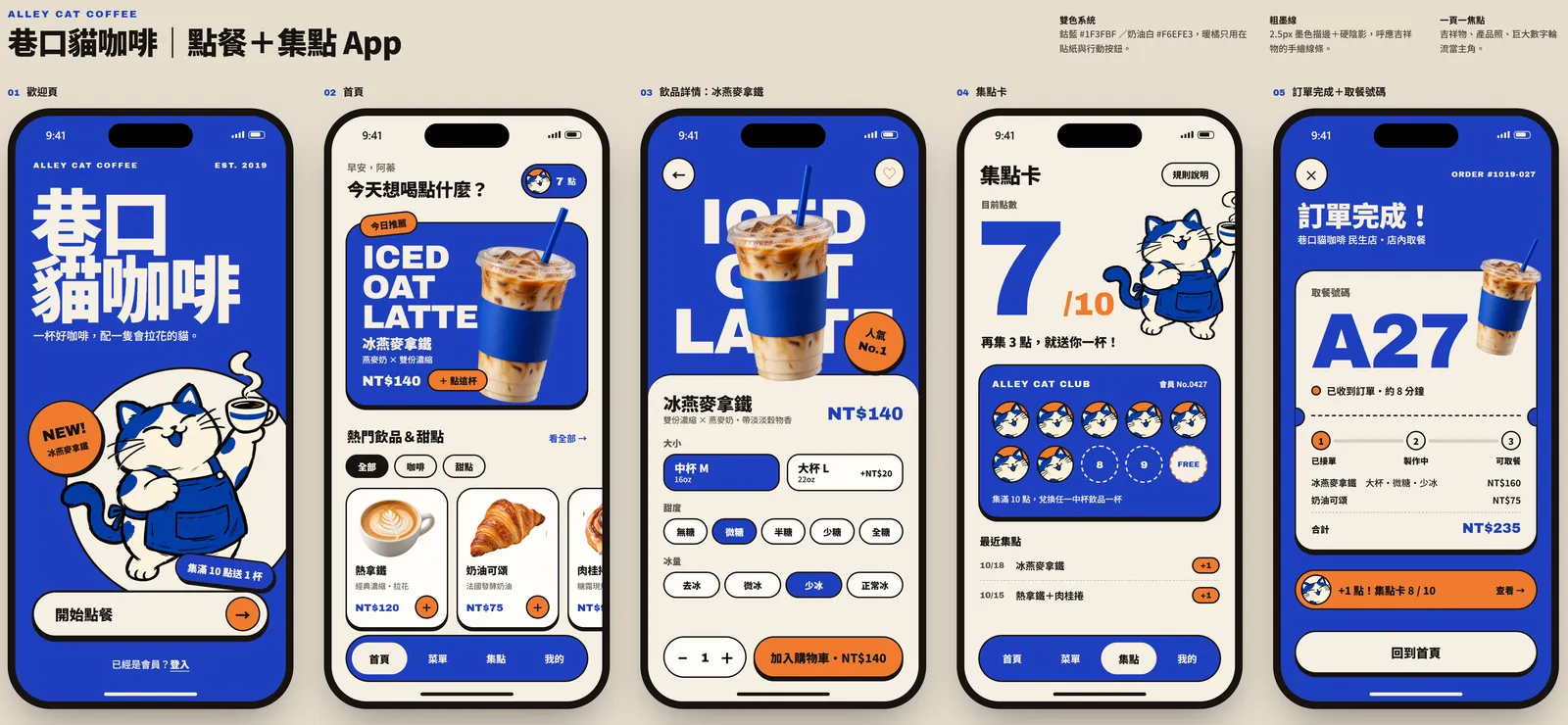
Why do other people's Claude-made apps look like they're already in the App Store, while yours still look like grey-box wireframes? AI can do more than boxes. You just haven't given it a brand. In this guide we build an ordering and loyalty app for a fictional café, Alley Cat Coffee (巷口貓咖啡): first a mascot and product photos, then one colour system, then one focal point per screen. Every app screen below was made by Claude Design from a single prompt, unedited; the cat illustration and product photos were generated in ChatGPT.
01Open Claude Design (1 minute)
- Go to claude.ai/design and sign in with your Claude account. Claude's official pages say Design is on every plan, including Free.
- The standalone claude.ai/design site stays open until 14 December 2026, and Claude Design already works inside normal Claude chats.
- Start a new project and pick a mobile app template. We picked “Mobile app design”; official pages don't list template names, so it may be renamed.
- Don't type yet. What matters in this guide happens before you hit send: get your assets and prompt ready first.
We already walked through picking the template, exporting and handing off to Claude Code in our FLOAT ISLE tea-shop app guide. This one covers a single thing: how to make the screens look like a real brand instead of a wireframe.
- Design an app without Figma: 6 clickable screens in Claude Design — Template, Claude's notes, export
- Claude Design official page — Plans and site dates
02Step 1: make the brand assets first: a mascot and a set of product photos
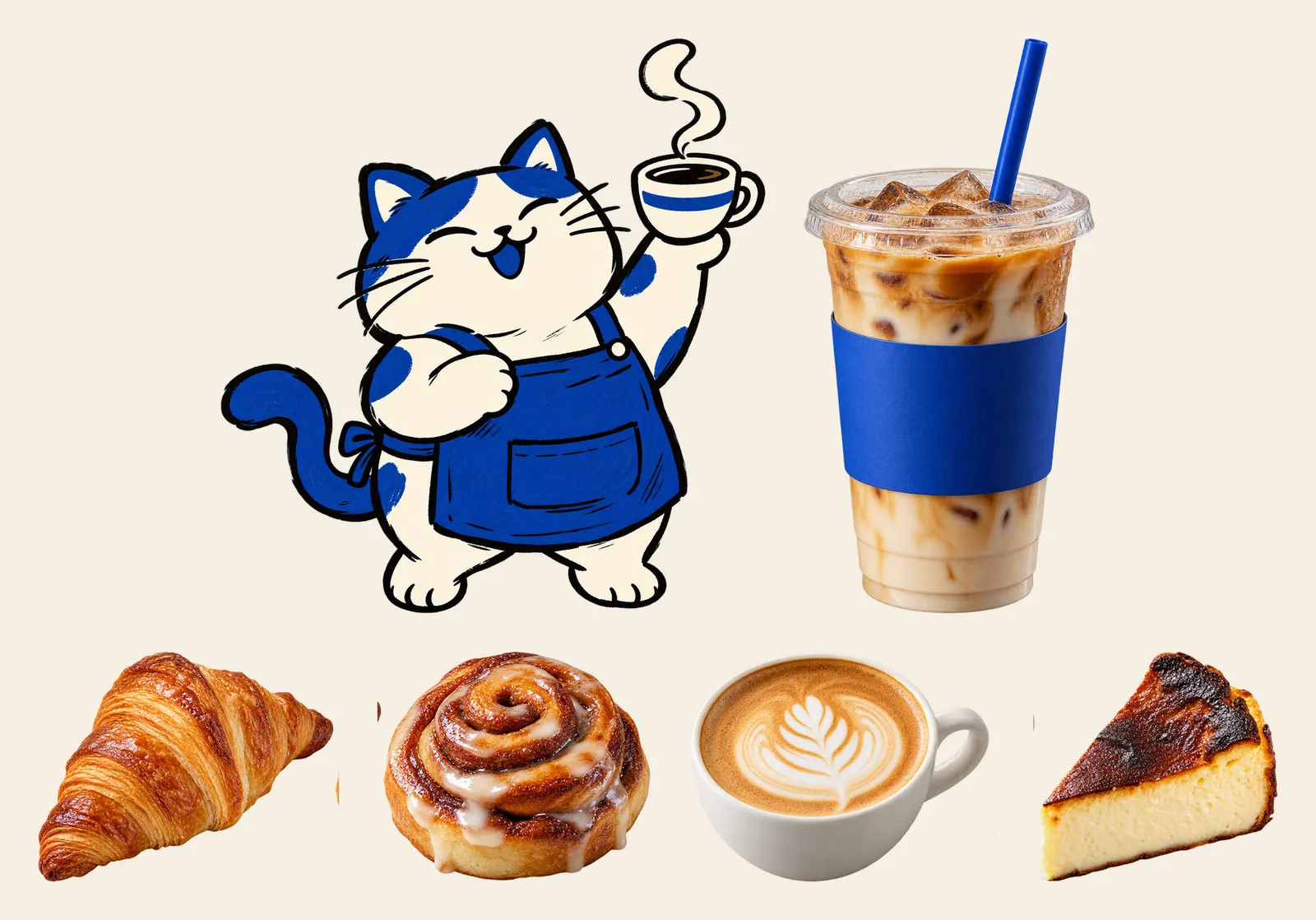
Apps look like wireframes when there's nothing to put in the frames. So step one isn't the prompt. It's making assets in ChatGPT: a mascot illustration and a set of product photos. We made a cat barista in an apron holding a coffee, an iced oat latte, plus a croissant, a cinnamon roll, a hot latte and a Basque cheesecake.
Draw a brand mascot for [shop name]: a [animal + role, e.g. cat barista in an apron] holding [signature product].
Hand-drawn thick ink lines, only two colours, [main colour] and [base colour], happy expression.
Full body, front view, transparent background, no shadow.
Generate product photos of [a croissant, a cinnamon roll, a hot latte and a Basque cheesecake], all four in one image, separated from each other.
Same lighting and angle, realistic studio shot, transparent background, no shadow.
- Give the mascot your app's main colours. Our cat is cobalt and cream, exactly like the app, so it never looks pasted in.
- Generate the menu items together in one image so the lighting and angle match. Our 4 items came from one image, cut into 4 transparent PNGs.
- Save every image as a transparent PNG so it sits cleanly on any background.
03Step 2: set one colour system in the prompt and say where each image goes
- In Claude Design, press “+” at the bottom left of the input box and attach the mascot and product photos.
- Paste the prompt below and replace the [ ] parts.
- Describe your references in words. We looked at a few coffee apps on Pinterest and wrote down what we liked, line by line, e.g. “a full-bleed colour block plus a hand-drawn illustration on the welcome screen, huge title, like a poster, not a form”. Don't attach other people's images.
Design a mobile app: an [ordering + loyalty] app for [shop name + English name], iPhone size, 5 screens:
1) Welcome  2) Home (today's pick, popular [products])  3) [Product] detail ([size, sweetness, ice])  4) [Loyalty card: 10 stamps for a free drink]  5) Order complete + pickup number
References: welcome screen in a full-bleed [main colour] block with a thick hand-drawn ink illustration, huge title, like a poster, not a form; a two-colour system of [main colour] + [cream], with the illustrated character on every screen; illustrated stickers scattered around, chunky rounded buttons; single-colour backgrounds with huge bold titles and product photos overlapping the big type.
Colours: [main colour HEX], [base colour HEX] and a touch of [accent]. Big bold titles. Every screen needs one visual focal point (illustration, product photo or a huge number) and should look full, not empty, even when zoomed out.
Attached images: [mascot.png] is the brand mascot (use it on the welcome screen and loyalty card); [product.png] goes on the menu.
All text in Traditional Chinese, prices in NT$, no grey placeholder boxes.
Our real colours were cobalt #1F3FBF, cream #F6EFE3 and a touch of warm orange. When it finished, Claude Design also wrote its own design rules at the top of the board: a two-colour system with orange only for stickers and action buttons, and a 2.5px ink outline with a hard shadow to echo the mascot's hand-drawn lines.
04Step 3: one focal point per screen, full even when zoomed out
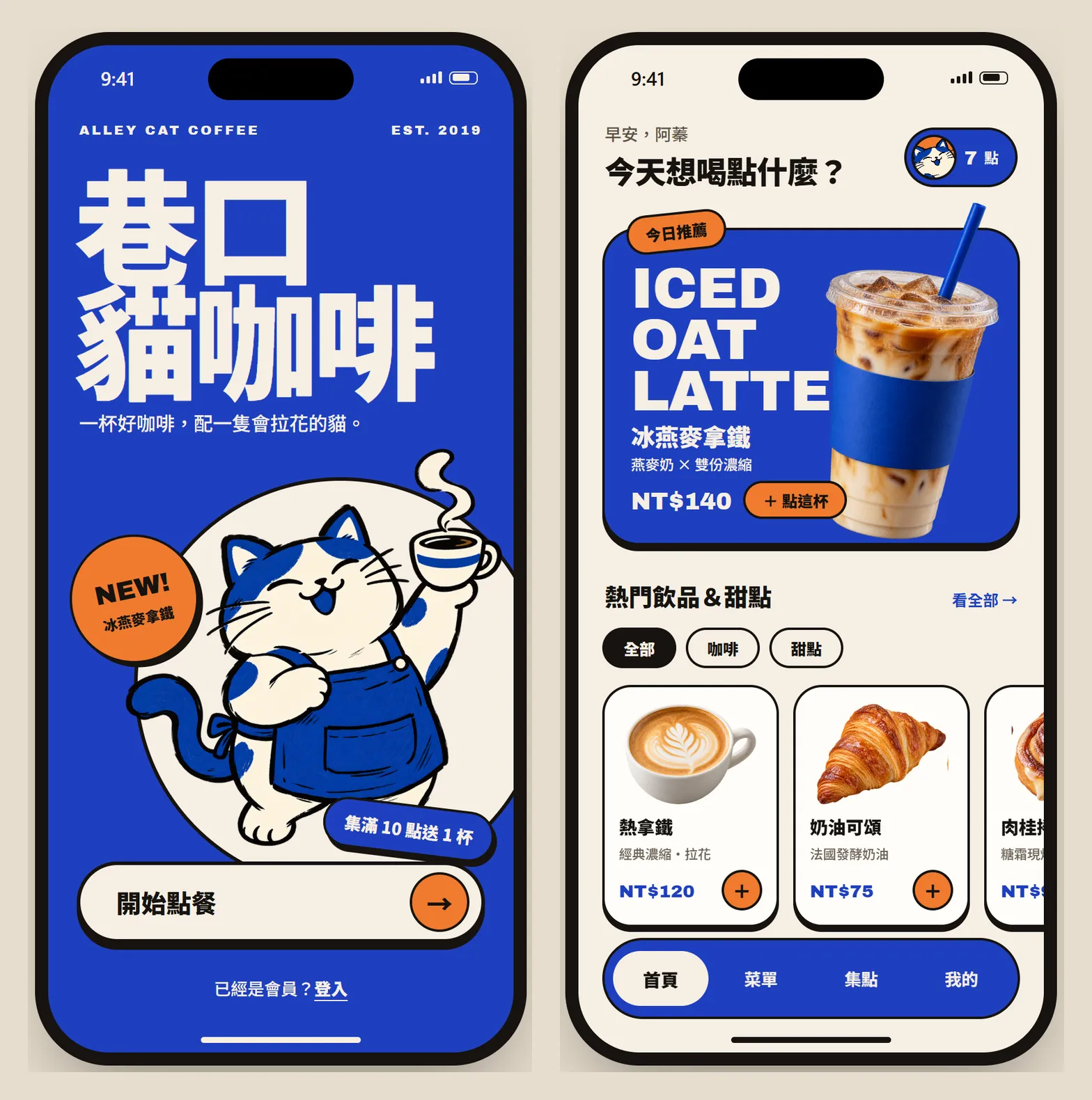
The most useful line in the prompt is “every screen needs one visual focal point (illustration, product photo or a huge number) and should look full, not empty, even when zoomed out”. Claude wrote it on the board as its own rule: one focal point per screen, with the mascot, product photo and huge number taking turns as the star.
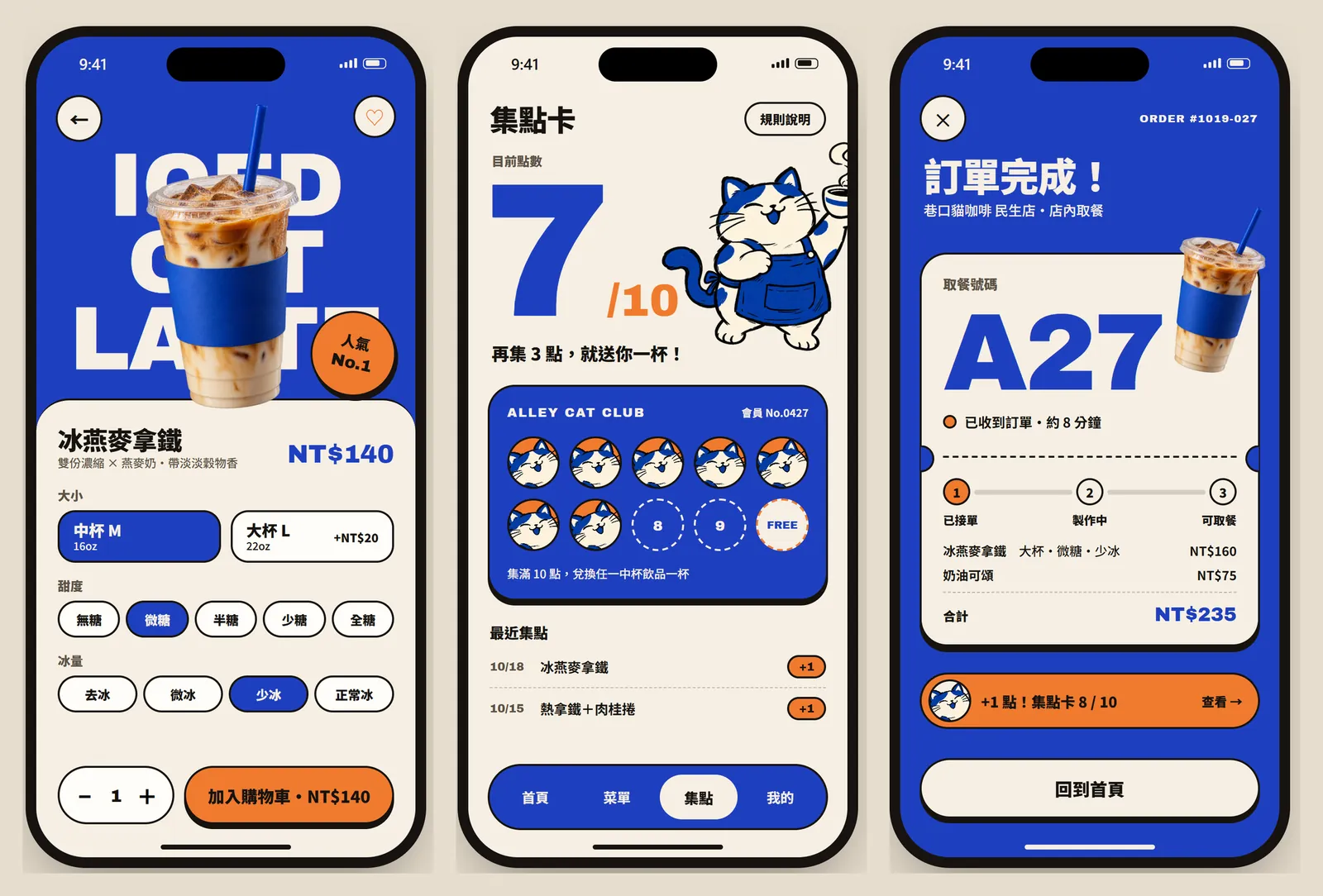
- Drink detail: full cobalt, the product photo over a huge English drink name, and a “No.1” sticker in the corner.
- Loyalty card: a giant “7” with an orange “/10”, the mascot beside it, every collected stamp is a cat face, and the last slot says FREE.
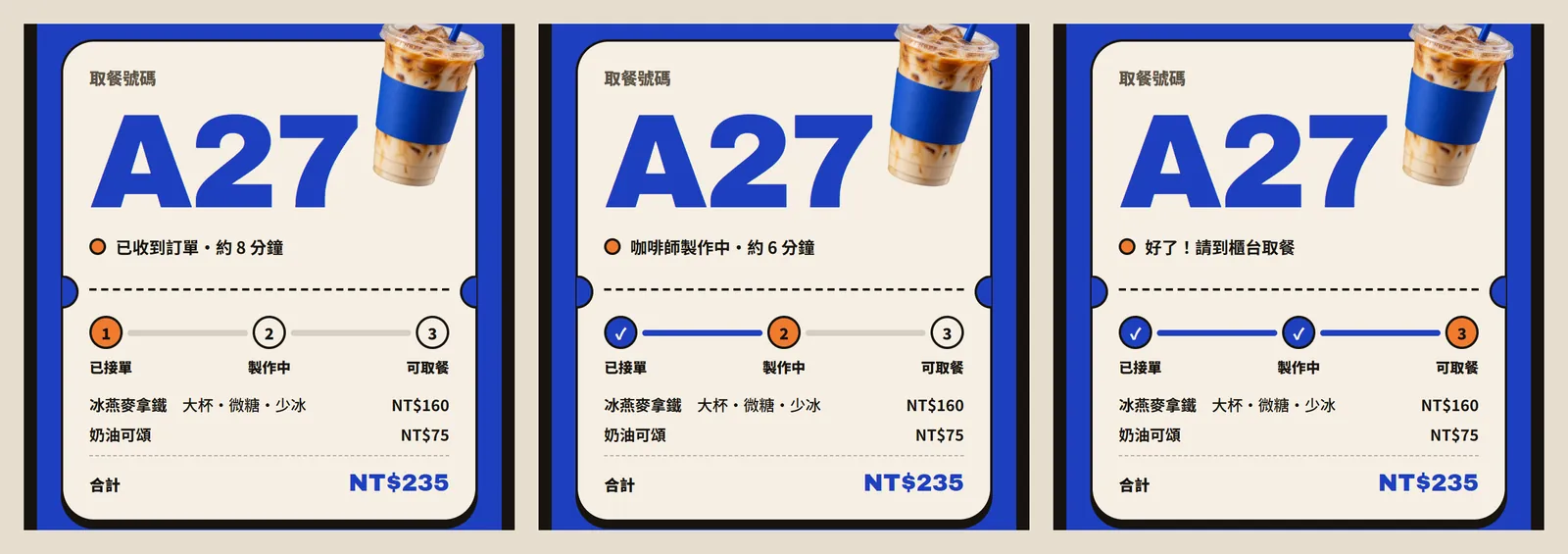
- Order complete: the pickup number “A27” as big as it gets, next to the latte you just ordered.
We checked it with a zoom-out test: shrink the screen to phone size, and you should see just one thing. The loyalty card and welcome screen were the clearest. The drink page had one problem: the latte photo covers too much of “ICED OAT LATTE”, so at small size the words are hard to read.
On the [drink detail] screen the product photo hides too much of the title, so it can't be read when small. Move the photo to the [bottom right] and make it a bit smaller so every letter of the title shows. Don't change the other screens.
05Step 4: make it clickable, but know exactly what moves
Our prompt didn't ask for interaction, yet Claude Design still built a clickable prototype. Everything below is what we actually tapped on the screens it made:
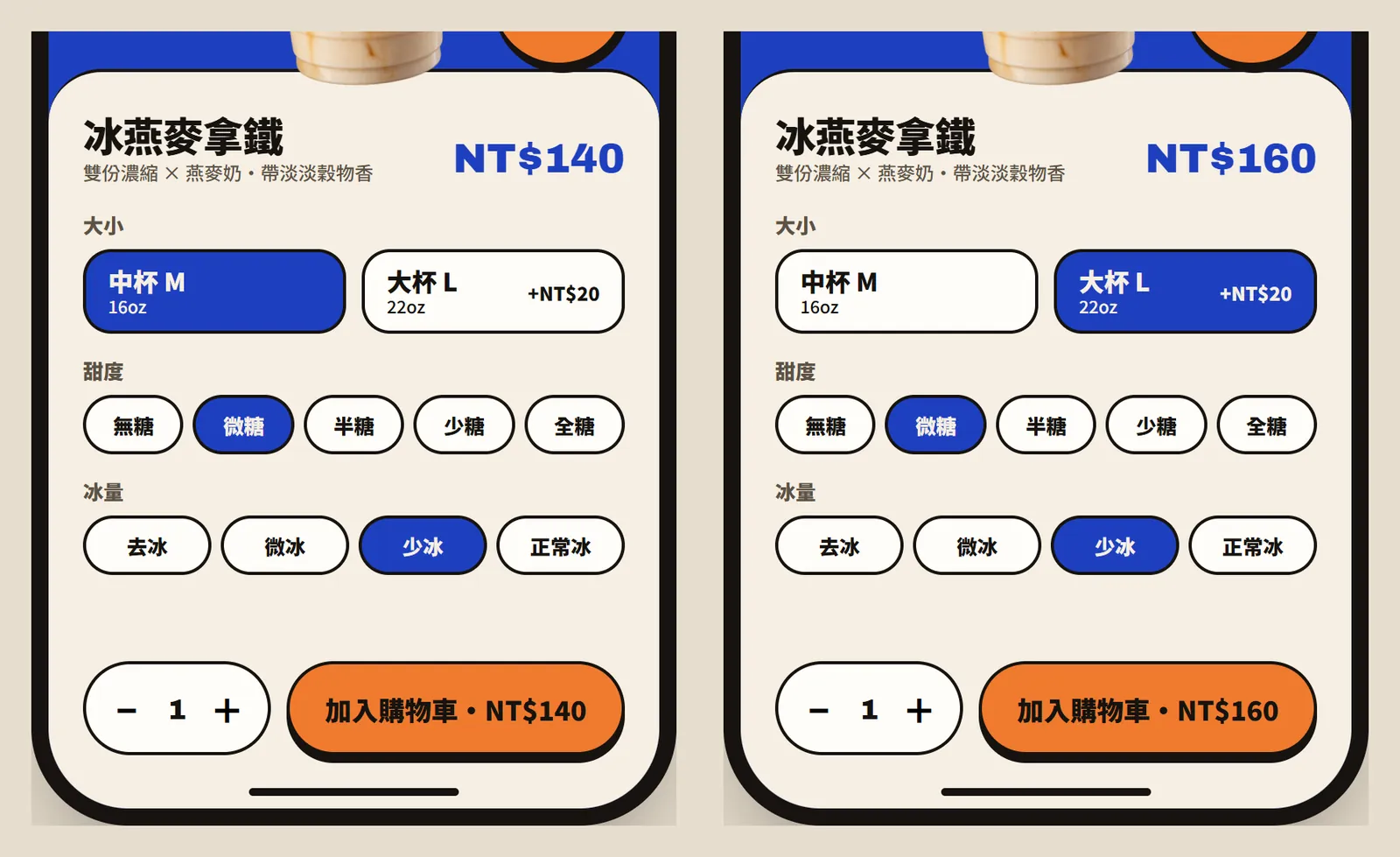
- Drink detail: size, sweetness, ice and quantity can all be chosen. Tap Large and the price goes from NT$140 to NT$160; tap “Add to cart” and the button turns into “Added to cart ✓”.
- Home: the popular-items row scrolls sideways, and the “All, Coffee, Desserts” chips filter the menu.
- Order complete: the pickup progress moves by itself from “Received” to “Making” to “Ready”, about one step every 3 seconds, then loops. It's a demo animation, not real order tracking.
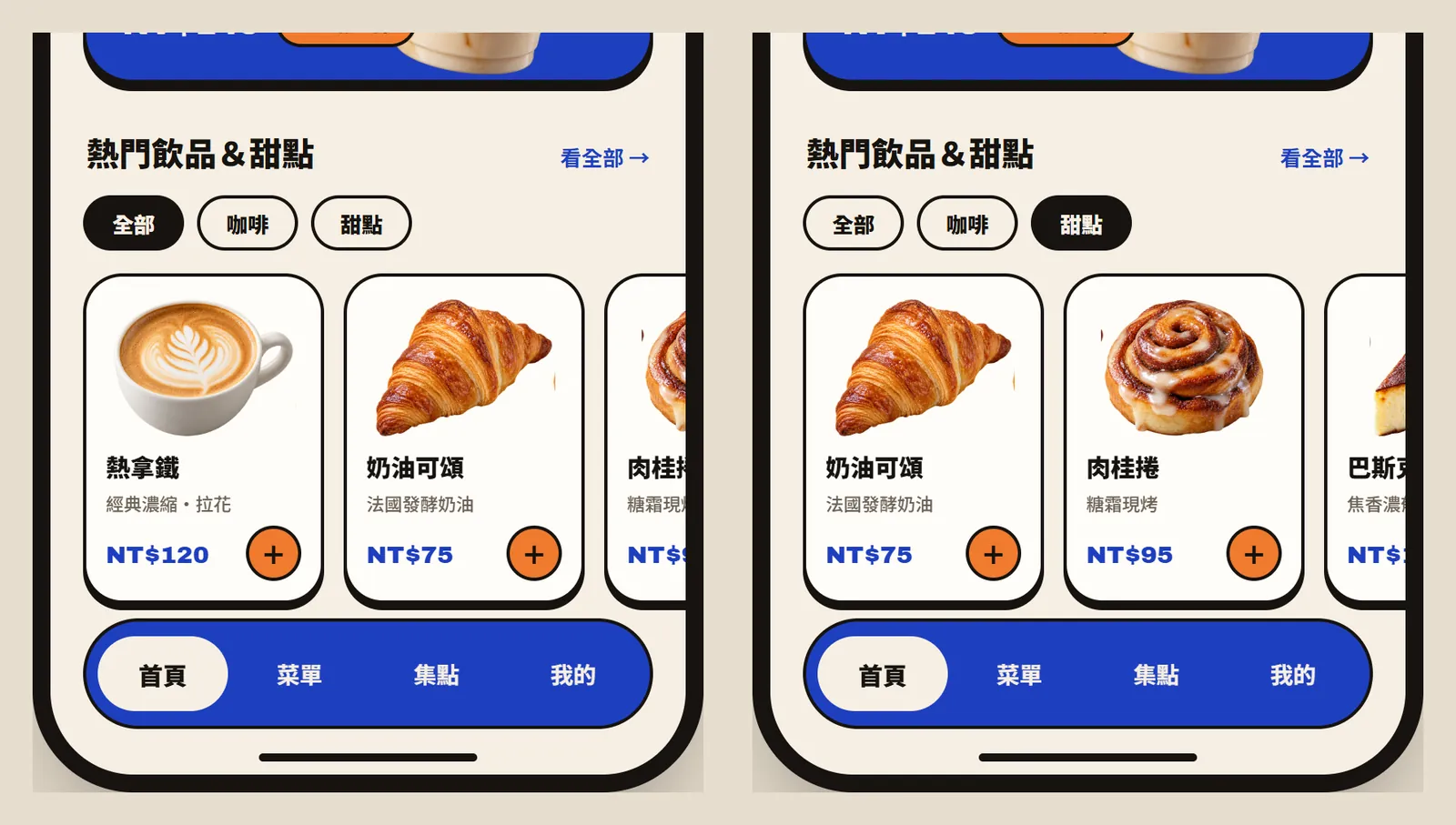
But the screens don't link to each other. Tapping a drink on the home screen doesn't open the drink page, and “Back to home” doesn't go back. The only things that move are the taps inside each screen and the order progress that plays by itself. Claude said so itself in the chat: the screens can't navigate to each other yet.
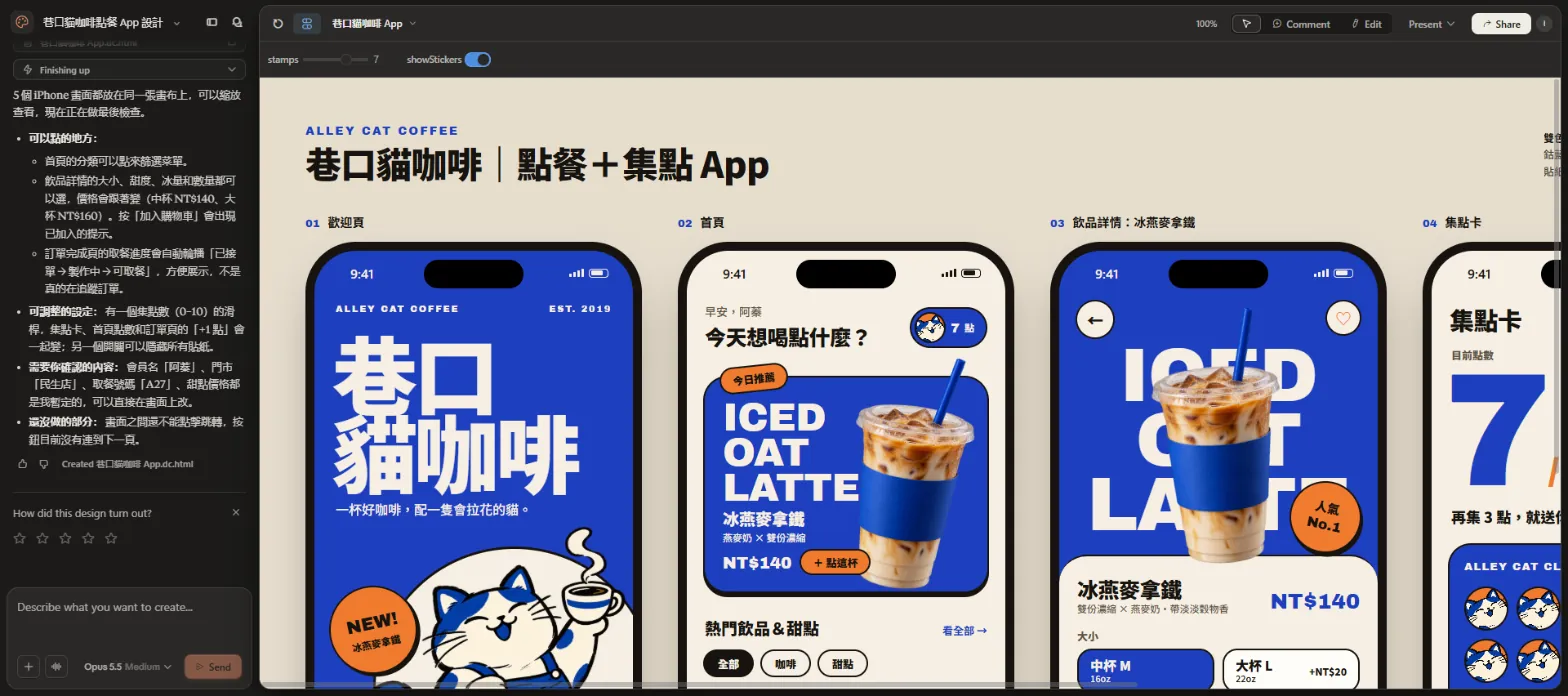
- It also added two controls: a 0–10 stamps slider that updates the loyalty card, the home points badge and the “+1 stamp” on the order screen together, and a toggle that hides all the stickers.
- It also listed what you need to confirm: the member name “阿蓁”, the “民生店” branch, pickup number “A27” and the dessert prices are all placeholders it chose.
Make it clickable: changing [size] changes the price, [categories] filter the menu, and the order progress moves by itself. Don't change the layout or colours.
06Good to know
- Alley Cat Coffee (巷口貓咖啡) is a fictional brand. The app screens were made by Claude Design and the cat illustration and product photos by ChatGPT, as a demo.
- Prices, the member name “阿蓁”, the “民生店” branch, the pickup number and the stamp count are AI-made placeholders; swap in your shop's real details before showing anyone.
- This is a prototype, not a real app: the 5 screens don't link to each other, and the order progress is a demo animation. Nothing is really ordered, paid for or tracked. Shipping it needs a back end, payments, testing and App Store / Google Play review.
- We made this on claude.ai/design with Opus 5.5 on 19 October 2026. Template names and the interface are what we saw then and may change.
- The official export formats are PDF, PPTX and standalone HTML, plus sending to Canva. The standalone claude.ai/design site is open until 14 December 2026, so export a backup of important projects.
- Use Pinterest only for direction, written into the prompt as words. Put only your own photos or images you generated into the design.
- For commercial use, check that the fonts are licensed for it, such as Noto Sans TC (SIL OFL).