Make Claude build an animated website: 4 steps with Motion (previously Framer Motion) and 4 named motions
Asking Claude to "add animation" gets fade-ins. Install Claude Code, use Motion, describe the brand, then name four motions: entrance, parallax, letters, press.
Watch the reel on InstagramComment #官網 to get this guide
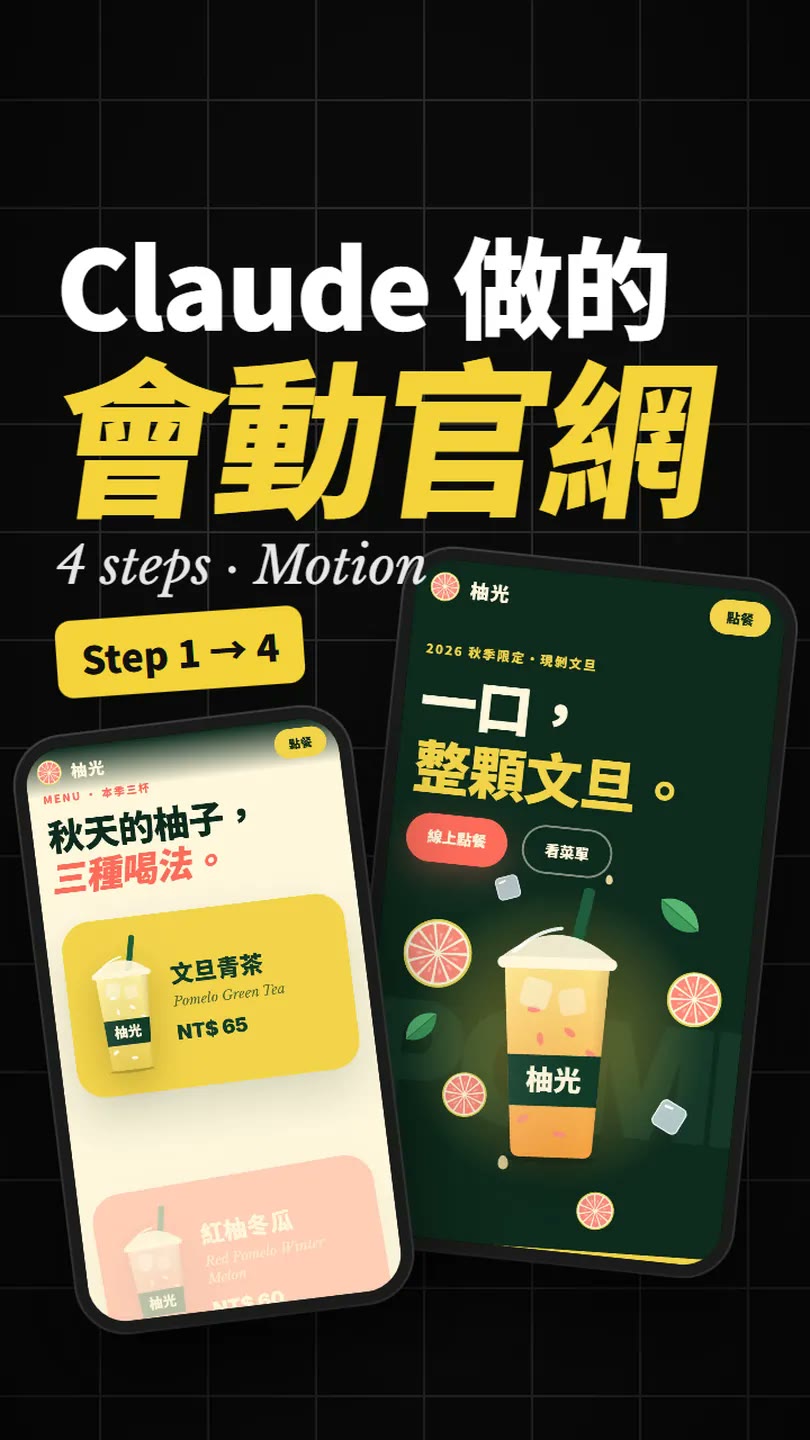
Claude is good at laying out a website, but ask it to "add some animation" and you usually get sections that fade in one by one. This is the full version of the pomelo-tea site from our Reel: Claude Code plus the free, open-source animation library Motion (previously Framer Motion), in 4 steps, for a site where the cup drops in, the fruit drifts as you scroll, the headline pops up letter by letter and the cards slide in and react when you press them.
The demo brand, YUGUANG, is fictional. The cup, pomelo slices and leaves were drawn in code by Claude, with no photos. Every screenshot below is the real site Claude built from these prompts.
01The result: an animated bubble-tea website

The whole site is one React project, with every animation handled by Motion. The main file, App.jsx, is under 300 lines and holds a hero, a ticker, a three-drink menu, a three-step process, one big statement and a store-finder button.
- Entrance: the cup springs in from above, then pomelo slices, leaves and ice burst out from behind it and float.
- Parallax: as you scroll, the cup sinks, tilts and shrinks, the fruit drifts up at different speeds and the giant word POMELO slides sideways.
- Staggered letters: each character of the headline pops up from below in turn.
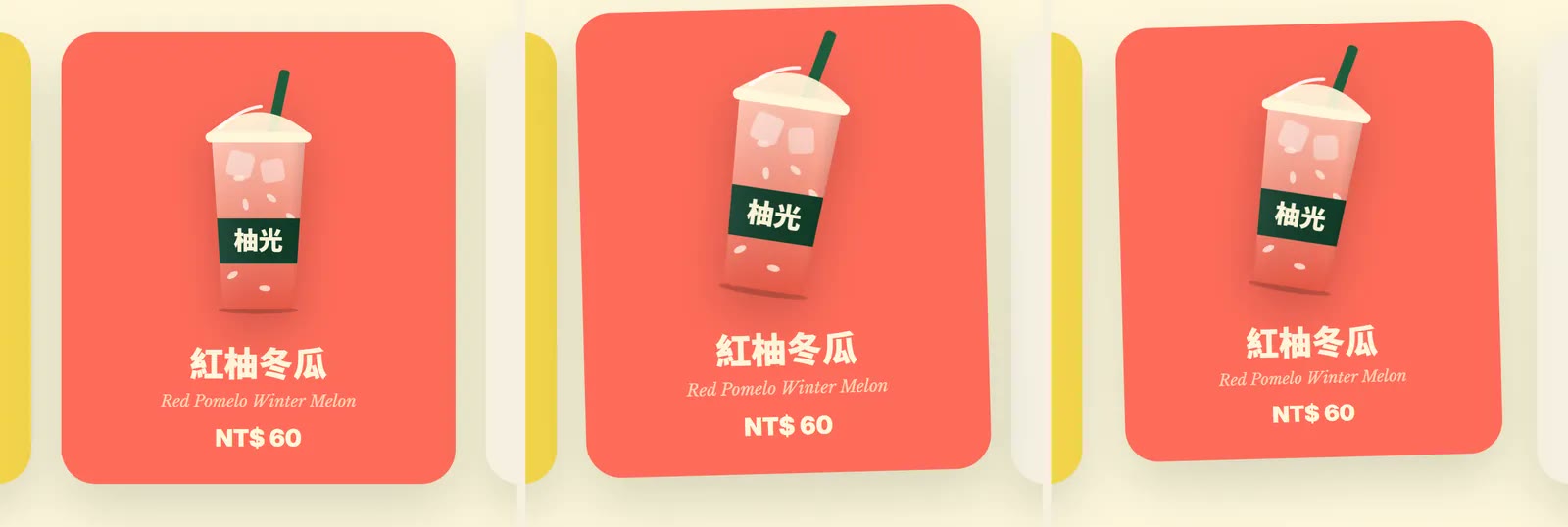
- Slide-in and press: the menu cards slide in when you reach them, lift on hover and shrink a little when pressed.
02Step 1: install Claude Code
Claude Code is Claude in your terminal. It can create folders, install packages, write code and start a preview on its own. The official install is one line:
- Mac, Linux, WSL: open Terminal and paste curl -fsSL https://claude.ai/install.sh | bash
- Windows PowerShell: paste irm https://claude.ai/install.ps1 | iex
- Windows Command Prompt (CMD): paste curl -fsSL https://claude.ai/install.cmd -o install.cmd && install.cmd && del install.cmd
- When it finishes, open a new terminal window, run claude --version to check, then type claude to log in.
Two things to know. First, Claude Code needs a Pro, Max, Ultra, Team, Enterprise or Console account; the free plan does not include it. Second, this project installs packages with npm and previews with Vite, so you need Node.js; Vite asks for version 20.19+ or 22.12+. If you are not sure, ask Claude: "Check whether Node.js is installed."
- Claude Code setup (official) — Mac and Windows commands
- Download Node.js — pick the LTS version
03Step 2: tell it to use Motion (previously Framer Motion)
Motion is an animation library for React. Its official page says it was previously Framer Motion; it is MIT-licensed, free and open source. You install it with npm install motion and import from motion/react. When we wrote this, the latest version on npm was 14.9.0.
Why name it? If you don't, Claude may write plain CSS or pick another library. Once Motion is in, you can talk to Claude in its words: spring, stagger, useScroll (follows the scroll), whileInView (plays when it scrolls into view), whileHover and whileTap.
Create a React project with Vite, install motion (npm install motion), and import all animation from motion/react.
- Motion for React docs — MIT licence, free and open source
04Step 3: describe the brand clearly
Animation comes last. Claude first needs to know whose site this is, what it sells and how it should look, so it knows what to animate. Our prompt says just three things (what we sell, which colours, what feel) and then lists the sections.
Build a one-page website for a [type of brand, e.g. Taiwanese bubble-tea brand].
Brand: [brand name], selling [product, e.g. pomelo teas like pomelo green tea].
Colours: [background + main + accent, e.g. deep green background + pomelo yellow + coral red].
Feel: [3 words, e.g. autumn, fresh, full of fruit].
Product images: [e.g. no photos; draw the cup and pomelo slices in code].
Sections: [e.g. hero, ticker, three-drink seasonal menu, three steps, one big statement, store-finder button].
"Draw the cup and pomelo slices in code" is a useful line. Claude draws the products as SVG, so every piece of fruit can be animated on its own, and there are no photo rights to worry about. Swap in real product photos later.
05Why "add some animation" isn't enough
"Add some animation" doesn't say what moves, when it moves or how, so Claude picks the safest option: fade every section in. Nothing breaks, but nobody remembers it.
When you write a motion prompt, make each part answer four questions:
- What moves: the cup? the fruit? each letter of the headline?
- When: on load, with the scroll, when it scrolls into view, on hover or on press?
- From where to where: drops from above, bursts out from behind the cup, slides up from below.
- How: a bounce (spring), one after another (stagger), moving while rotating.
06Step 4: name four specific motions
These are the four motion prompts we actually gave Claude. Replace the [ ] parts with your own product. Paste one at a time and check the result before the next; it is easier to fix that way.
When the home page loads, [hero item, e.g. the cup] springs in from above, then [supporting items, e.g. pomelo slices, leaves and ice] burst out from behind [the hero item] one after another and float gently.

Use useScroll + useTransform: as the page scrolls down, [hero item] moves down, tilts slightly and shrinks, [supporting items] drift up at different speeds, and the giant background word [your word, e.g. POMELO] slides sideways.

Each character of the main headline pops up from below in turn (stagger 0.06 s, spring), with the last line in [accent colour, e.g. pomelo yellow].

[Cards, e.g. the menu cards] slide up from below in turn with whileInView and straighten; on hover the card lifts and [the item inside, e.g. the cup] tilts (whileHover); every button shrinks when pressed (whileTap). Each character of [the big statement] brightens as you scroll.

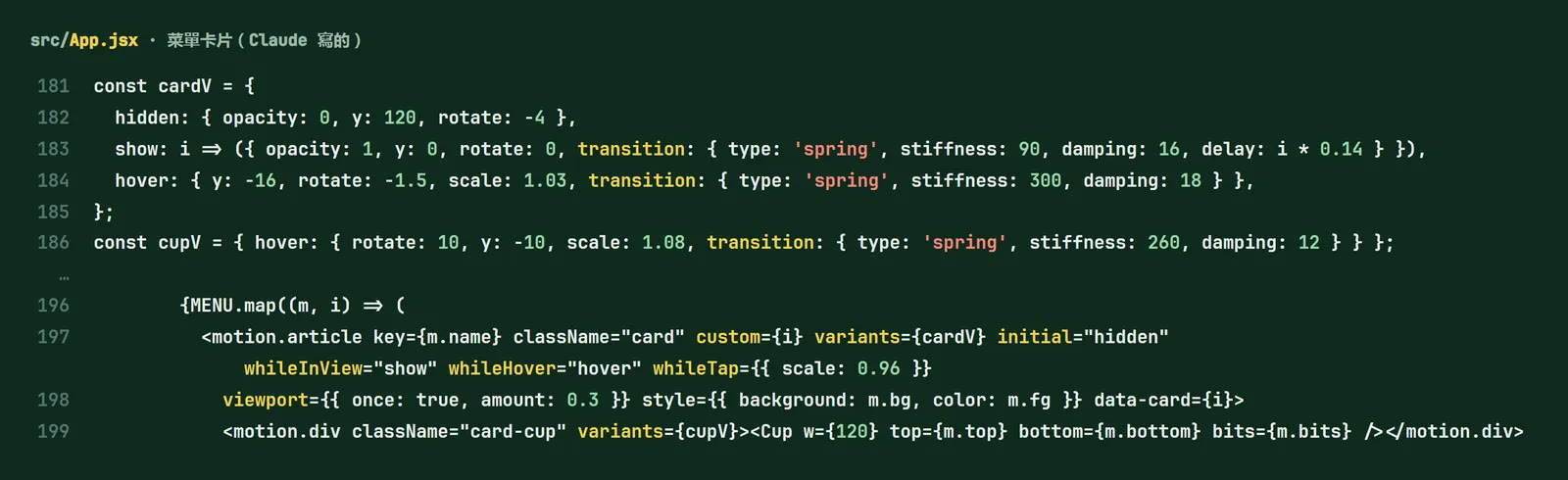
Here is part of the code Claude wrote. You don't need to read it; just notice that "slide up from below", "lift" and "shrink when pressed" in your prompt became the yellow props: whileInView, whileHover and whileTap.
07Preview it on phone and desktop
Run it with npm run dev and check it at both phone and desktop widths.
Claude starts a local address (Vite's default is http://localhost:5173). Open it in your browser and scroll from top to bottom. For the phone view, switch to a phone width in the browser's developer tools.

- If something feels off, name just that part: "On phone the cup is too big and covers the buttons", "The parallax is too strong; move the cup half as far".
- Change one thing at a time, then scroll through again.
- To respect people who turn on Reduce Motion, add: "Wrap the whole site in MotionConfig reducedMotion=\"user\"". Motion's docs say this turns off transform animations and keeps changes such as opacity and colour.
08Go live: build it into one folder
- Tell Claude: "Build it with npm run build." It creates a dist folder that holds the whole site.
- Check the built version locally with npm run preview (default http://localhost:4173).
- Upload dist to any static host. Vite's deploy guide covers Vercel, Netlify, GitHub Pages and more, or ask Claude to "deploy this to Vercel" and it will walk you through it; you do the account login yourself.
- Vite: deploying a static site — official deploy guide
09Good to know
- YUGUANG is a fictional brand; the menu, prices and copy are demo content, and the site footer says so.
- Claude Code needs a paid plan (Pro, Max, Ultra, Team, Enterprise or Console); the free plan does not include it.
- Commands and versions were checked on 31 Oct 2026: follow the official setup page for the Claude Code install, and Motion was at 14.9.0 then. If things change, the official pages win.
- Claude won't write identical code every time; numbers and details will differ. If you don't like something, say in one sentence which part to change.
- More animation isn't better. Four motions in the right places (hero, scroll, headline, cards and buttons) are enough; keep the other sections quiet so the key moments stand out.
- Before going live, replace the code-drawn products with real photos so customers see the cup they will actually get.