Copy an Anthropic designer's flow: attach your app code to Claude Design, pin comments, then make a clickable prototype
Claude Code writes a plain app, Claude Design reads its code and drafts 2 onboarding directions, you pin comments and tweak, then one line makes it clickable.
Watch the reel on InstagramComment #原型 to get this guide
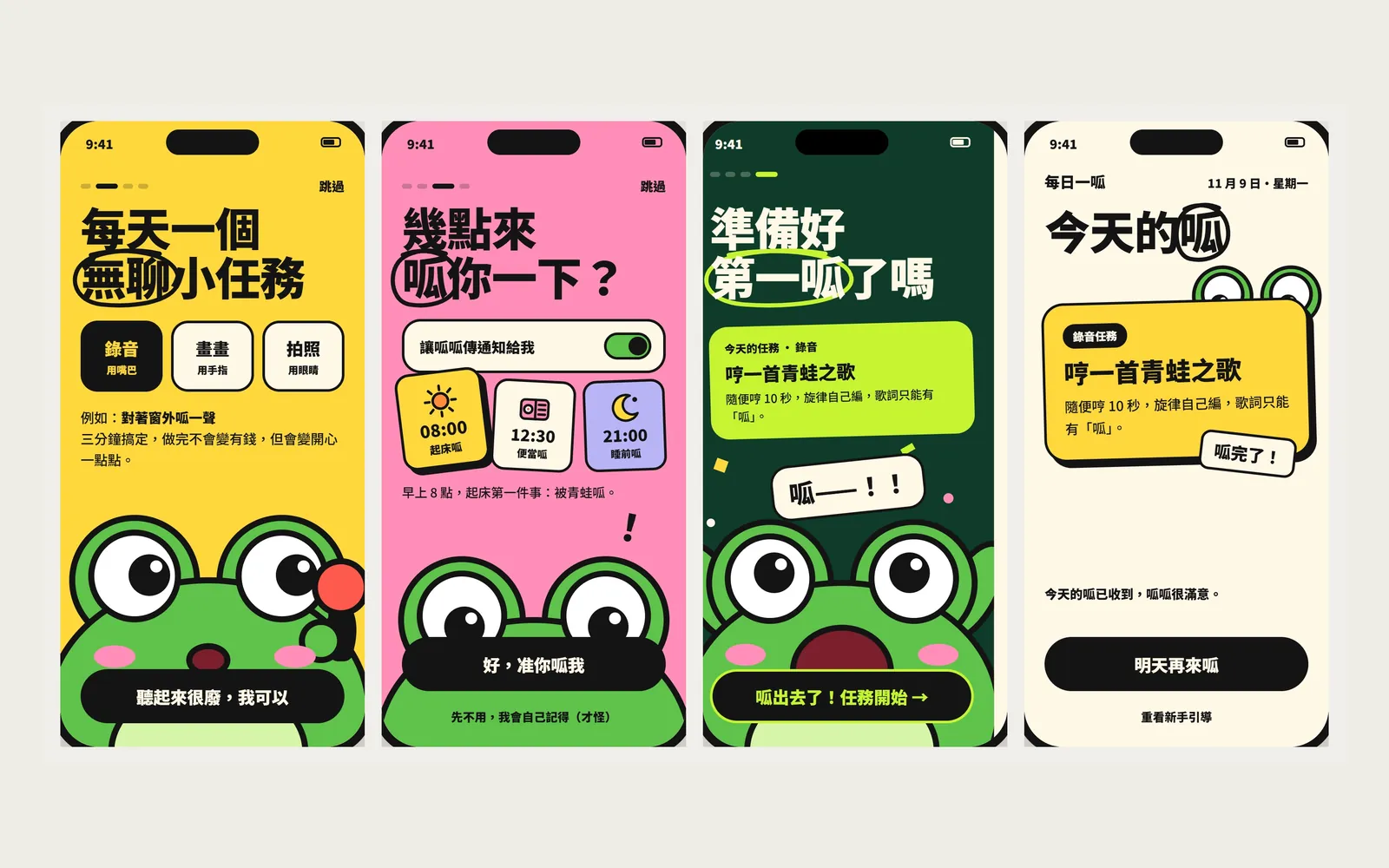
Your app works, but the onboarding keeps getting pushed back? On Claude's official Instagram, an Anthropic designer showed a workflow: attach the app's code, ask Claude Design for a few directions, leave comments on the screens, fix the details yourself, then one last line: "make it a prototype". We tried it on our own fictional side project, 每日一呱 ("One Croak a Day": a frog gives you one silly task a day). Every image below was made by Claude Code and Claude Design on 9 November 2026.
01Open Claude Design (1 minute)
- Go to claude.ai/design and sign in with your Claude account. Claude's official pages say Design is available on every plan, including Free.
- The standalone claude.ai/design site stays open until 14 December 2026, and you can already use Claude Design inside a normal Claude conversation.
- Start a new project and pick the phone-app template. We used "Mobile app design"; Claude's official pages don't list template names, so it may be renamed.
How to pick a template and export is in our FLOAT ISLE article; how to make screens feel branded is in the Alley Cat Coffee one. This guide covers one thing: when the app already exists, how to make Claude Design design from your code and link the screens into a prototype you can click through.
- Design an app without opening Figma: 6 clickable screens in Claude Design — Template, hand-over notes, export
- Make Claude's app designs look shipped, not wireframed — Mascot, product photos, one colour system
- Reference video: Claude's official Instagram — The original flow shown by an Anthropic designer
02Step 1: have an app, however plain
This flow assumes you already have the code for an app. We didn't, so we first asked Claude Code for the plainest possible version. Features only, no design.
Build me a small side-project mobile web app called "[app name]".
Idea: [one line on what the app does].
For now I only need the basics, it doesn't have to look nice yet:
- Home: [what the home screen shows]
- [what happens after the main button]
- When done, show "[one line for the finish]"
- Put [the data] in [file name].json, at least [number] items
- All interface text in Traditional Chinese (Taiwan usage)
Files: index.html, style.css, app.js, [file name].json. Mainly for a 390×844 phone screen.
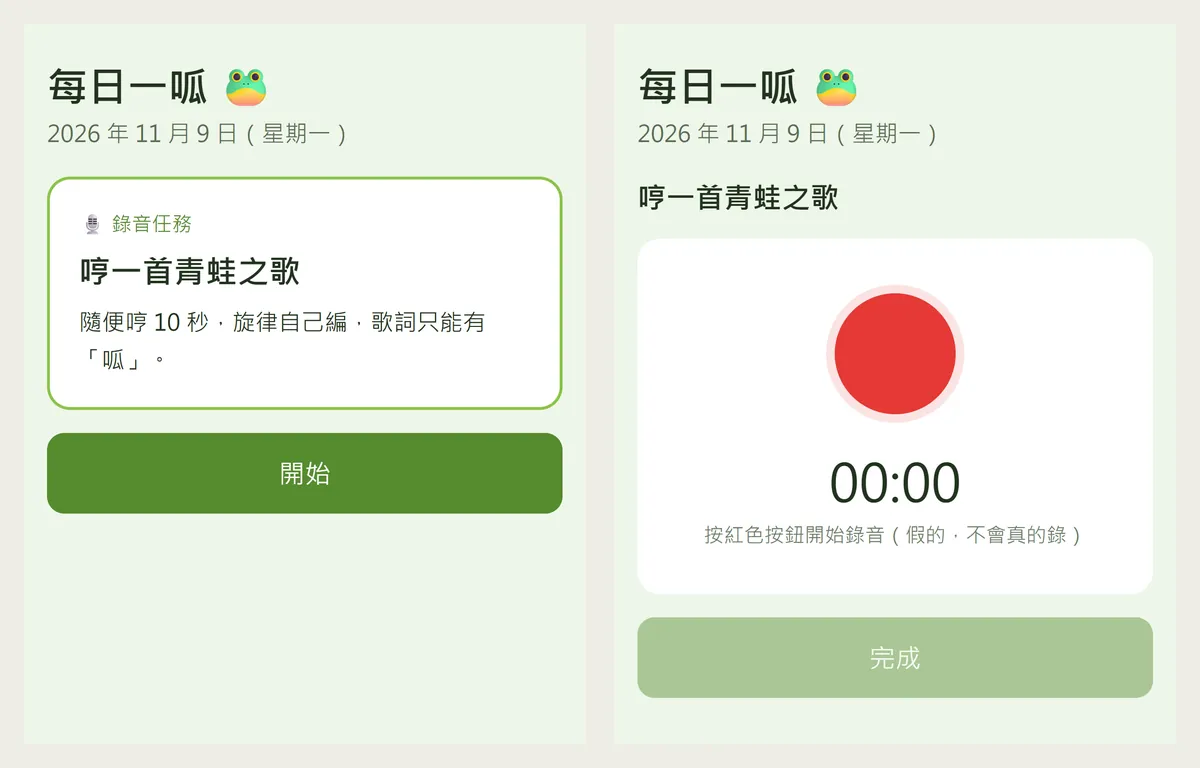
Claude Code wrote 4 files: index.html, style.css, app.js and tasks.json. tasks.json holds 9 tasks of three kinds (record, draw, photo), and app.js picks one per day by date.
03Step 2: attach the app's code to Claude Design
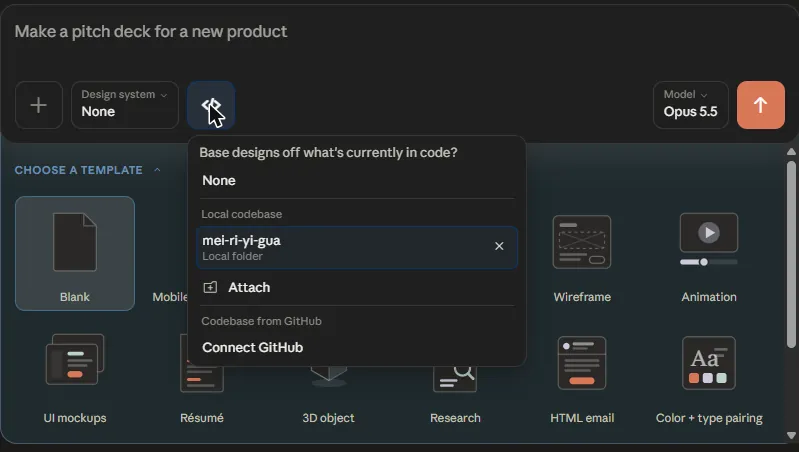
- Under the new-project prompt box, click the </> code button. It asks "Base designs off what's currently in code?".
- Choose Local codebase → Attach and pick your app's folder. If the code is on GitHub, use Connect GitHub below it.
- Once attached, the folder name shows in the menu (ours was mei-ri-yi-gua). Don't send yet; paste the prompt in the next step first.
After sending, the chat on the left shows it reading files: "Listing local files, Reading local file ×4", which were our 4 files. Its own to-do list says "read UI HTML, explore codebase" and "extract tokens/fonts/assets from source".
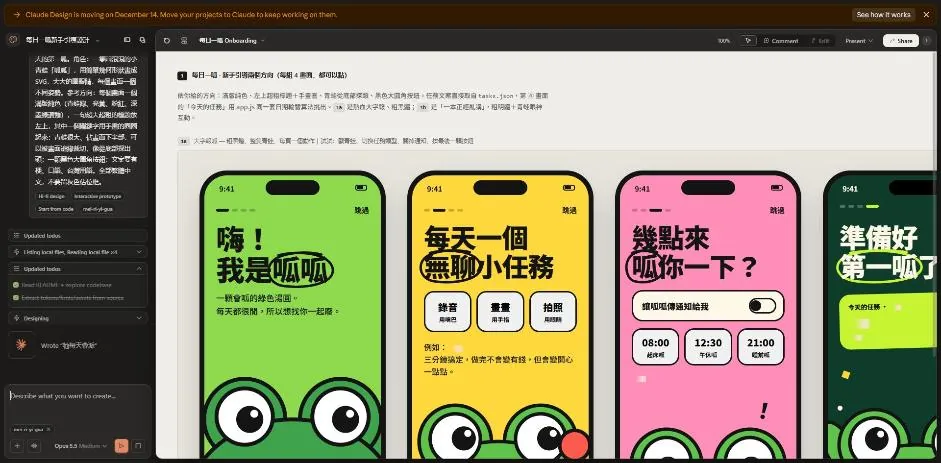
Reading the code makes a visible difference. At the top of the canvas it noted that the task copy comes straight from tasks.json, and that screen ④'s "today's task" is picked with the same date rotation as app.js. So every task on the onboarding screens is a task our app really has.
04Step 3: ask for options, not one answer
The most important line in the prompt is "give me 2 different directions, 4 screens each". Number the screens and say what each one should do.
Look at this app's current code ([one line about your app]). Design a [fun / professional / warm] onboarding for it, phone screens, and give me 2 different directions, 4 screens each: ① welcome + meet [the character or brand] ② explain [how the app works] ③ ask about notifications ④ ready, start [the first action].
Direction: [background colour per screen], one huge extra-bold headline top left, [how to highlight one key word]; [where the character or hero visual goes]; one [button style]; casual copy in Taiwan Mandarin.
All text in Traditional Chinese, no grey placeholder boxes.
This is what we actually pasted (in Chinese; translated here):
Look at this app's current code (每日一呱 "One Croak a Day": a little frog gives you a different silly task every day). Design a fun, slightly goofy onboarding for it, phone screens, and give me 2 different directions, 4 screens each: ① welcome + meet the frog ② explain one task a day (record, draw, photo) ③ ask about notifications and when to croak at you ④ ready, start today's first croak. Character: a round little frog called 呱呱 (Gwa-gwa), drawn as SVG from simple shapes, big round eyes, a different pose on every screen. Direction: one full-bleed flat colour per screen (frog green, bright yellow, pink, deep ink green), one huge extra-bold headline top left with one key word circled by hand; the frog large in the bottom half, cropped by the screen edge as if peeking up from below; one big black rounded button; witty, casual copy in Taiwan Mandarin. All text in Traditional Chinese, no grey placeholder boxes.
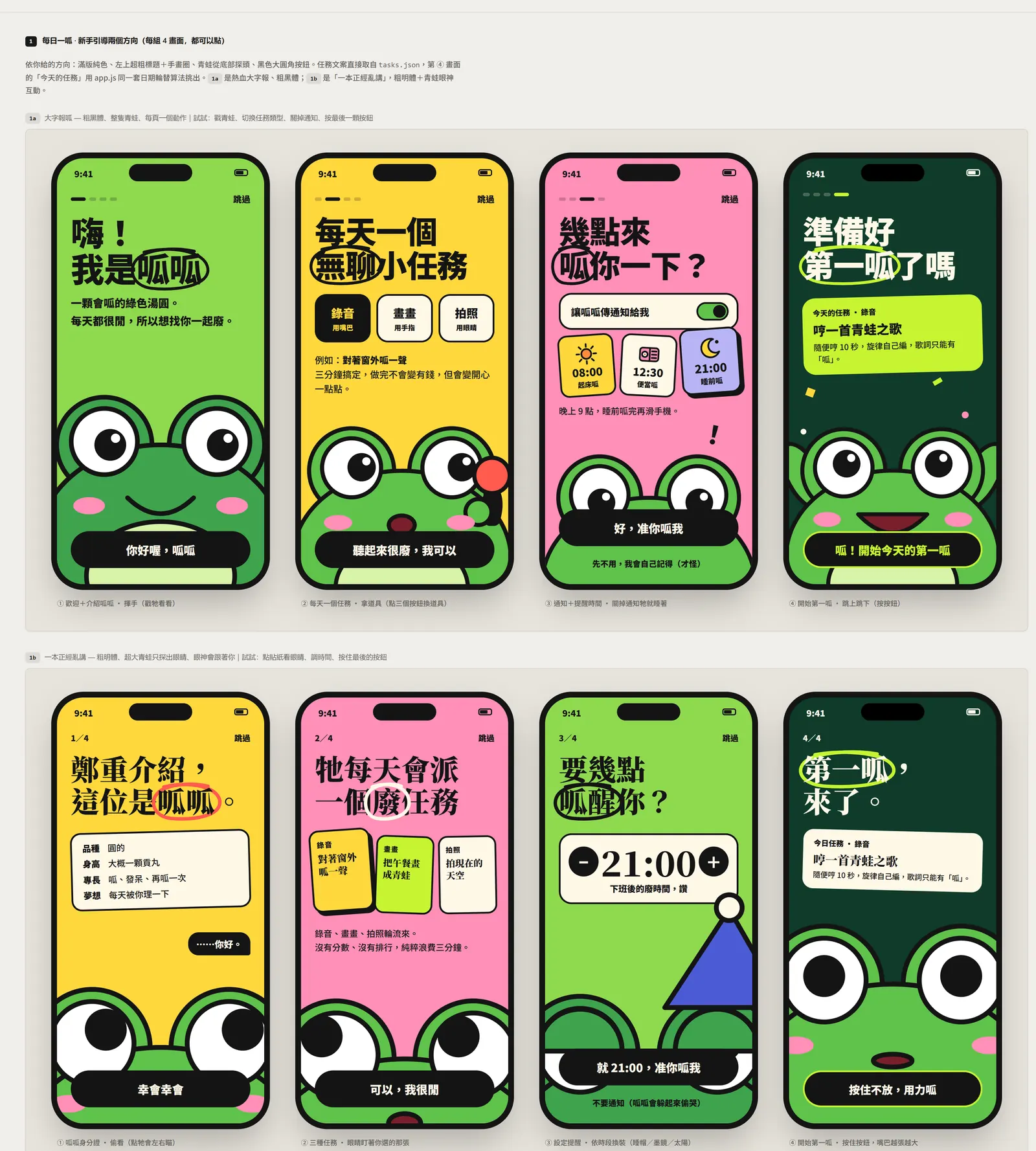
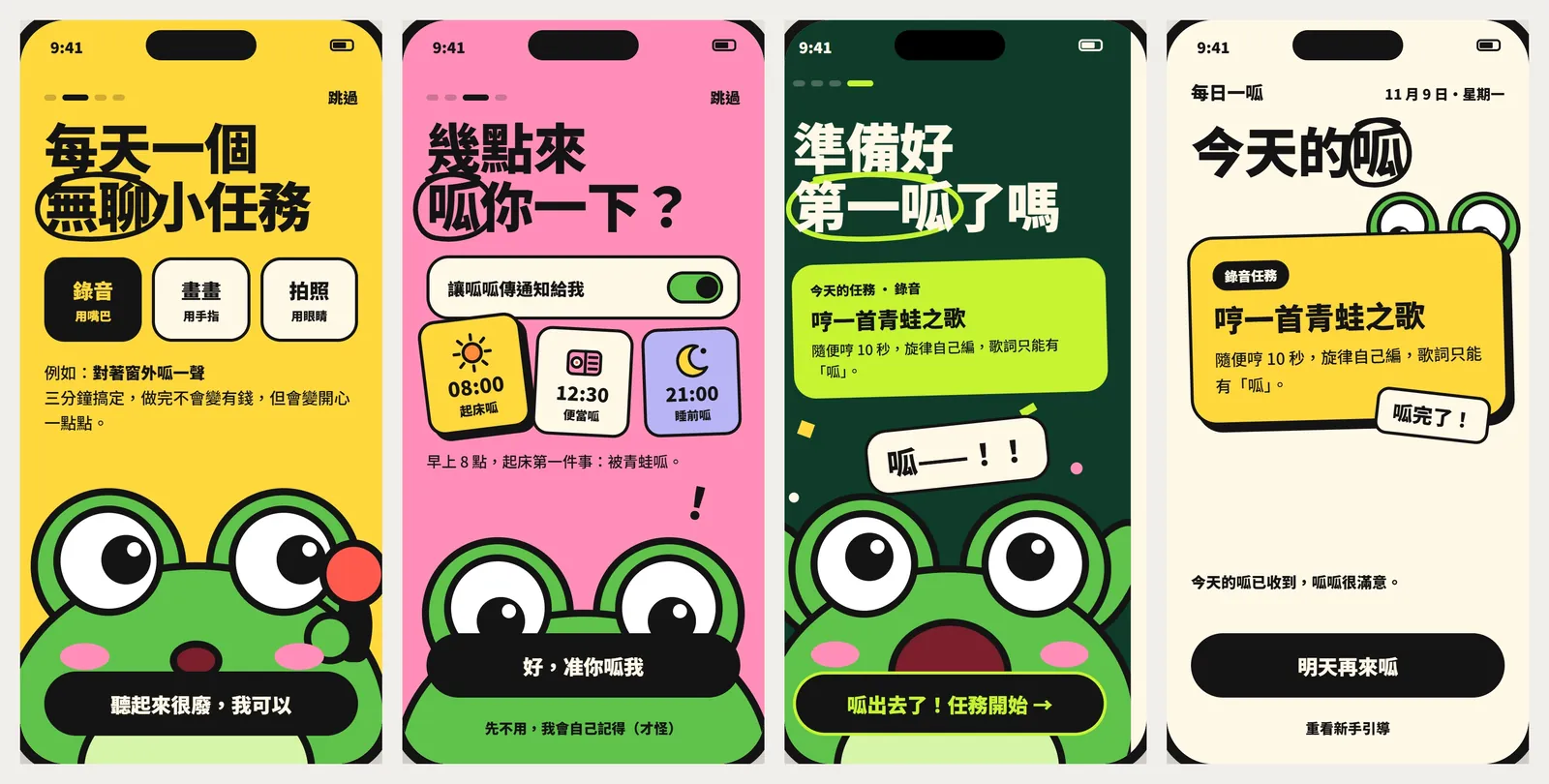
- 1a "big poster croak": heavy sans, the whole frog, one action per screen. On screen ② you can tap record, draw or photo and the frog swaps props.
- 1b "dead-serious nonsense": heavy serif, a huge frog showing only its eyes, which follow you. Screen ③ sets the time with plus and minus buttons.
- Every screen in both sets is clickable. It also ran its own check, decided the page had too many animations and was too heavy, and trimmed them before we said anything.
05Step 4: pin comments right on the screens
- Click Comment in the top toolbar to enter comment mode.
- Click the element you want changed, type your comment and press Add comment. Our comment box also had a Send to Claude button that sends it straight away.
- When you're done, type one line in the chat, "apply the comments", and say what should stay untouched.
We left two comments:
- On the time buttons on 1a ③: "The three time buttons look too much like a settings page. Make them three tilted sticker cards, each with a small icon (sun, lunchbox, moon)."
- On the circled headline on 1a ①: "The headline + hand-drawn circle feels right! Keep it, and use the same stroke weight for the circles on the other screens."
I left two comments on the canvas. Apply them to [1a] only ([1b] stays as is).
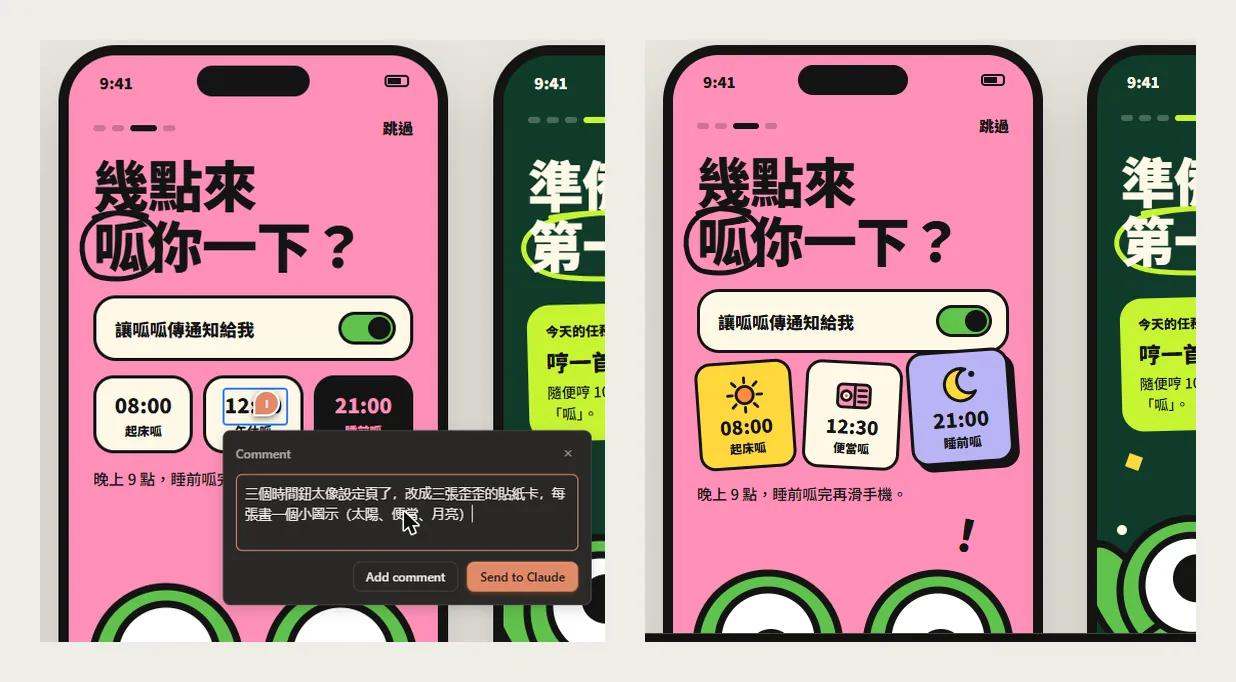
It first "Viewed comments", then changed 1a and left 1b alone. 08:00 起床呱 (wake-up croak) is yellow with a sun, 12:30 is cream with a lunchbox, 21:00 睡前呱 (bedtime croak) is purple with a moon. The circles already had the same stroke weight, so it left them.
It also listed small changes we hadn't asked for: the 12:30 label went from 午休呱 (nap croak) to 便當呱 (lunchbox croak) to match the icon; the cards got taller, so the reminder line below moved down; and the purple on the moon card is a new colour, not one from our palette.
06Step 5: fix small details yourself, no need to ask Claude
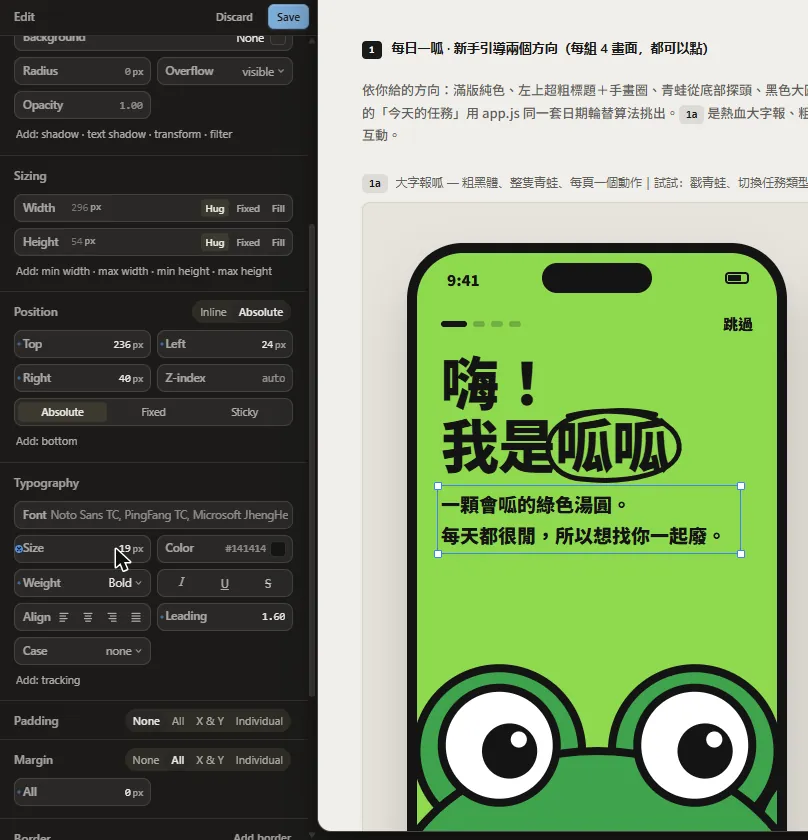
For things like a slightly bigger or bolder line, editing it yourself is faster than explaining it.
- Click Edit at the top to enter edit mode.
- Click a piece of text and a properties panel opens on the left: size, weight, colour, line height and position are all there.
- Press Save at the top left when you're done, or Discard if you don't want it.
07Step 6: one last line, make it a clickable prototype
At this point the 8 screens are still 8 separate phones on the canvas. One last line asks it to link the chosen set into a complete flow inside one phone.
OK Claude, turn [1a] into a clickable prototype: a single phone screen, [the main button] moves you page by page (with a slide transition), "Skip" jumps straight to the last page; at the end, "[the last button's label]" goes into the app's home screen ([what the home screen should show], same content as the current app's home page, but in the new style).
OK Claude, turn 1a into a clickable prototype: a single phone screen, the black button moves you page by page (with a slide transition), "跳過" (Skip) jumps straight to the last page; at the end, "呱!開始今天的第一呱" (Croak! Start today's first croak) goes into the app's home screen (today's task card, same content as the current app's home page, but in the new style).
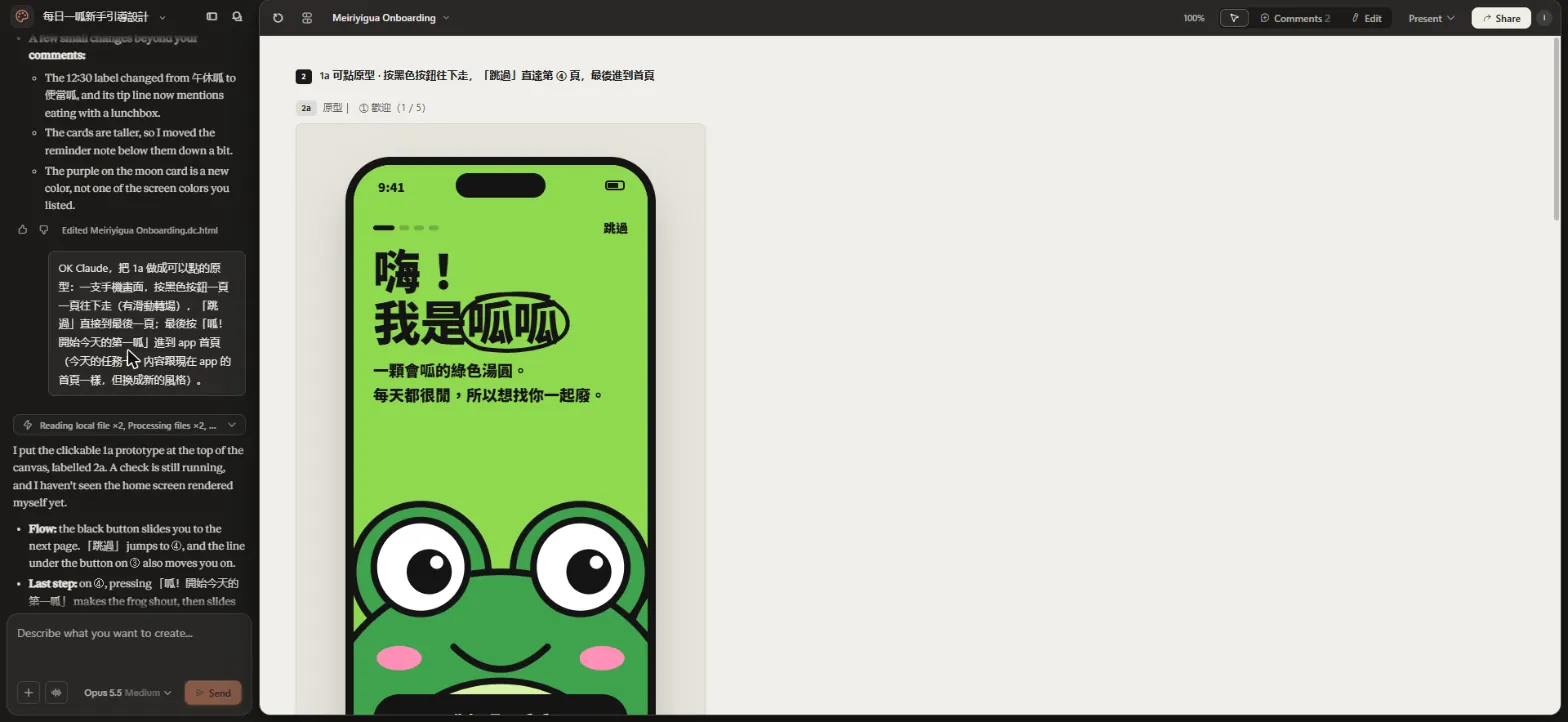
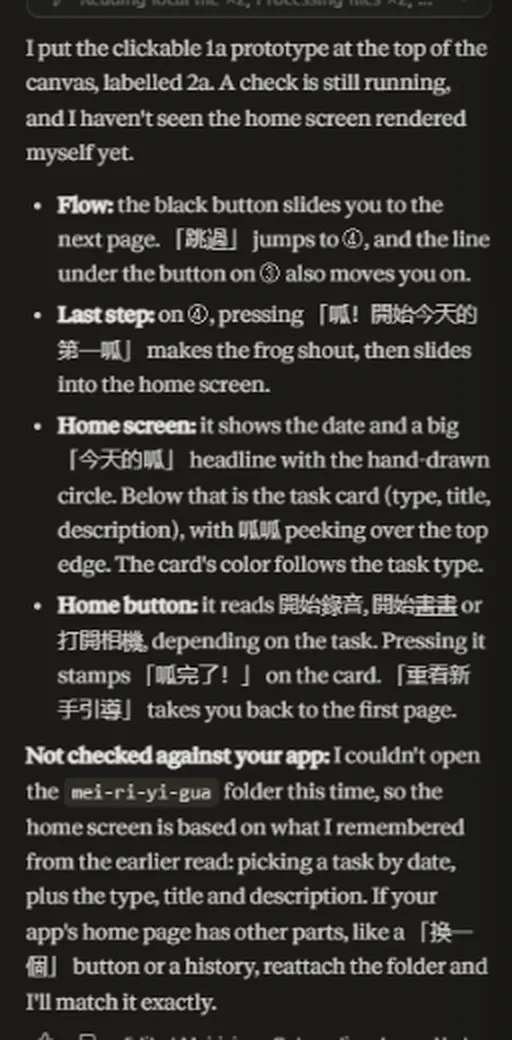
- The black button slides you to the next page; "跳過" (Skip) jumps to screen ④.
- On screen ④, "呱!開始今天的第一呱" makes the frog shout, then slides into the new home screen.
- The home screen shows the date, a huge "今天的呱" (today's croak) and today's task card, coloured by task type. The button reads Start recording, Start drawing or Open camera depending on the task, and pressing it stamps "呱完了!" on the card.
- "重看新手引導" (Replay onboarding) takes you back to page 1.
To be honest about one thing: at this step it said it could no longer open our folder. The code was attached in step 2, the page had been reloaded since, and the attachment didn't survive. So the new home screen is based on what it read earlier: a task picked by date, plus the type, title and description. It wrote in the chat itself that this was "not checked against your app", and said that if the home page has other parts, like a "換一個" (another one) button, we should reattach the folder and it would match it.
08Step 7: hand it to Claude Code to build the real app
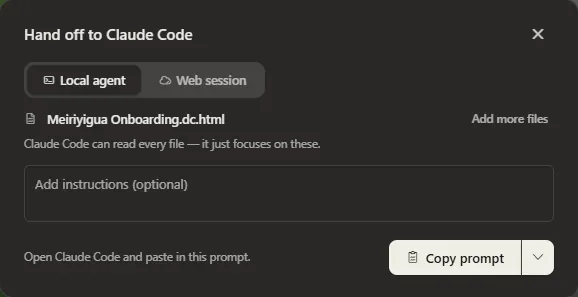
- Click Share at the top right and choose Claude Code.
- "Hand off to Claude Code" opens: choose Local agent (Claude Code on your computer) or Web session; the design file to hand over is listed below.
- Add a line under "Add instructions" if needed, press Copy prompt and paste it into Claude Code.
09Things to know
- 每日一呱 is our own fictional side project, not an app in any store. Claude Code wrote the first version; Claude Design made the onboarding, the frog illustrations and the prototype. For demonstration only.
- We drove the browser with an automation tool. The folder picker is a system dialog the tool can't click, so the tool handed the app's 4 files to the picker directly; Claude Design then read those 4 files itself. When you do it by hand, just pick the folder as normal.
- The code attachment didn't survive a page reload, so in the last step Claude built the home screen from what it had read earlier, and said so in the chat.
- Clickable means prototype, not a real app: recording and notifications don't actually work. To ship it, Claude Code or a developer still has to build the real thing, then test and submit it for review.
- We made this on 9 November 2026 at claude.ai/design with Opus 5.5. Template names, buttons and menu positions are what we saw then and may change.
- The official export formats are PDF, PPTX and standalone HTML, plus sending to Canva. The standalone claude.ai/design site stays open until 14 December 2026, and when we worked, a banner at the top asked us to move the project into Claude. Export a backup of anything important.
Sources
- Anthropic: Introducing Claude Design (export formats and hand-off to Claude Code)
- Claude Design official product page (plans, claude.ai/design dates)
- Claude article: Docs, Slides and Design out of beta, on every plan (8 Oct 2026)
- Claude Code official page
- Reference video: Claude's official Instagram, an Anthropic designer using Claude Design